Better overview, more languages
Short description of the learning setting
Courses: lecture and design practical „Object-Oriented Programming 1“ (OOP1) and „Introduction to Structured Programming“ (German abbreviation: ESP)
Group size: over 700 students in ESP and over 500 students in OOP1
Delivery method: flipped classroom in ESP and online in OOP1
In the course „Introduction to Structured Programming“, there are many different contents, which has led to both the students and the course team quickly losing track. To solve this problem, the TeachCenter course was restructured with the help of a very effective resource – the text and media area.
In addition to structuring the course page, the text and media area offers two further useful features that are introduced in this article, namely the possibility to
- easily offer content in German and English
- embed external content (such as a cloud calendar or videos) on the course page
More structure with the text and media area
The following images show how a course page can benefit from restructuring. The left image shows a TeachCenter section in which all materials have been arranged in a long list. The list in the example only shows materials for the first two lecture units. One can imagine how the TeachCenter course would look like at the end of the semester…
The right image shows a much clearer arrangement of the same materials. Here the contents are separated by headings and materials that belong together (such as a video with accompanying slides and additional materials) are located in the same row.
On the right-hand side, the same content is presented in a much clearer way. Here the content is separated by headings, and related content, such as a video with the corresponding slides and any additional materials, is placed in the same row.
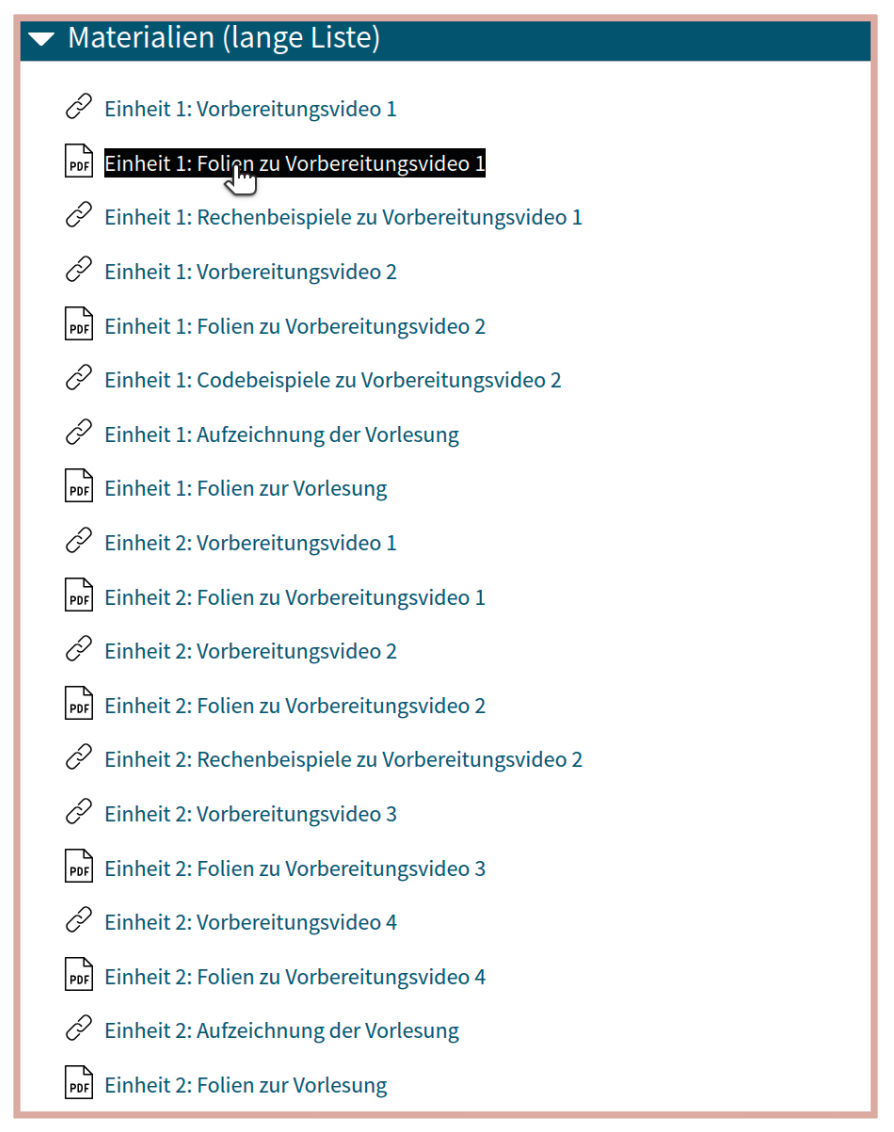
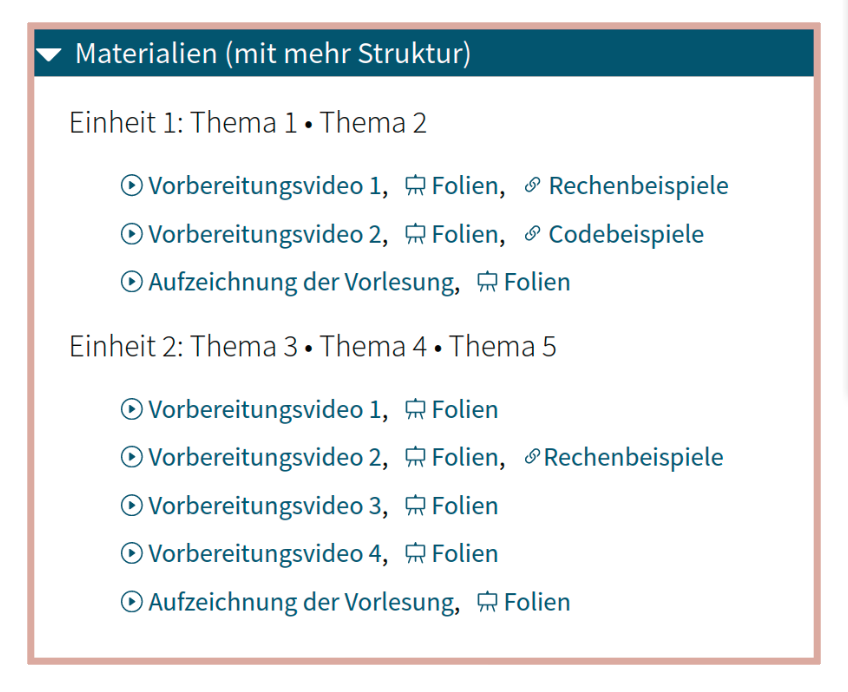
The elements of the original list have been hidden and arranged in a different structure instead. Hiding can be achieved by selecting the setting „available but not shown on course page“ for the respective activity in editing mode. The entire list can then simply be replaced by a single new material – namely the text and media area.

Indents within a label can be inserted in the source code view of the editor.
Example: <p>This paragraph is indented.</p>
With the text and media area, teachers have the freedom to insert all content in the desired form. For this purpose, a text editor is available. In this editor, for example, all materials of the original list can be linked and headings can be used to create structure.
Provided that the linked content is accessible, linking in the label is also an accessible solution, as it is clearer and can be read by a screen reader.
If you have HTML knowledge, there are no limits to your creativity. With this, further ideas can be implemented, such as indents or icons, as can be seen in the screenshot.
Bonus tip 1: offer content in German and English
With the text and media area, content can easily be offered in German and English.
For example, if the text „Aufzeichnung der Vorlesung“ should also be displayed in English, you can write directly into the text and media area (not necessarily in HTML mode): {mlang de} Aufzeichnung der Vorlesung
{mlang} {mlang en} Lecture recording
{mlang}
Bonus tip 2: embed external content
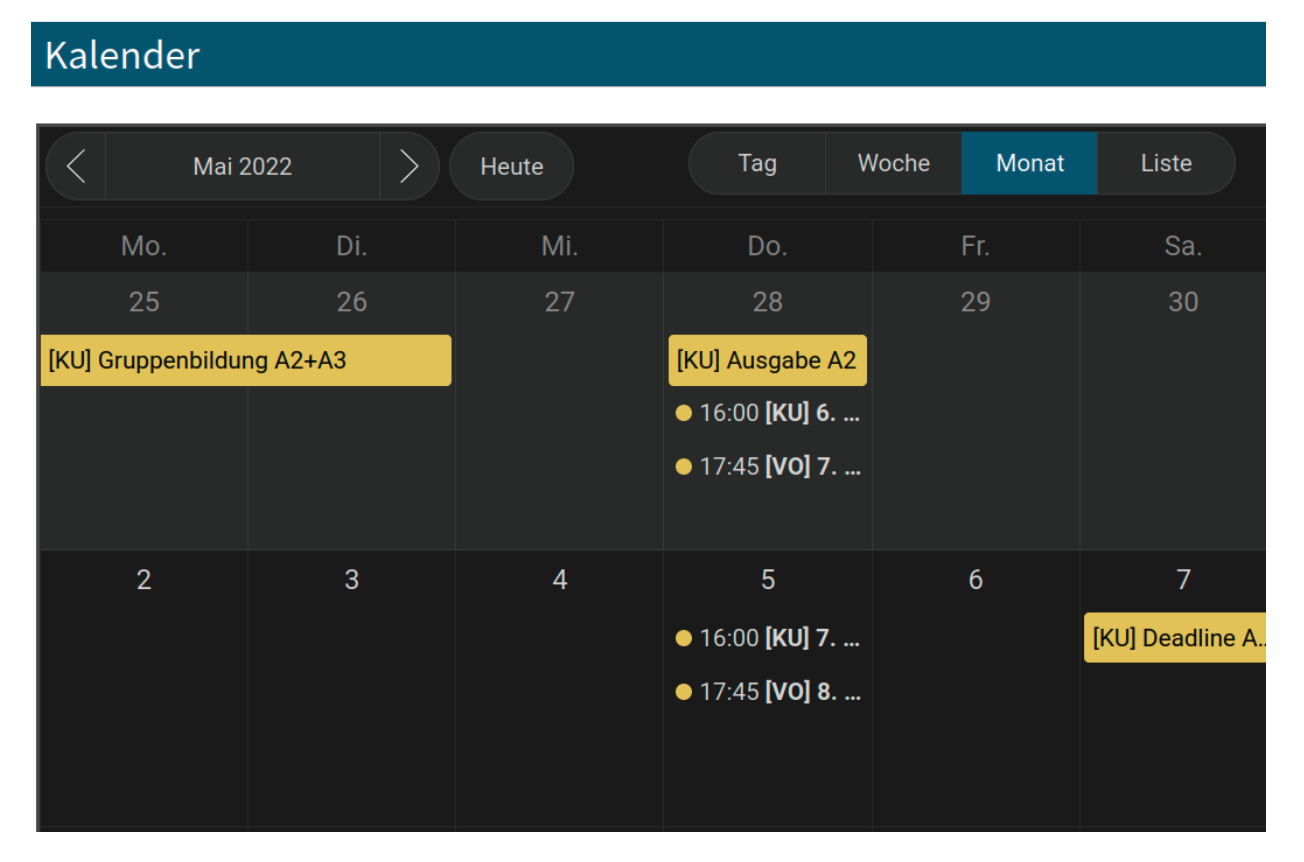
External content can be embedded as <iframe> in the source code view of the editor. This can be used, for example, to add a cloud calendar (from the TU Graz Cloud (external site) ) directly to the course page, as shown in Fig. 2.
The HTML code for this is: <iframe src=“https://cloud.tugraz.at/index.php/apps/calendar/embed/XYZ“width=“800″ height=“600″></iframe>
- Category
- TeachCenter
- Published
- Updated
- Authors
- Aleksandar Karakaš & Alexander Steinmaurer (Institute of Interactive Systems and Data Science)