The easiest way to interact with your students
„Feedbackr is a state-of-the-art Audience Response System. It uses your participants‘ devices and does not require any additional hardware.“ (Karin Pichler)
Visit the feedbackr page (external site)
How does feedbackr work?
Video about feedbackr:
Sie sehen gerade einen Platzhalterinhalt von YouTube. Um auf den eigentlichen Inhalt zuzugreifen, klicken Sie auf die Schaltfläche unten. Bitte beachten Sie, dass dabei Daten an Drittanbieter weitergegeben werden.
What can feedbackr do for your teaching?
Feedbackr is anonymous
With feedbackr you get honest answers, because it is anonymous for the participants. Be it anonymous honest feedback or answers to tricky questions – feedbackr makes it possible for you! Results in seconds
Participation in feedbackr is very easy. Within seconds you will receive the results, regardless of audience size. No app needed
Your participants can vote directly with feedbackr. There is no need to install an app. You only need an internet connection and a browser. No mutual interference
With manual voting, group dynamic effects can occur. However, since you can determine when the results are visible to all participants, your participants will not influence each other.

How can I use feedbackr as a teacher at Graz University of Technology?
- You can use your TU Graz credentials and single sign-on to use feedbackr free of charge. TU Graz has an education licence, which means that you can use all the feedbackr options. Choose education, then TU Graz Single Sign-On when logging in.
- Important: After registration, you will receive an invitation to the „TU Graz Organization“ by e-mail. Please accept this invitation before you create sessions.
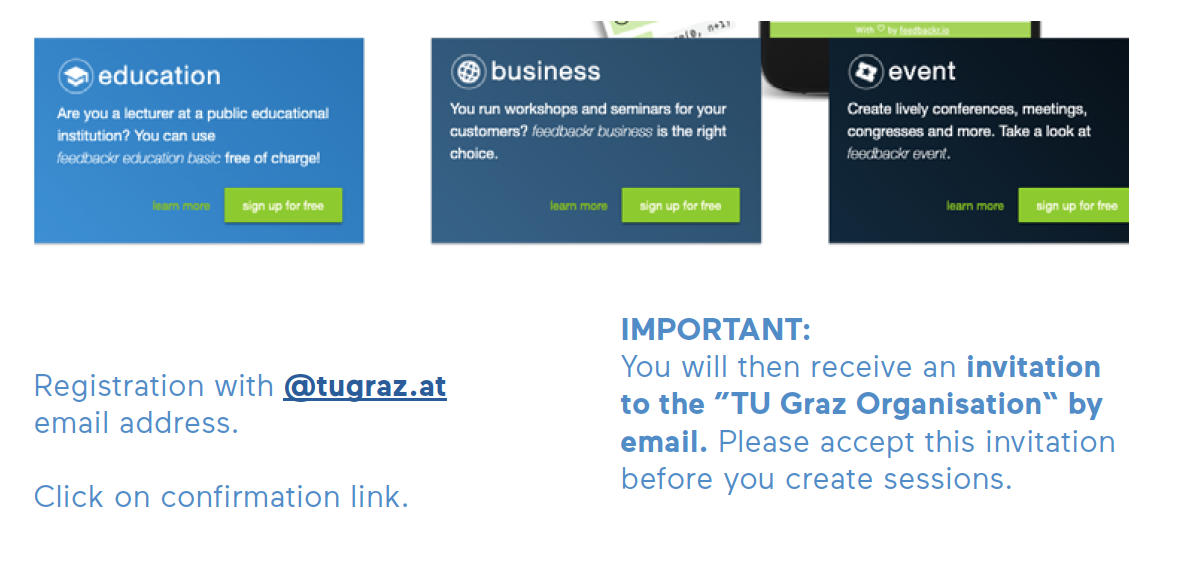
- You can create a session for your course after registration.
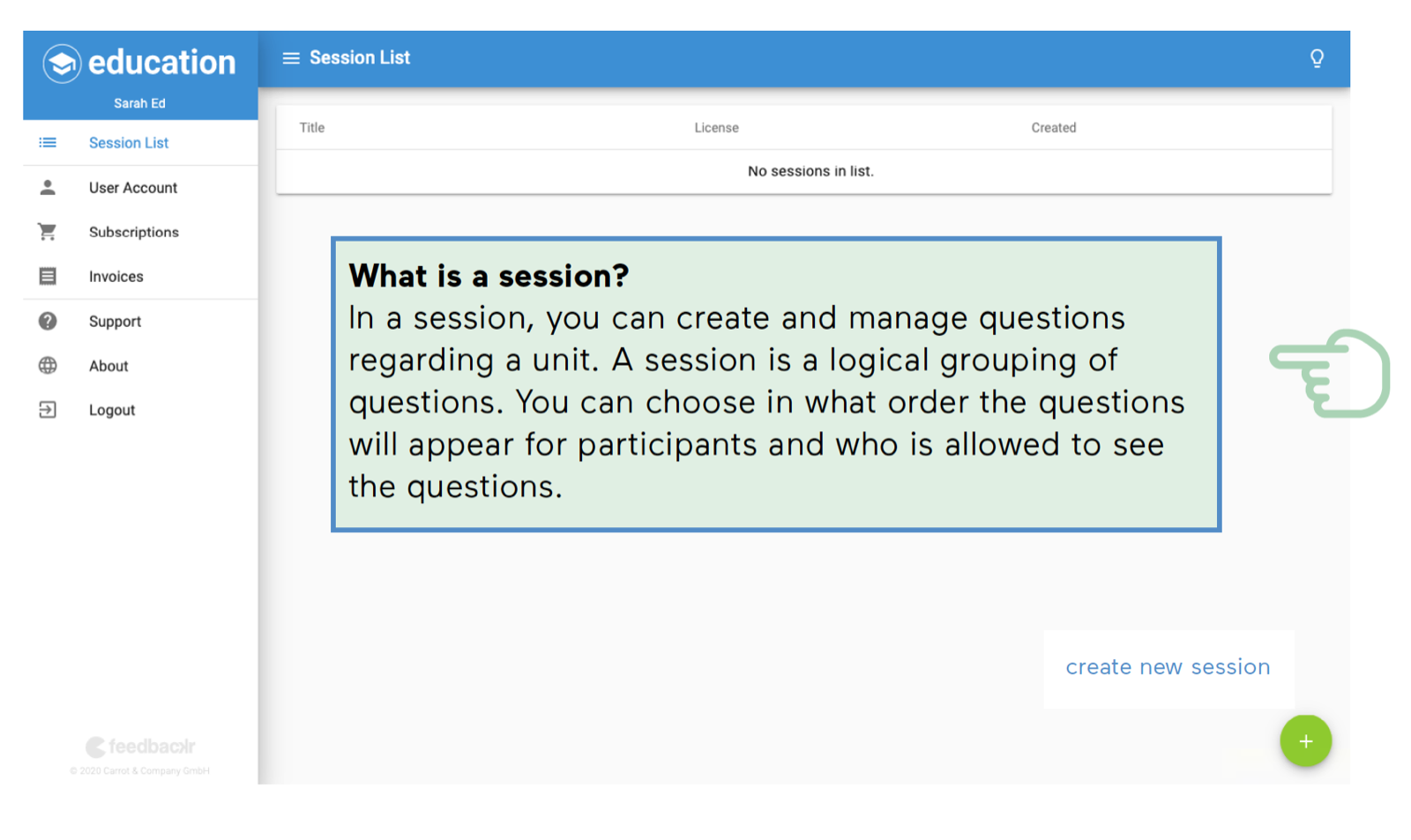
In a session, you can create and manage questions regarding a unit. A session is a logical grouping of questions. You can choose in what order the questions will appear for participants and who is allowed to see the questions.
How do I create a session?
- Click on the plus symbol at the bottom right.
- From different question types, you can choose the one that matches your contents. There is a choice of: Single choice question, multiple choice question and free text answer.
- Mark the correct answer(s). The correct answers will be displayed to the students after the voting has ended.
- You can also enable visibility so that students can immediately see each other’s answers.
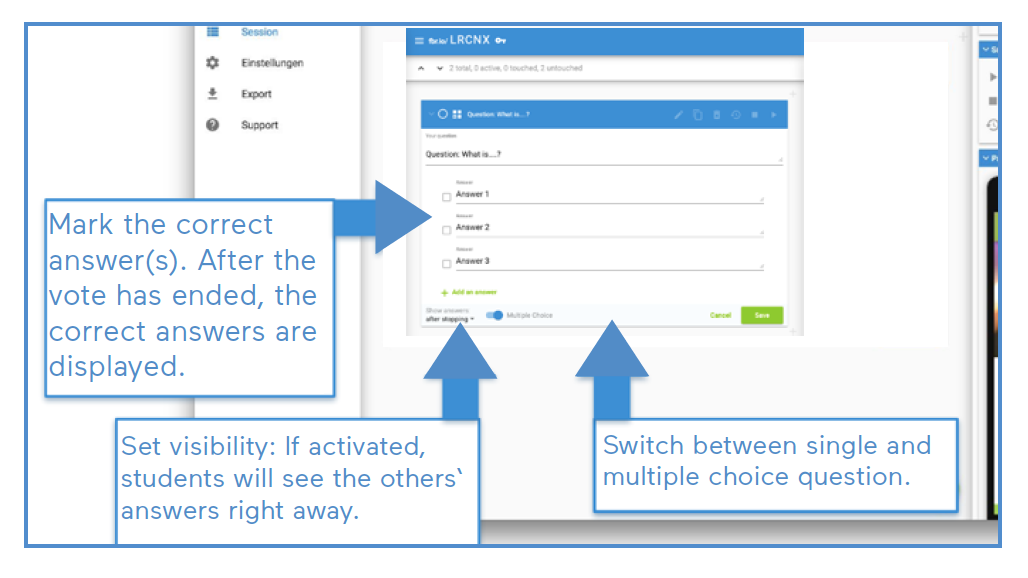
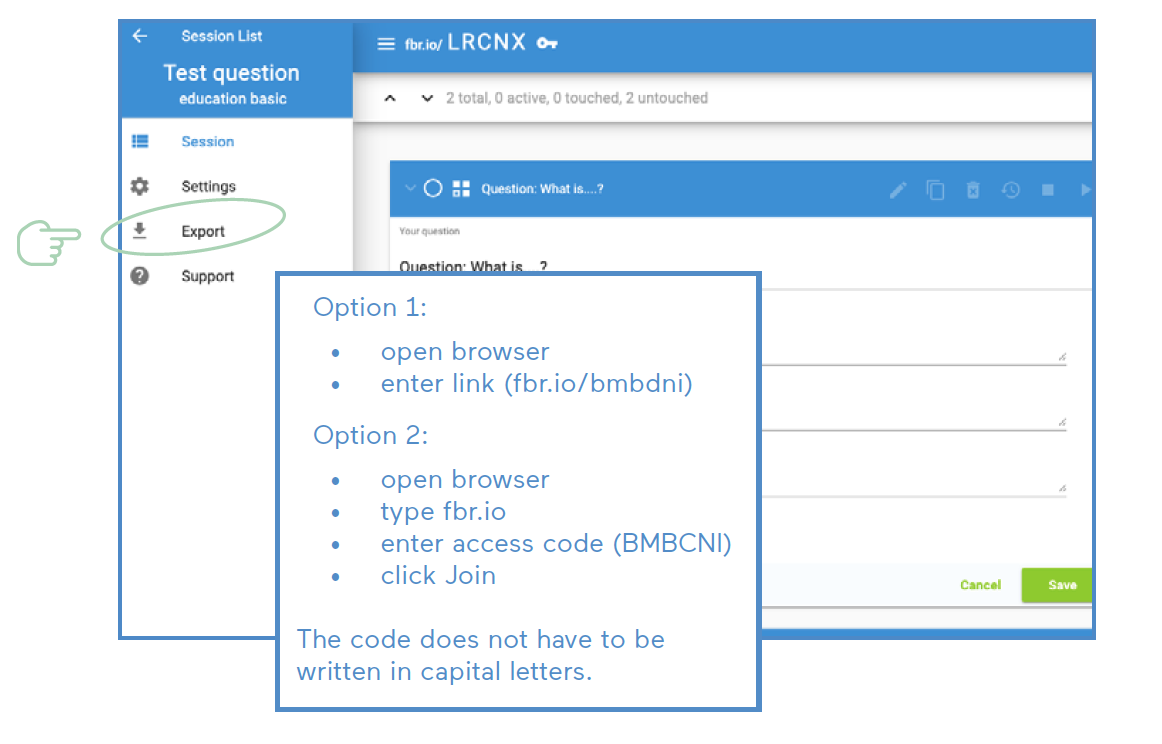
- As soon as you have finalized your session, you can tell your students the session code. They need to enter it in their browser and click Join. The code does not have to be written in capital letters.
- To export the results, click export on the lefthand side of the screen.
- Category
- Tools
- Published
- Updated
- Authors
- Clarissa Braun & Karin Pichler