This guide shows you how you can let students see their results at a post-exam review of an online exam (TeachCenter Exam, KnowledgeCheckR). At TU Graz, you can also offer your students digital post-exam reviews of their results using video conferencing tools.
Make an appointment with the student. The “Scheduler” activity in the TeachCenter might be useful for this. Tell your students the link to BigBlueButton or Webex.
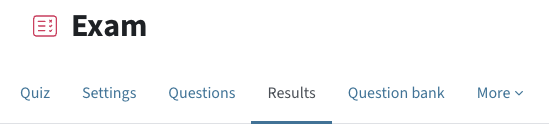
Open the exam course in the TeachCenter, click on the exam and then on the tab Results.
Go to your TeachCenter (Exam) course and open the exam.
Go to the Results tab.
See exam results
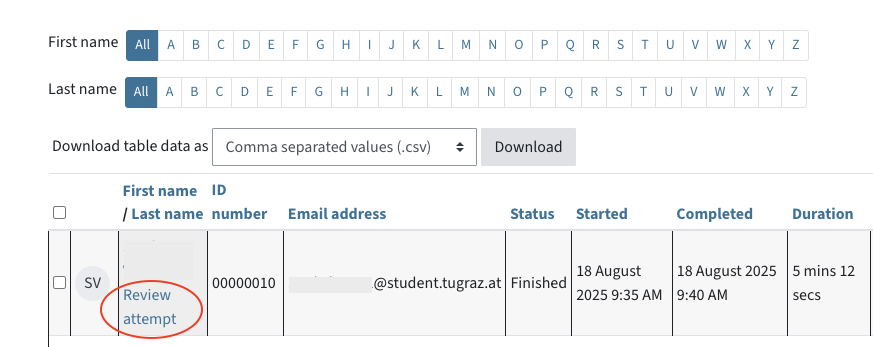
Scroll down a little to the table, look for the person who wants to review their exam (or use the letter filters) and, below the name, click on Attemptreview.
Scroll down a little to the table, look for the student or use the letters as filters, and click Review attempt below the student’s name.
Review attempt
Share your screen with the student. Show the student the exam.
Share your screen with the student on BigBlueButton or Webex.
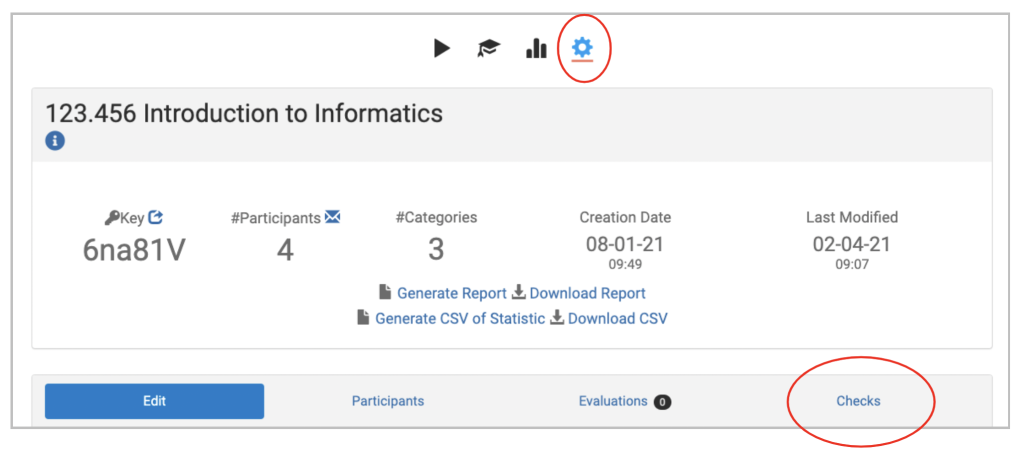
Open the app in KnowledgeCheckR, click on the blue gear icon and then on the tab Checks. Now select the exam to access its results.
KnowledgeCheckR App
Scroll down to almost the end of the page.
Now you have the possibility to either show the results online or to download them and show them in a PDF.
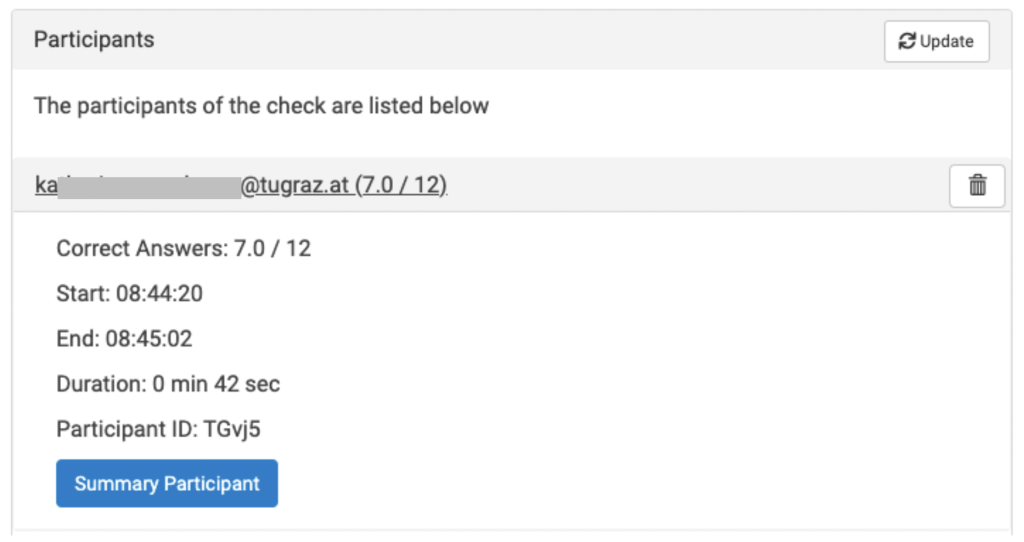
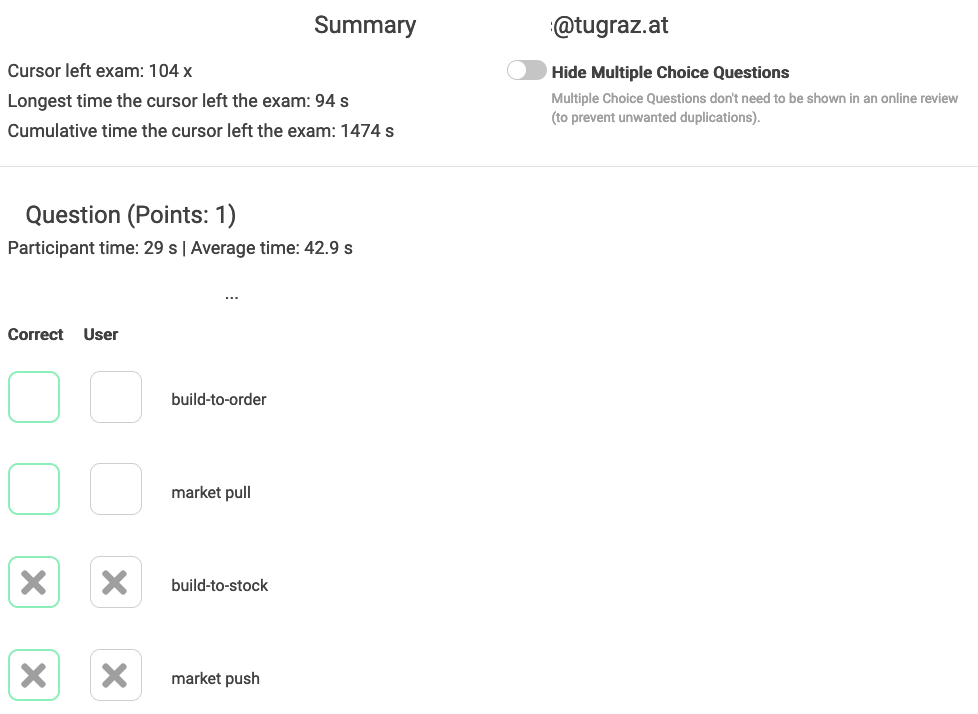
To show the results online, click on the student and then on Summary Participant. If you choose this method, make sure that no other results are visible in the background!
Participants of the Check
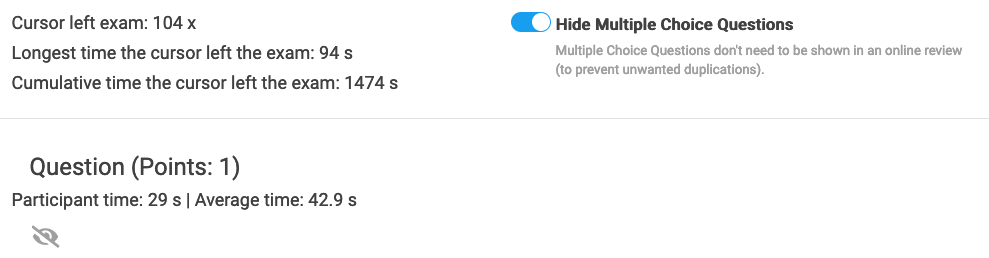
If you choose this method, you can also hide multiple choice questions with a slider because it is not necessary to let students see them by study law.
Prüfungseinsicht online im CheckRMultiple-choice-Fragen ausblenden
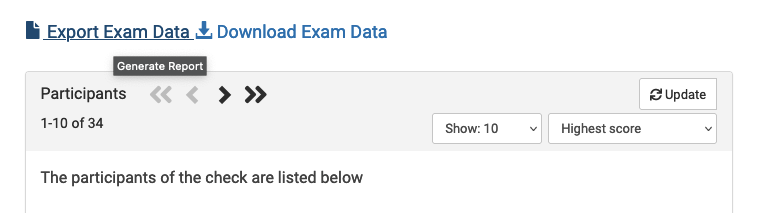
To download the results as a PDF file, click on Export Exam Data just above the participants’ list.
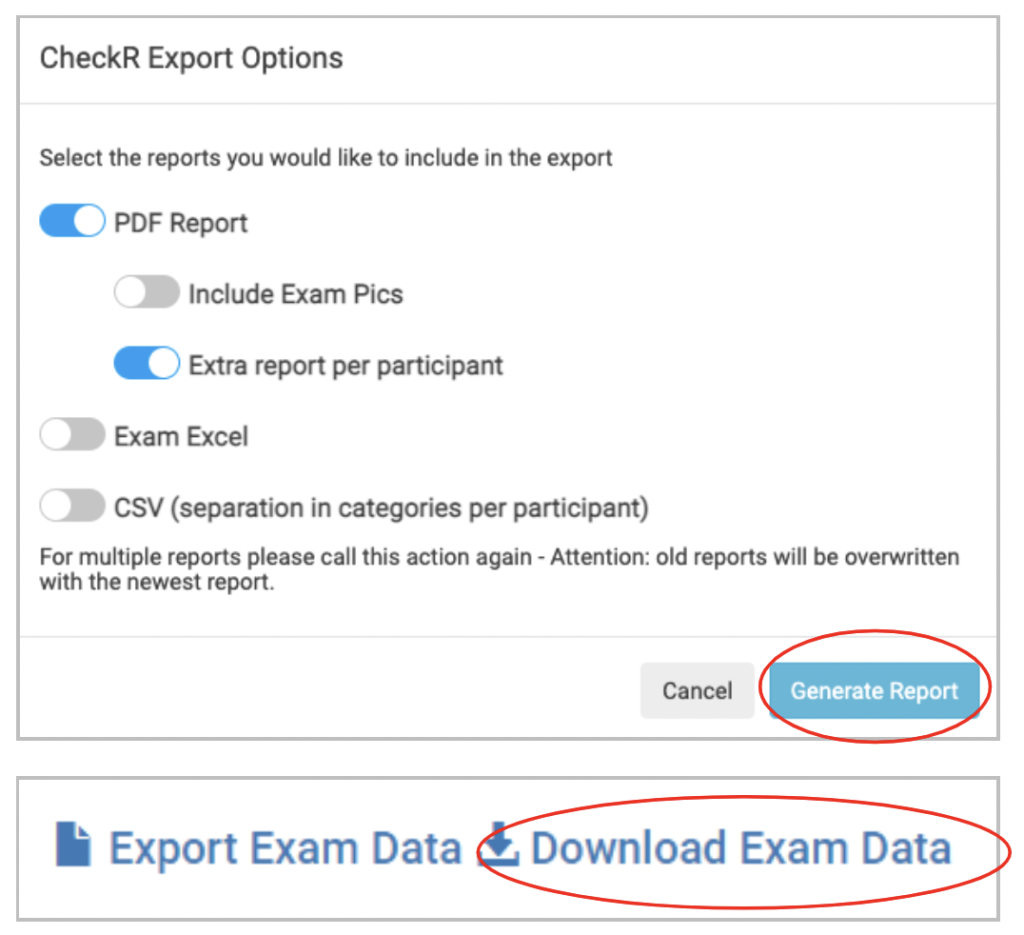
Ideally, select the format PDF Report > Extra report per participant. By clicking on Generate Report
Now you can click Download Exam Data and download the generated PDF file.
Exporting and downloading exam data
Share your screen with the student using one of the video conferencing tools supported at TU Graz (Webex, BBB). Show the exam and results to the student.
Help & contact
For questions on TeachCenter / TeachCenter Exam and KnowledgeCheckR: tc@tugraz.at