Features on TUbe, Webex and in the TeachCenter
As it is our goal to enable accessible teaching, new features are constantly being added to the TeachCenter and TUbe to make teaching and learning content more accessible. Other programmes supported at TU Graz, such as Webex, also add new features for more accessibility on an ongoing basis. In this article, we would like to present some of the innovations in the area of accessibility:
WHAT IS NEW?
- Subtitles on TUbe and Webex
- An Accessible TeachCenter design
- The Accessibility Toolkit, a new feature for more accessibility in the TeachCenter
Subtitles on TUbe
As of March 2023, automatically generated subtitles are added to all lectures that are recorded in rooms of TU Graz (also called TUbe rooms). These subtitles are generated by an AI-based software called Whisper.
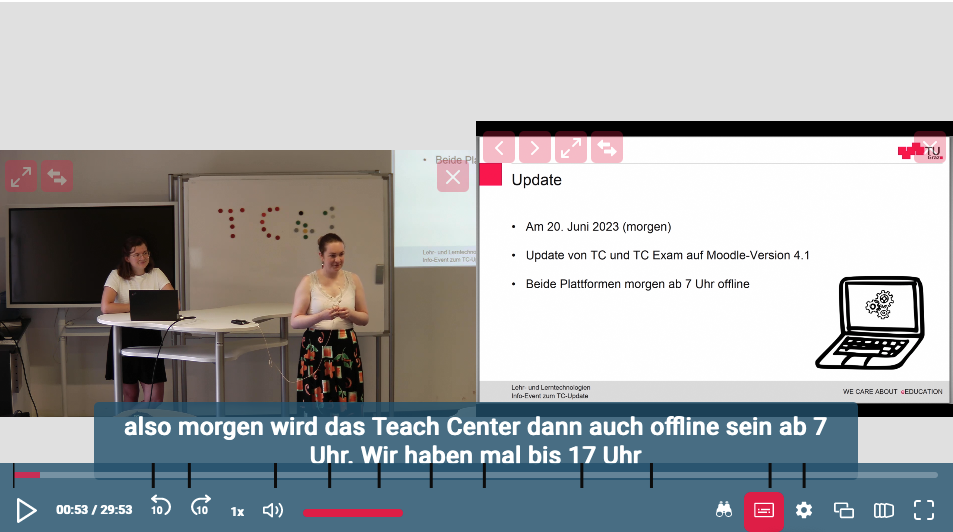
Subtitles are especially useful for deaf and hard of hearing students, but can also be beneficial for all other students who, for example, want to watch course videos but cannot currently watch the videos with sound.
Live subtitles on Webex
Students have the option to activate live subtitles directly in a Webex meeting for live online courses that are held on Webex. As soon as the subtitles have been activated and the language has been selected, live subtitles are being generated.
Accessible TeachCenter design
Since July 2023, it has been possible to switch to an accessible design in your own TeachCenter profile. The design is quite similar to the standard design, but the fonts are larger, and attention has been paid to higher contrasts. The colour combination red/green has been avoided in order to take colour blindness into account. The accessible design can facilitate access to the TeachCenter and its navigation. However, courses are only as accessible as the content provided. To check the content, you can use the Accessibility Toolkit, which is explained below.
Accessibility Toolkit
The Accessibility Toolkit is a new feature in the TeachCenter, which allows you to check course content for accessibility. Text areas, images and quiz questions can be checked. However, it is not possible to check contents of uploaded documents such as PDFs or TUbe videos. You can access the toolkit either via the course’s main menu or via the sidebar menu at the right.
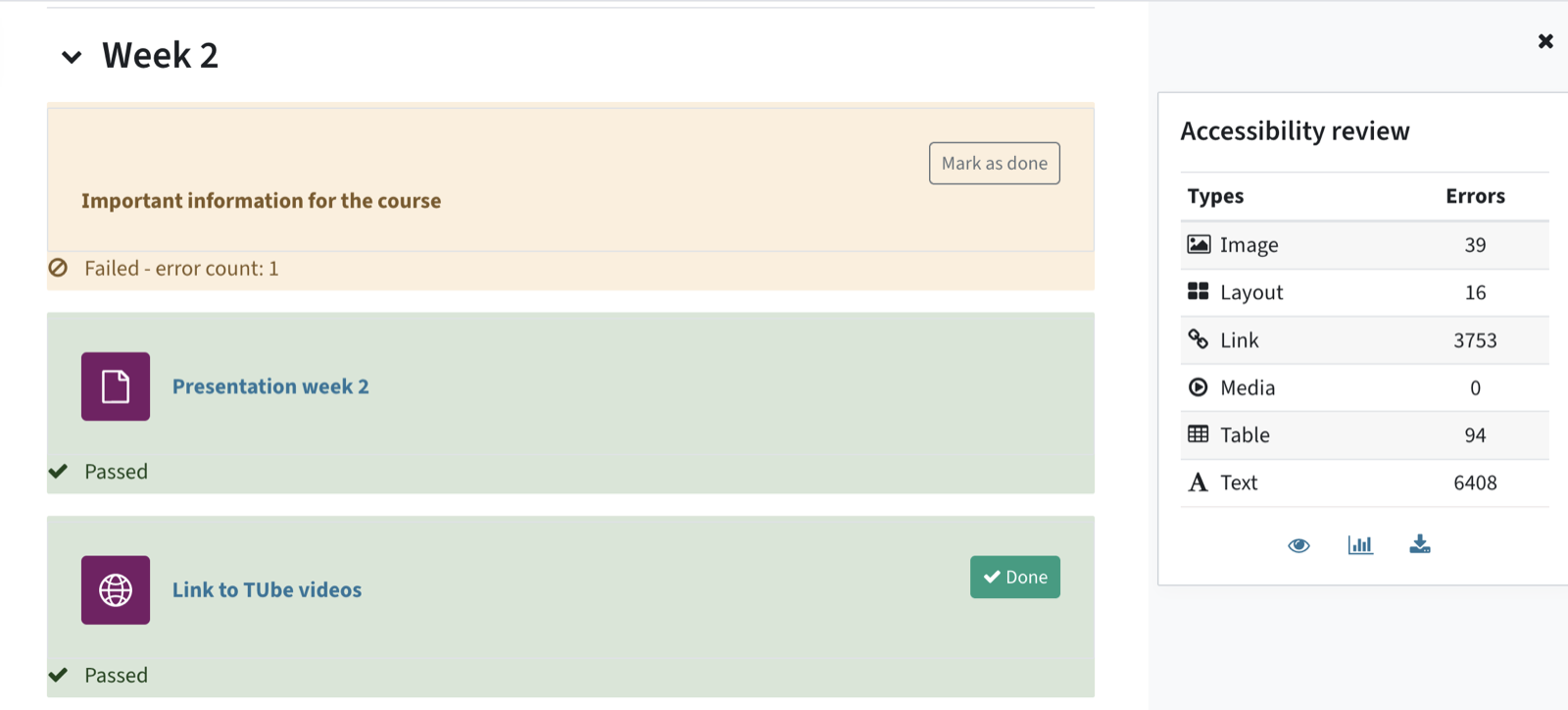
Contents are checked according to certain accessibility standards in six categories. After the check, an error list is provided. It contains links that allow you to directly correct any errors.
General information and contact
We hope that these new accessibility tools and features help you make your teaching more accessible. With any of these tools and systems, however, keep in mind that they might not cover all cases, and that they make courses more accessible, but not necessarily completely accessible for everyone.
Automated tools such as the Accessibility Toolkit use pre-defined accessibility rules. However, you have to decide in each case whether an error needs to be corrected or not.
The automatically generated subtitles and live subtitles might also contain mistakes, especially when it comes to specialised vocabulary, when the audio quality is not ideal or when the speaker has an accent.
We are always happy about feedback from students and teachers who use our accessibility features and tools.
- Category
- Higher Education
- Published
- Updated
- Authors
- TU Graz Educational Technology