
TUbe Recorder
The advantage of using the TUbe Recorder is that the recording is done locally and the quality does not depend on your Internet connection.
Using TUbe Recorder
Access to the TUbe Recorder
To use the TUbe Recorder, you need a TeachCenter course in which TUbeDrop is enabled. If this is not the case, request TUbe services (external site) for your course.
Activate edit mode to make the TUbeDrop block visible.
Click Record video to access the TUbe Recorder.
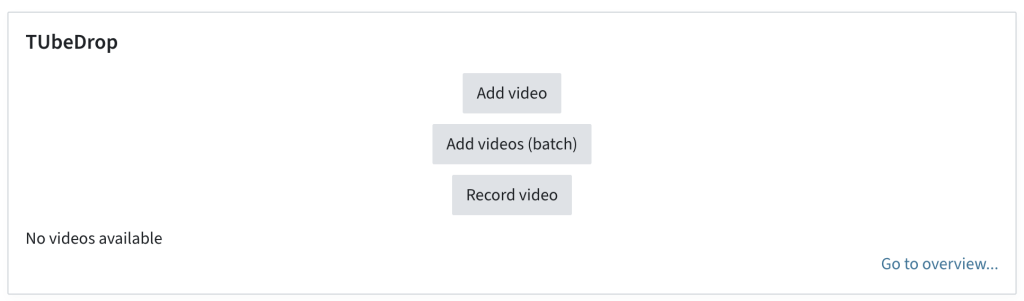
Recording a video with the TUbe Recorder
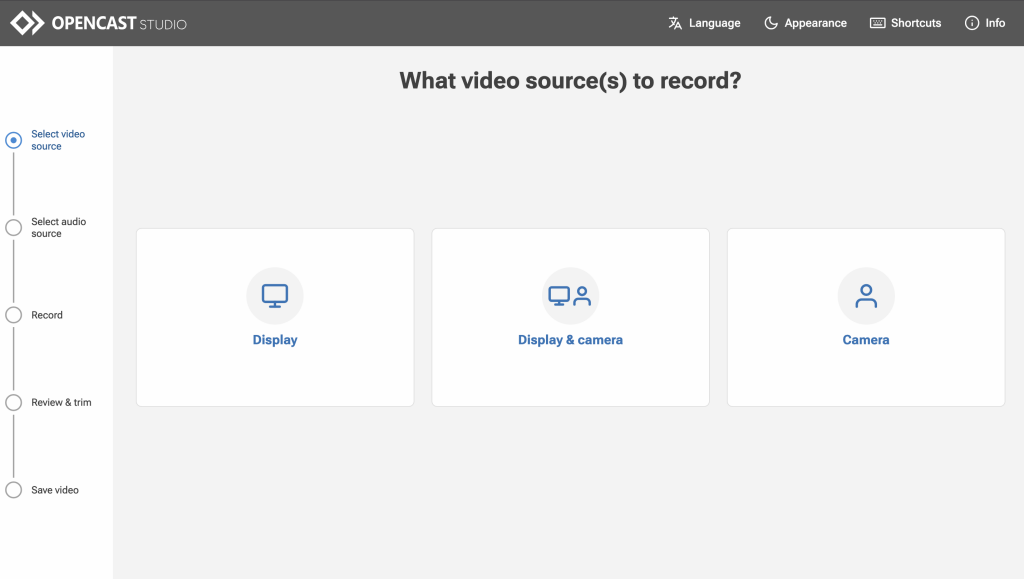
In the Select video source step, you decide whether you want to record your screen, your webcam, or both.
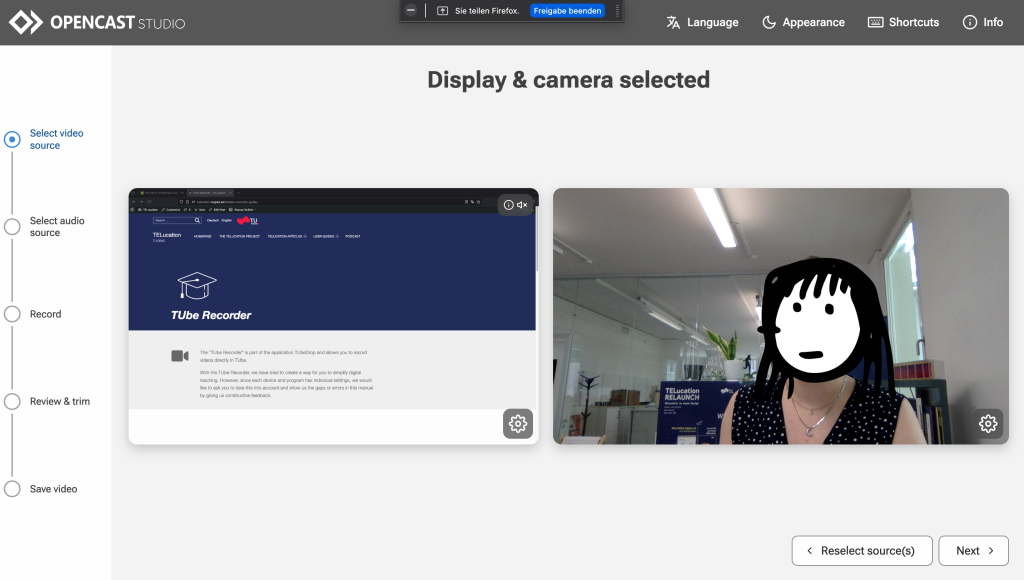
You must confirm in your browser that the programme is allowed to access your camera and/or screen.
You will see a preview of the selected sources. You can reselect the source(s) if you are not satisfied. Otherwise, click Continue.
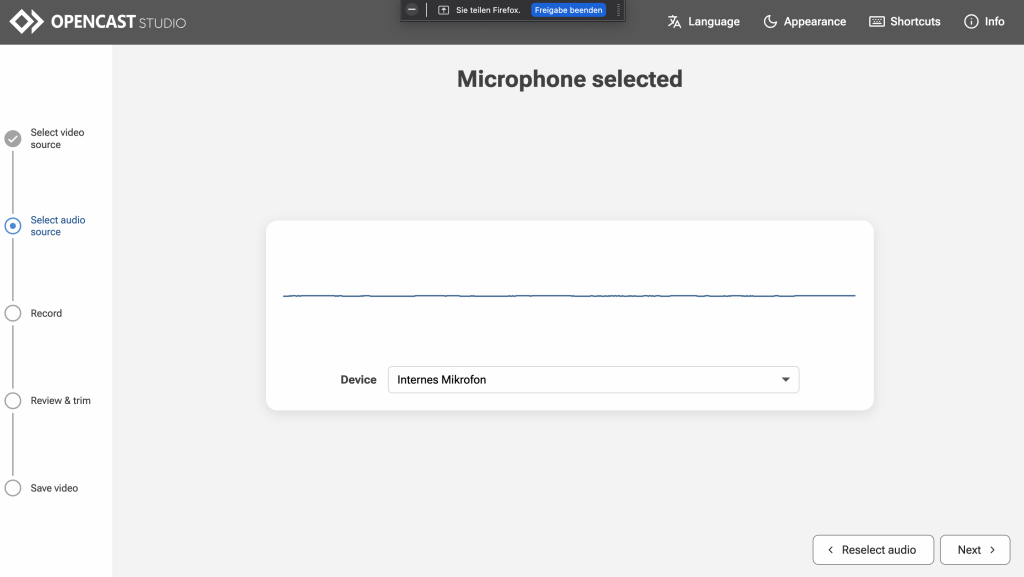
In the Select audio source step, you decide whether you also want to record your audio.
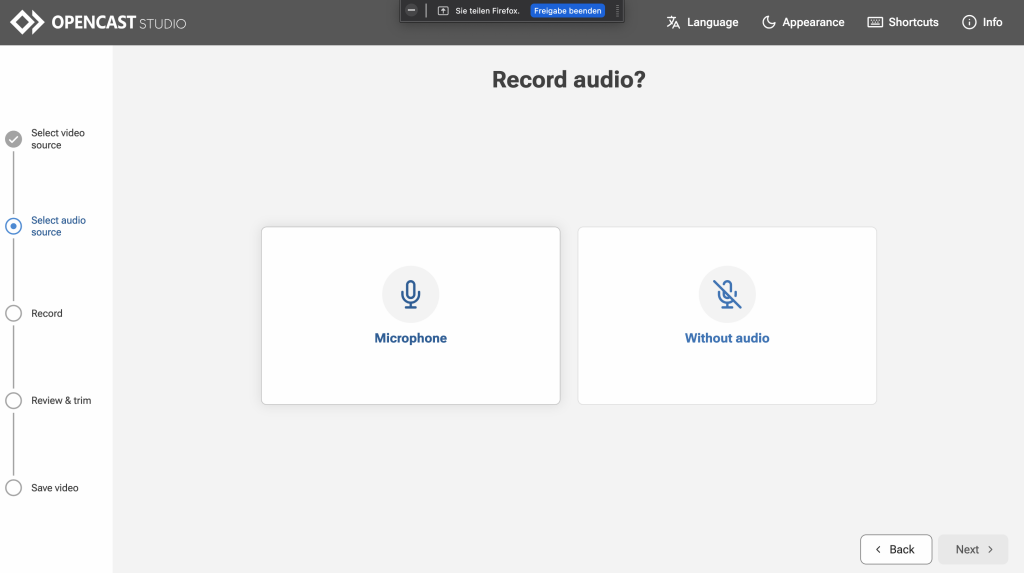
If you select Microphone, you can test the microphone in the next step and receive visual feedback on whether it is working.
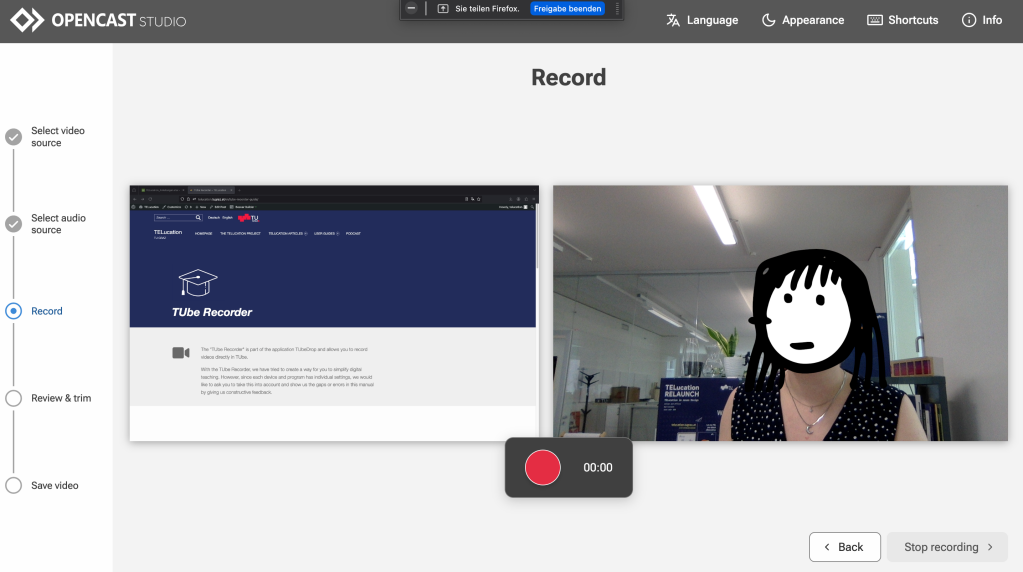
In the Record step, press the large red Start button to start recording. You will see your video and the screen being recorded at all times.
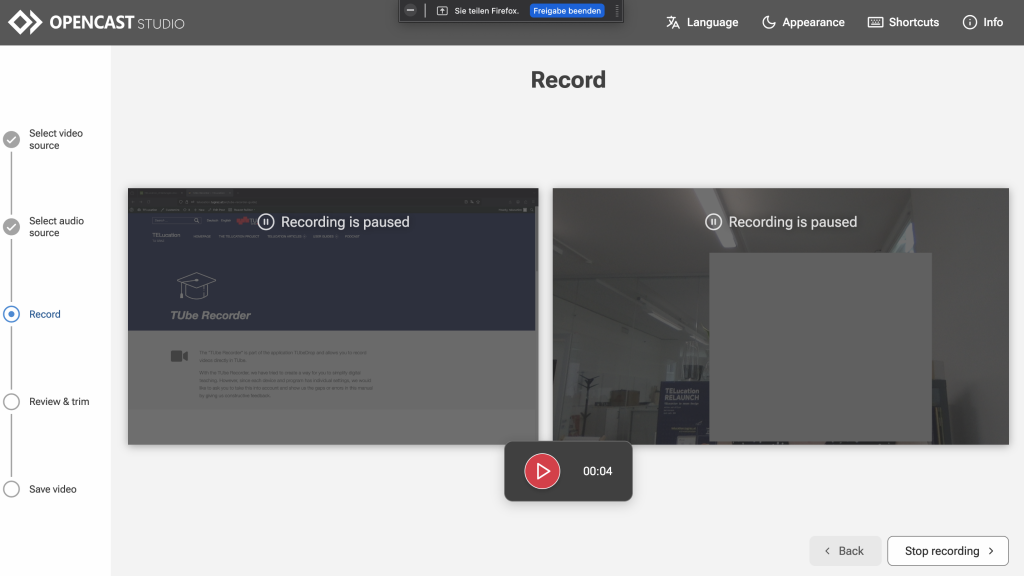
You can pause the recording at any time by pressing the large red button again.
When you are finished, press the Stop recording button at the bottom right.
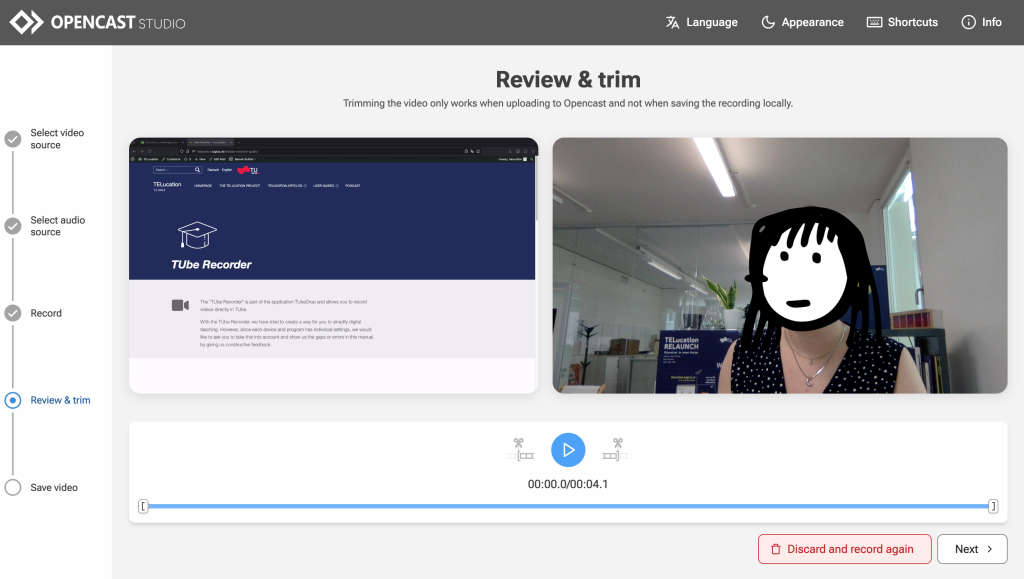
In the Review and trim step, you can review the recording again. If you are not satisfied, you can discard and rerecord the recording.
You also have the option to cut the video with a simple editor and remove parts of it.
When you are satisfied, click Continue.
Saving and uploading your TUbe Recorder recording
In the Save recording step, you can upload the video directly to your TUbe series. You will then find the video in your TUbeDrop block, where you can adjust the metadata and set the visibility if necessary.
However, you can also download the video file(s) and upload them later with TUbeDrop. If you have recorded your screen and camera, you will have two videos that you can upload later to TUbeDrop as parallel videos. See the TUbeDrop instructions for more details.
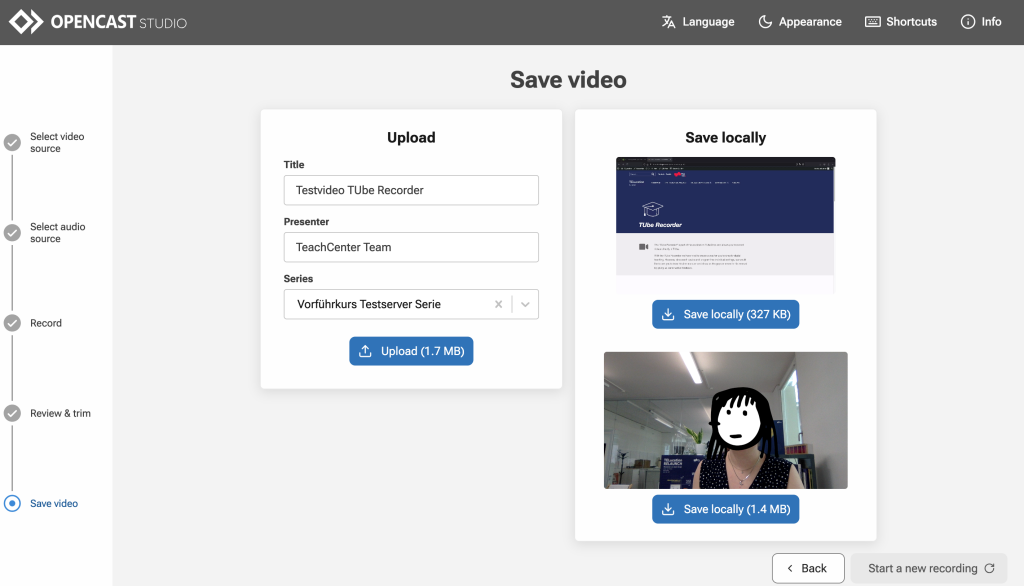
You can also start a new recording.
Help & contact
If something does not work as described, get in touch – we will look into it.
