
BigBlueButton for students
If a recording is made, you can watch it later in the TUbe series of your course.
Before, during and after a video conference
Access to the BigBlueButton activity
- Your teacher(s) will inform you if a meeting is held in BigBlueButton.
- Go to the TeachCenter course of the respective course and open the BigBlueButton activity.
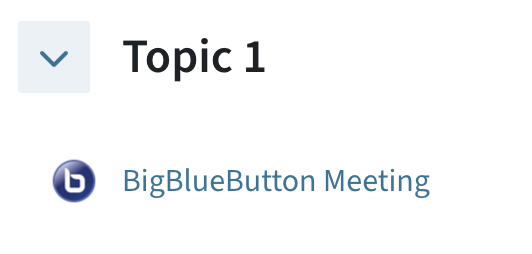
- You can access the meeting via the Join session button as soon as the meeting is open or moderators have joined. Outside this period, there is no button to join the meeting.

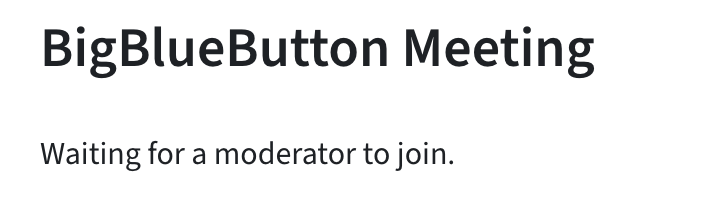
You can also join the conference later. You may be taken to a waiting room first.
Participating in the meeting and overview
You will be asked if you want to join with microphone or just listen. If you join with a microphone, there will be an echo test at the beginning. If you change your microphone (e.g. from a headset to the laptop microphone), you will have to do another echo test.
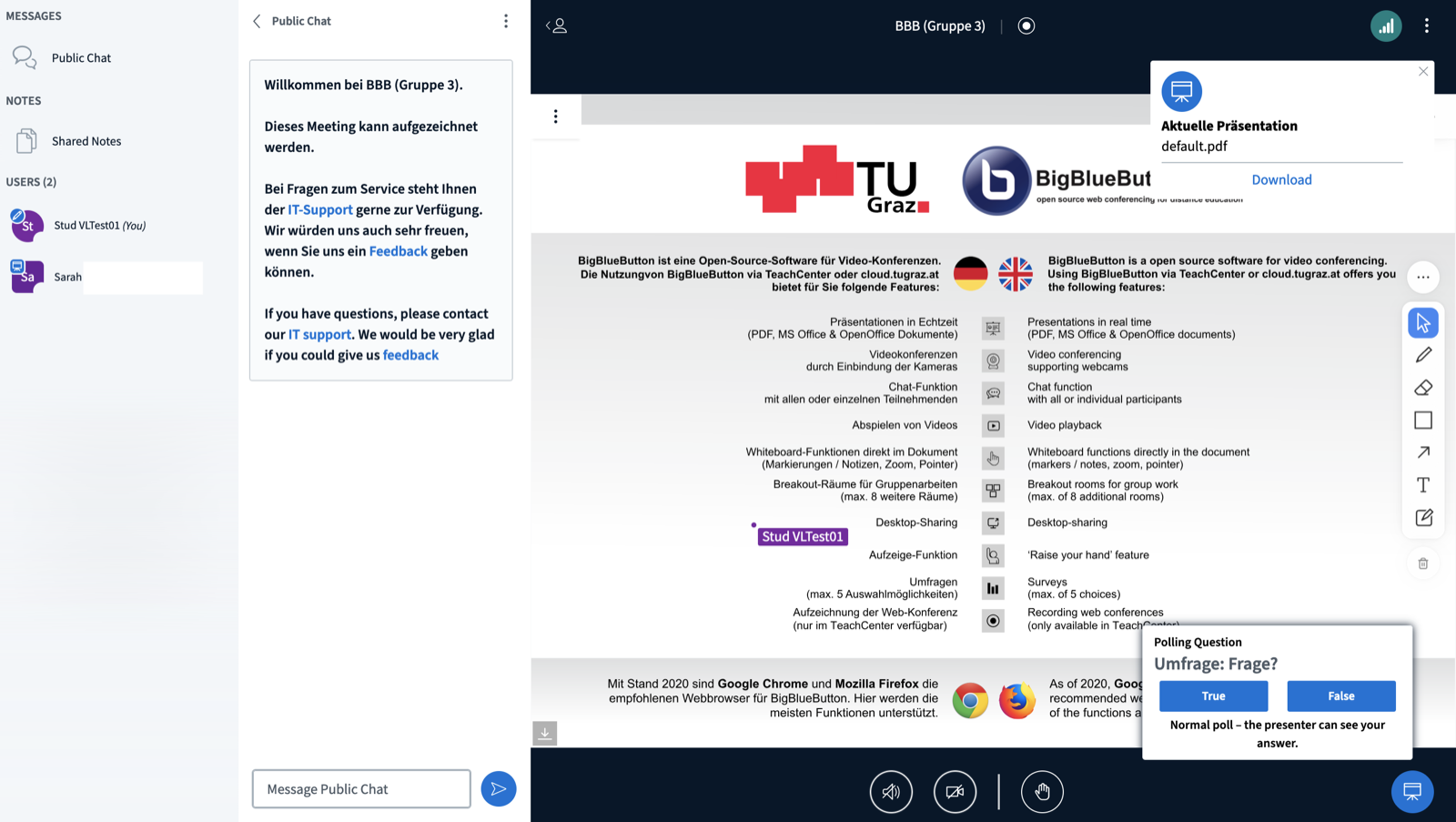
BigBlueButton is structured as follows:
Centre: Presentations and videos of other participants
Bottom: Audio and video settings, muting, sharing, reactions and raising hands.
Left: Menus and features, e.g. see other participants, breakout rooms menu, shared notes, chat
Right centre: Editing tools to make annotations directly on the presentation (must be allowed by teachers)
Additional information may be displayed, such as surveys. These are activated by teachers.
Accessing recordings
If the meeting was recorded, you will find the video later in the TUbe series of the TeachCenter course.
The TUbe series with the videos can be found either linked in the course or directly on TUbe (external site) .
Help & contact
If something does not work as described, get in touch – we will look into it.
