
Videoconferencing Troubleshooting
„I can’t access the video conference.„
Check the settings and the link
- Check whether the way of accessing the conference (e.g. the link) is correct or if you have entered a password incorrectly. Contact your teacher if you think the link provided is incorrect.
- Access the conference directly via the desktop app or the browser (preferably Chrome or Firefox), not via apps such as Studo.
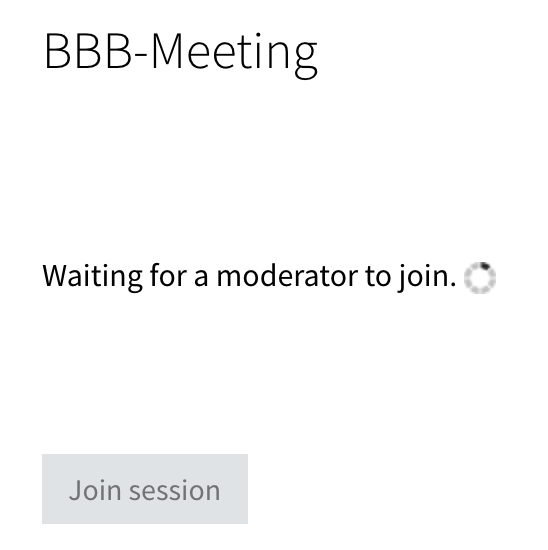
- Perhaps you need to wait until a moderator gives you access to the conference. In BigBlueButton (BBB) you will still see the „Join Session“ button, but it is greyed out.
Check your internet connection
- Check whether you are connected to a network and whether it is the correct network. To do this, open the network settings on your device. You can usually find them in a menu bar at the top or at the bottom of your screen, depending on your operating system.
- Try to open a different website to see whether other sites work.
- Use a LAN cable instead of WiFi. As an emergency solution, use a mobile hotspot created with your smartphone if your cell phone plan allows you to.
- If you are connected via WiFi, move closer to the router.
- Close other tabs and programs that might use a lot of bandwidth. The task manager (Ctrl + Shift + Esc in Windows or Cmd + Ctrl + Esc on Mac) provides information about which programs are currently using a lot of computing power.
- Your connection might be worse if many other people in your household or area are currently online. If possible, ask your flatmates or family not to stream videos or join conferences during your video conference.
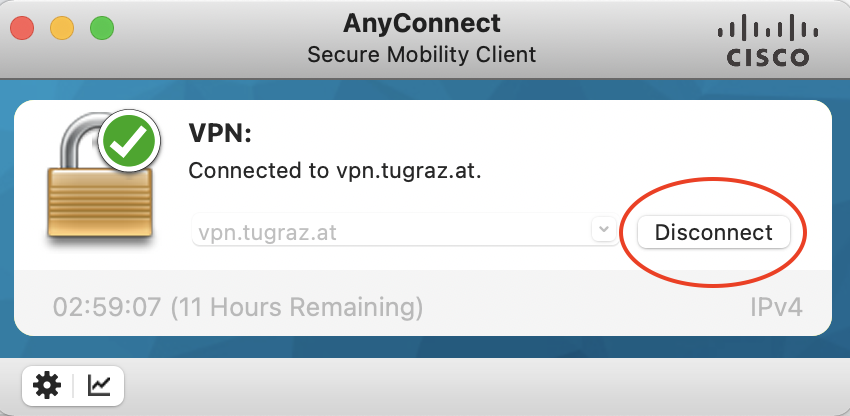
- If you are using a VPN, deactivate it (screenshot is only an example, your app might look different).
- Take a speedtest (external site) to find out whether the problem is caused by your network connection.
- You can also test the current connection quality in an ongoing Webex meeting. To do this, open the Help menu and then Health Checker. In the browser, this menu is located in the three-dots button called More.
Update your program or browser
Check whether you are using the latest version of the video conferencing program and update it if necessary. You might need to restart your computer to finish the installation of the update.
If you are participating in the conference via a browser, make sure you are using the latest version of the browser and update it if necessary. This guide (external site) for Chrome and this guide (external site) for Firefox will tell you how to find the latest updates.
You can find out how to update your browsers for Google Chrome in this guide (external site) and for Firefox in this guide (external site) .
Switch to a different device or browser
- Try using a different browser. The recommended browsers are Chrome and Firefox. If you are using Webex in the desktop app, try switching to the browser or the other way around.
- Try joining via a different device (e.g. tablet or laptop instead of PC).
„The others can’t hear me.„
Check your technical equipment and settings
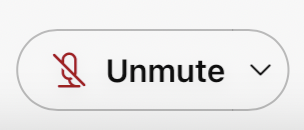
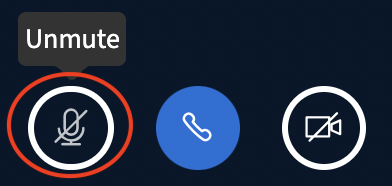
- Make sure you are not muted. You might have been automatically muted when you joined the conference or left a breakout room. When you are muted, this is indicated in the menu bar of the video conferencing program by a crossed out microphone symbol.
- Make sure you have selected the correct microphone as an input device.
- If you are using an external microphone, make sure it is plugged in and that it works, e.g. by making a test recording in a different program or in a different device.
- You might need to allow the program to access your microphone, especially if you are joining via a browser. Check whether your browser shows a hint or a pop-up window.
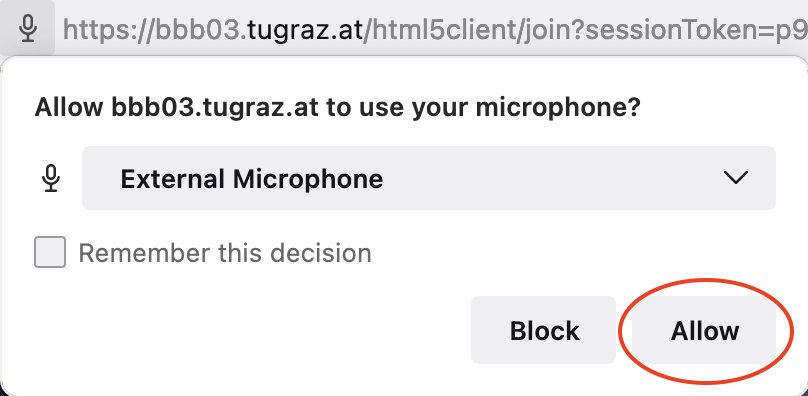
- If you are using the desktop app, make sure you allowed the program to access your camera and microphone in the system preferences.
- If you are using a pop-up blocker (e.g. an adblocker), try deactivating it and reloading the page.
- Ask the meeting moderator whether you should be able to activate your microphone. Perhaps the moderator revoked the right to activate your microphone or camera.
- Check whether you are using a firewall and whether you get a hint that something is blocked by it. You can find the firewall settings in your computer’s system preferences. The menu looks different depending on the operating system.
General advice: It often helps to clear the browser cache, the browser history and/or cookies. Afterwards, reload the page by pressing F5 or the round arrow next to the address bar.

Switch to a different device or browser
- Try using a different browser. The recommended browsers are Chrome and Firefox. If you are using Webex in the desktop app, try switching to the browser or the other way around.
- Try joining via a different device (e.g. tablet or laptop instead of PC).
„The others can’t see me.„
Please note that Webex automatically deactivates your webcam if your internet connection is slow.
Check your technical equipment and settings
- Check whether your camera is turned on. You can see that in the menu bar of the conferencing program. The small camera symbol should not be crossed out.
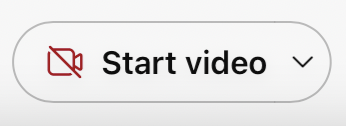
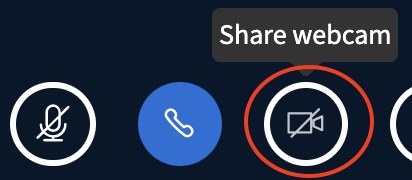
- Check whether you have chosen the correct camera as an input source
- You might need to grant access to your camera first. Check whether your browser shows a hint or a pop-up window.
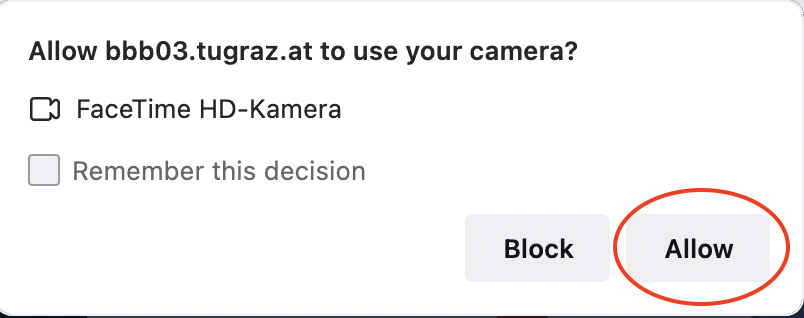
- Open a different webcam program on your computer and test whether your webcam works there.
- If you are using an external camera, check whether the camera is correctly plugged in.
- If you are using an integrated camera on your lapotp or tablet, check whether your webcam is not shut or covered. .
- If you are using the desktop app, check whether you have granted access to your camera and microphone in your system preferences. The system preferences look different depending on your operating system.
- If you are using a pop-up blocker (e.g. an adblocker), try deactivating it and reloading the page.
- Ask the moderator whether you need to be granted permission to use the camera. Perhaps the moderator revoked participants‘ right to use the microphone or camera.
- Check whether you are using a firewall and whether you get a hint that something is blocked by it. You can find the firewall settings in your computer’s system preferences. The menu looks different depending on the operating system.
General advice: It often helps to clear the browser cache, the browser history and/or cookies. Afterwards, reload the page by pressing F5 or the round arrow next to the address bar.
Switch to a different device or browser
- Try using a different browser. The recommended browsers are Chrome and Firefox. If you are using Webex in the desktop app, try switching to the browser or the other way around.
- Try joining via a different device (e.g. tablet or laptop instead of PC).
„I can’t hear anything.„
Check your technical equipment and settings
- Try to open a different audio file or a YouTube video in order to check whether the problem is caused by the video conferencing tool or your computer audio.
- Take the echo test in the video conferencing tool and check whether you can hear something.
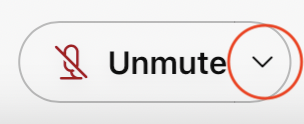
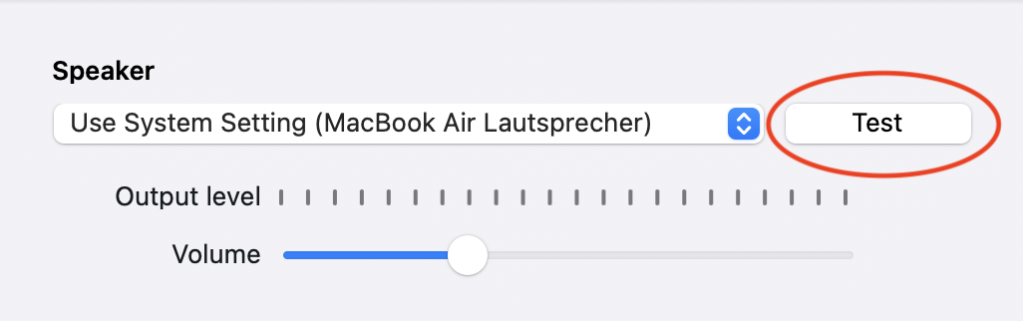
- To start the echo test in Webex, click on the small downwards arrow next to the microphone button to open the audio settings. Go to Audio settings, then click Test next to Speaker and Microphone.
- To start the echo test in BBB, reload the page by clicking the arrow at the top left of the browser window or pressing F5.
- Make sure that your computer audio is turned on and loud enough.
- Make sure that the correct headset is connected.
- If it is a bluetooth headset, make sure it is charged.
- Try using a different headset or join the conference without a headset.
Switch to a different device or browser
- Try using a different browser. The recommended browsers are Chrome and Firefox. If you are using Webex in the desktop app, try switching to the browser or the other way around.
- Try joining via a different device (e.g. tablet or laptop instead of PC).
„The conference is stuck or keeps on interrupting„
A first quick solution is to turn off your own webcam to save bandwidth and computing power.
Check your technical equipment and settings
- Perhaps your computer is overloaded. Close all programs that are not in use. The task manager (Ctrl + Shift + Esc in Windows or Cmd + Ctrl + Esc on Mac) tells you which programs need a lot of computing power.
- Check whether your device has enough battery left or whether it switched to energy saving mode.
- Check whether you accidentally turned off your device or turned on the screen saver.
- If you joined the conference via mobile phone, check whether it was interrupted by a message or call.
Check your internet connection
- Check whether you lost your internet connection.
- Use a LAN cable instead of WiFi. As an emergency solution, use a mobile hotspot created with your smartphone if your cell phone plan allows you to.
- If you are connected via WiFi, move closer to the router.
- Close other tabs and programs that might use a lot of bandwidth.
- Your connection might be worse if many other people in your household or area are currently online. If possible, ask your flatmates or family not to stream videos or join conferences during your video conference.
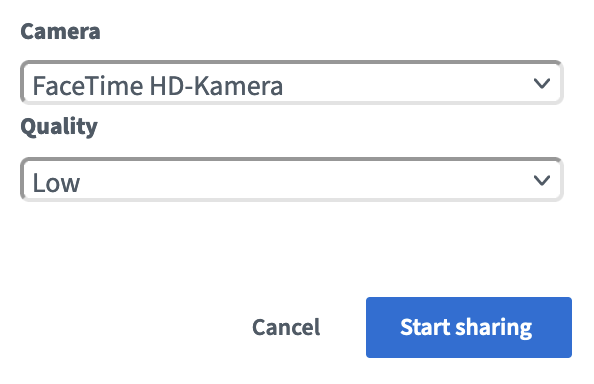
- In BBB, you can lower your video quality. If you turn your camera off and back on, you can reselect the quality.
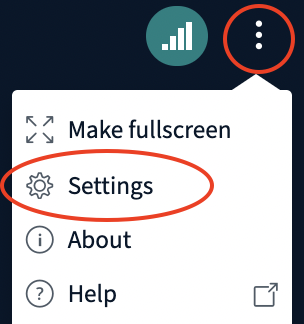
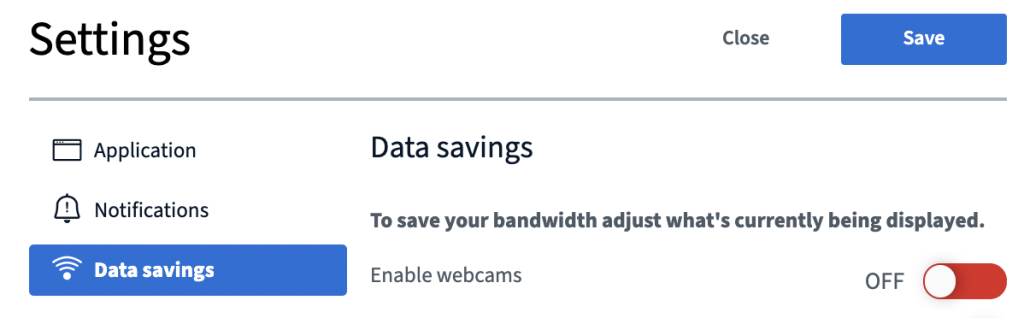
- In BBB, you can also save data transfer volume by deactivating other people’s webcams for yourself. Click on the three dots at the top right, open the Settings and choose Enable webcams > OFF.
Switch to a different device or browser
- Try using a different browser. The recommended browsers are Chrome and Firefox. If you are using Webex in the desktop app, try switching to the browser or the other way around.
- Try joining via a different device (e.g. tablet or laptop instead of PC).
„I could not solve my problem following the suggestions mentioned above.„
Rejoin the conference or restart your device
- Leave the video conference, reload the page (pressing F5) or close the tab and reopen the link or program.
- Close all other applications on your device that are not currently needed.
- Restart your computer, tablet or smartphone. Sometimes only a restart installs updates or makes changes effective.
Look for solutions online yourself
- Use a search engine, entering descriptive keywords, to find a solution. Also include your operating system and browser in the search query, such as „camera not working Windows 10 Chrome BigBlueButton“
- If you get an error message, put the error message text into a search engine. Perhaps others had the same issue before and found a solution.
If nothing else works: Contact your teachers or the support team
- Contact your teacher(s) (via chat, e-mail, audio). They can tell how you to continue the exam and will contact the support if necessary.
- Describe the issue as accurately as possible: Which device? Which browser (+ version)? What is the issue and what have you tried to solve it?
- If you get any error messages, take a screenshot and send them to your teacher or to the support.
If you experience technical problems, contact the IT support. If you think the problem is with TeachCenter, contact TeachCenter Support. We will redirect you if necessary.
Help & contact
If something does not work as described, get in touch – we will look into it.
