
Exams with Gradescope
An especially useful feature are scan exams, where students write the exam in a lecture hall, but the grading is done online.
General information and exam formats
When to use Gradescope?
Gradescope can be used to conduct digital exams or face-to-face exams. Of particular interest are scanned examinations, in which students answer questions on paper and the answer sheets are scanned at the end of the exam. Teachers can then assess the exam online on Gradescope in detail using rubrics.
Gradescope is particularly suitable for exams with many participants and possibly several graders, as the rubric system can make grading more transparent and enable a quicker workflow. It is also possible to AI-group short answers, which can make grading even easier, as identical answers can be graded at once.
Gradescope is linked to TeachCenter Exam, and is always accessed via TeachCenter Exam. Students are automatically synchronised with Gradescope and the points can be transferred back to TeachCenter Exam.
The different types of exams that can be created with Gradescope are briefly explained below.
Exam type Homework
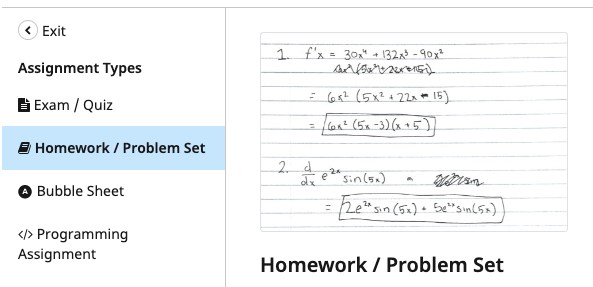
With the „Homework“ exam type, students download a file you provide as instructions and write their answers in their own document or on paper. The answer sheets are scanned and uploaded by the students themselves or collected by the teachers and scanned all at once. The answers can be automatically assigned to the students by recognising their names.
This type of exam is best suited for free text or calculations that students write in an in-person exam, but which you want to grade digitally.
Exam type Exam/Quiz
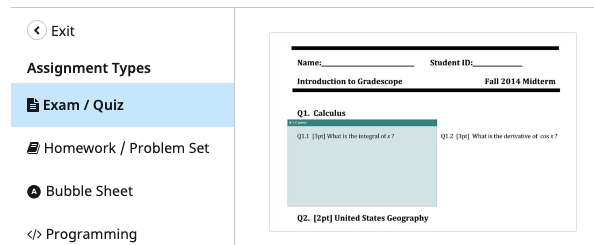
In the ‚Exam/Quiz‘ you provide students with questions with placeholders for the answers. Students write their answers on the same sheet.
You define in advance the areas in which the questions and placeholders for the answers are located. During the online grading, only this area is displayed for the respective question.
This type of exam is suitable for free text questions, small sketches or image captions.
With this type of exam, AI grouping can be used for grading. The AI function can group identical answers together, which can then be given the same grade with a single click. The AI feature only works with short answers (e.g. short equations or one-word answers).
Exam type Online exam
This type of exam is similar to a quiz in the TeachCenter Exam. You can create multiple-choice questions, essay-type questions, etc. Students answer the questions online on Gradescope.
Exam type Bubble Sheet
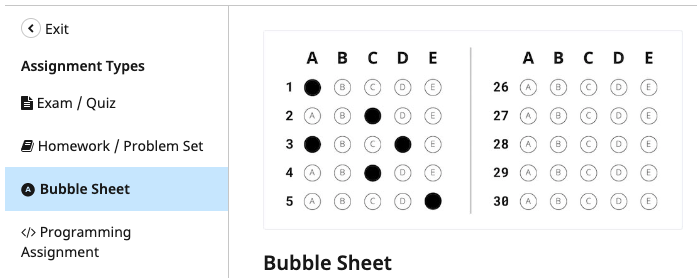
In this type of exam, students receive a set of multiple-choice questions including answer options and an extra sheet with a ‚bubble sheet‘ on which only the letters A/B/C/D/E are pre-printed.
Students read the questions on the question sheet and mark the corresponding letter on the bubble sheet, but do not see the answer texts there. The answer sheets are scanned and can be evaluated automatically, as you have already specified the correct answers online when creating the exam.
This type of exam is suitable if the exam consists exclusively of multiple-choice questions, all of which have the same number of possible answers. This type of exam can be corrected very quickly using templates.
Exam type Programming assignment
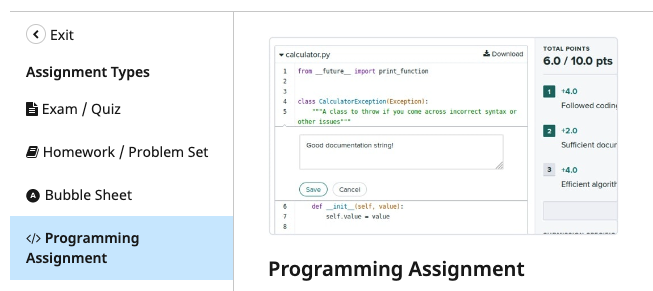
For programming assignments, students submit some code that is then graded by a custom autograder (automatic tests) and/or can be graded manually using the traditional Gradescope interface with rubrics.
Creating and managing Gradescope exams
Creating a course
- To conduct a Gradescope exam, contact TeachCenter Support with your exam date and course number. If you are an examiner, you can also create the exam course in TeachCenter Exam in advance using the Exam Creator and send the link to the course. Note: Even if the exam is written in person, please contact support and you will still receive a TeachCenter Exam course. The course is used to manage students, and students can then view their grades online.
- If necessary, Support will create a new course and set up a special Gradescope activity for you.
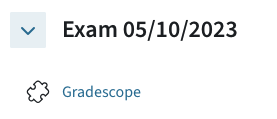
- The students registered for the exam date are automatically synchronised with the TC Exam course.
- Open the Gradescope activity and you will be taken to Gradescope. You will be asked which Gradescope course and assignment you want to link to the Moodle activity. Select „new exam„.
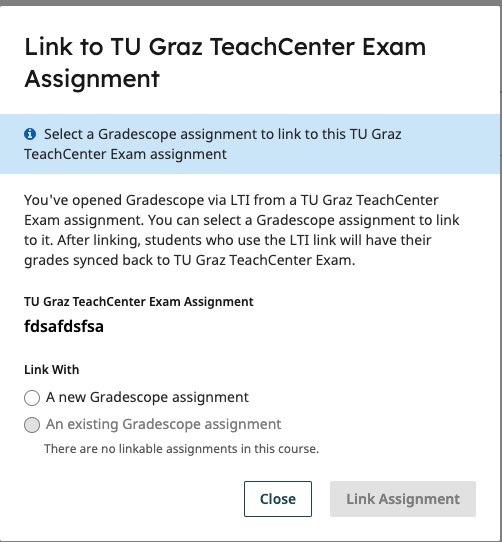
- If errors occur during linking, you can go to the Gradescope course settings or assignment settings at any time and click on „Unlink“, which removes the link, and then link them again.
Creating Gradescope Exam
Homework
- Click „Create assignment„. Select the Homework/Problem Set option and click Next.
- You will need to give the assignment a title and upload a file with questions or a problem to solve.
- By default, the Homework/Problem Set assignment type is set so that students will upload their own work. If you want to scan and submit the work, you can change the „Who will upload submissions“ setting.
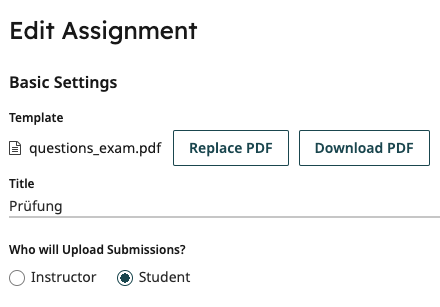
- Set the release date, due date and time limit.

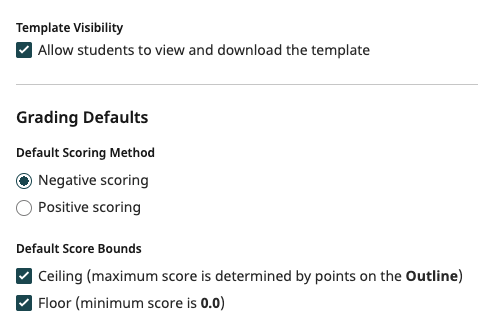
- Allow students to view the template in Template Visibility so they can download the questions or problem to solve.
- Then create an outline of your exam by adding new questions via the plus icon and entering the maximum points for each question. The outline is used for grading later.
Exam/Quiz
- Click „Create Assignment„.
- Select Exam / Quiz. Click Next.
- Give the assignment a title and upload a blank copy of the exam.
- By default, the Exam/Quiz assignment type is set up so that teachers will scan and upload the documents. If you want students to scan their own work, change the setting in Who will upload submissions?
- Create the exam template
- Highlight the areas in the PDF where students are going to write their answers. You will see exactly this area during grading later.
- Transfer your questions to a digital outline. Click + new question to start adding questions. You can title your questions and add maximum points. Create sub-questions by clicking on the plus next to a question or dragging one question onto another. This outline will be used for grading later.
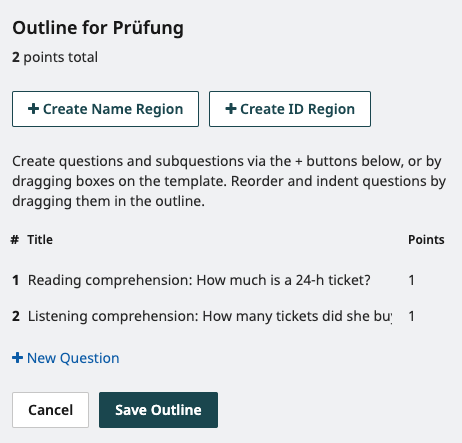
- You can also define areas where students enter their name and matriculation number. These areas are optional, but very useful if assignments are scanned centrally, as an AI feature can recognise the handwriting and automatically assign the assignment to the correct person.
Bubble Sheet
- By default, the Bubble Sheet assignment type is set up for teachers to scan and upload the answer sheets. However, you can change this setting in Who will upload submissions?
- If you enable the Template Visibility, students will be able to download a blank template containing 200 questions with five answer bubbles each.
- Create your answer key for later grading.
Programming task
- Create a new programming task, give it a title and description.
- If you are manually grading the code, the following steps are the same as for a homework assignment.
- If you want to use an autograder, set up the autograder (external site) .
Synchronising students
Students are automatically transferred from TUGRAZonline to TeachCenter Exam. However, students must be transferred from TeachCenter Exam to Gradescope manually (!) by clicking the button „Sync TU Graz TeachCenter Exam Roster“ or „Synchronise TU Graz TeachCenter Exam User List“ on Gradescope.
Taking the exam
- If the exam takes place online or students have to download the exam sheet from Gradescope, they enter via the TC Exam, agree to the privacy policy there and click on the link that redirects them to the exam on Gradescope. Students should then be automatically registered on Gradescope (credentials = TUGRAZonline credentials).
- If the exam takes place in person in the lecture hall, the students receive the exam sheet as a printout and write the exam on paper as usual. Please include the privacy policy for your students as a printout in this case. To receive a printable version of the privacy policy, contact the TeachCenter support.
- If you have selected that students have to scan the answers themselves, students also access Gradescope via the TeachCenter Exam and follow the link to the Gradescope exam, where they will then find the upload option.
Grading the exam and exporting scores
- To start grading, go to the Grading tab and click on the question you want to grade.
- Grading on Gradescope is done through „rubrics„, which allow you to grade quickly and consistently.
Rubrics consist of a point value and an explanation. Points can be awarded negatively or positively (negative = starting from the maximum score, with deductions for mistakes, or positive = starting from 0 points, with points for each correct answer; this is defined in the settings of the activity).
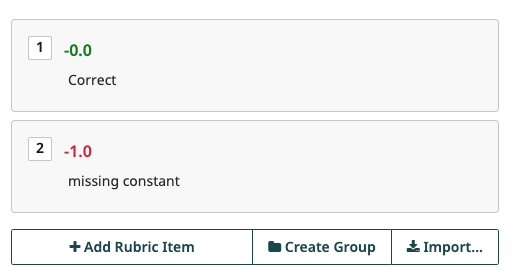
Rubrics can be created directly while grading or in advance when creating the assignment .
- Rubrics can be created directly while grading or in advance when creating the exam.
- Select + Add rubric entry and add the points and description. All other people grading the exam will see this new rubric in real time and can use it. We advise you to create detailed rubrics instead of just „correct“ and „incorrect“ to make grades more transparent for students.
- For faster grading, simply press the number on the keyboard that corresponds to the rubric.
- To move to the next answer to the same question, go to Next ungraded. This avoids several people grading the same answer at the same time.
- For homework or exams/quizzes, you can also leave comments or sketch with a pencil tool.
- When all answers are graded, export the scores to the TC Exam using the corresponding button. Students will find their points in TC Exam, and can view the entire exam on Gradescope once the grades are posted.
For specific information on AI grouping of answers and grading, see the Gradescope help pages (external site) .
Help & contact
If something does not work as described, get in touch – we will look into it.
