
Exams with Safe Exam Browser
General information on Safe Exam Browser
What is Safe Exam Browser?
Safe Exam Browser (SEB) is an open source software which can be used to secure written online exams. SEB puts the computer into full-screen mode without navigation elements. To be able to use SEB, it must be downloaded and installed on the device used for taking the exam.
By integrating Safe Exam Browser into your quiz activity, the following functions are disabled/blocked during the quiz attempt:
- the browser context menu
- the ability to take screenshots
- a number of shortcuts and keys, such as Ctrl+C, Ctrl+V
You do, however, have the option of granting students access to certain resources during their quiz attempt.
How to download Safe Exam Browser
Download Safe Exam Browser (external site)
As SEB is a separate programme that must be installed on the device used for taking the exam, we recommend that exams with Safe Exam Browser are held in the classrooms with IT infrastructure at TU Graz (external site) . Safe Exam Browser is already installed on the devices there.
Important: Allow enough time before the start of the exam, as students have to log in twice via SSO for a security check: once when logging into the TeachCenter (Exam) via the browser, and again after clicking on the Launch Safe Exam Browser-button in the quiz activity.
If students use their own devices, it is best to test whether Safe Exam Browser works on all of them (external site) before the exam. Not all operating systems are officially supported! For more information, see the SEB download page (external site) .
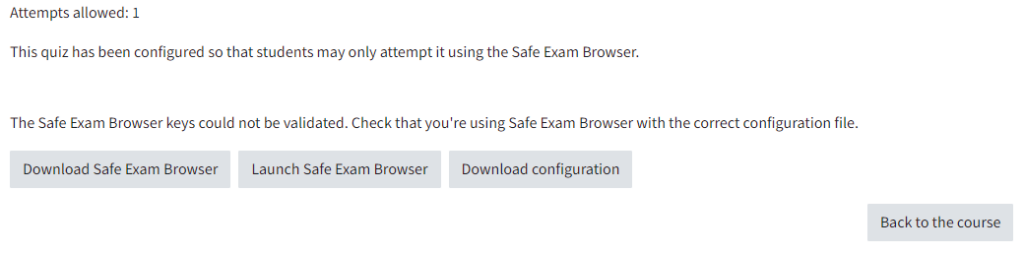
If teachers activate Show Safe Exam Browser download button
> Yes in the settings of the quiz activity, the following three buttons will be displayed for students before starting the quiz attempt:
- Download Safe Exam Browser: This would be one final chance to download SEB and is usually not necessary for exams held in classrooms with IT infrastructure. We strongly recommend that SEB is installed in advance on all devices used for taking the exam.
- Launch Safe Exam Browser: Click on this button to start SEB. After another SSO login, the quiz attempt for the students begins.
- Download configuration: Download is not necessary to start a quiz attempt if SEB has been configured within the quiz activity.
Further information on how to configure your exam with SEB can be found in the section „Settings“.
Settings
Although Safe Exam Browser is a separate software, the configuration for the exam can be made directly in the TeachCenter (Exam). You will find the settings for Safe Exam Browser in the settings of the quiz activity in the TeachCenter (Exam). Therefore, first create a quiz activity in the TC (Exam).
- Open the settings of the quiz activity.
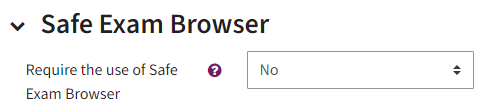
- In the settings, go to the Safe Exam Browser drop-down menu. By default, the use of SEB is set to No.
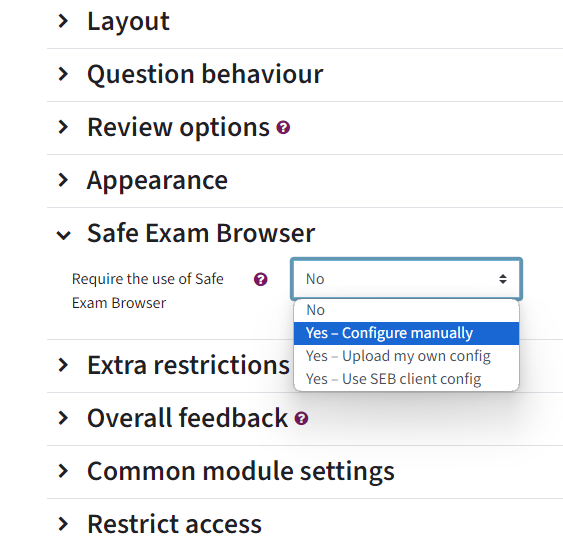
Yes – Configure manually: We advise you to configure the Safe Exam Browser directly in the TeachCenter (Exam) to configure. This can be done in a few simple steps. We recommend the following settings:
- Yes – Configure manually: We advise you to configure Safe Exam Browser directly in the TeachCenter (Exam). This is possible with a few simple steps. We recommend the following settings:
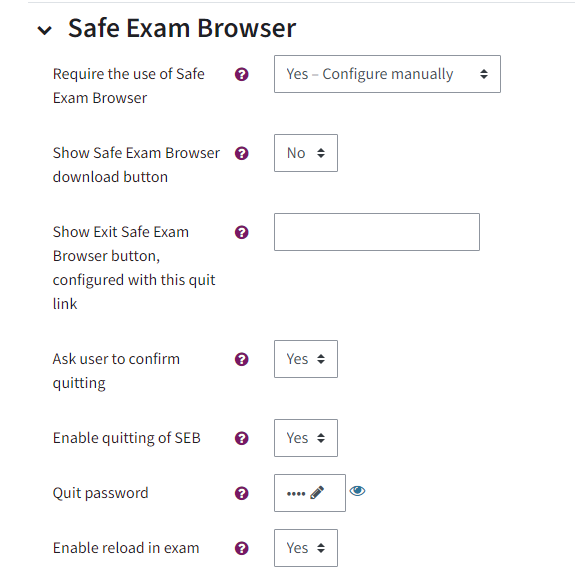
- Show Safe Exam Browser download button > No: It is best to ensure that your students have already downloaded the SEB BEFORE the exam!
- Ask user to confirm quitting > Yes
- Enable quitting of SEB >Yes: necessary so that students can close SEB independently after the exam and do not remain „locked in“. If you do not want students to exit the exam earlier, you can also assign a password for exiting and only communicate it at the end.
- Quit password: If you have not set a password, students will only be asked if they are sure they want to exit SEB.
- Enable reload in exam > Yes
- Show SEB task bar > Yes: The following elements can be displayed in the task bar: reload button, time, keyboard layout and Wi-Fi selection.
Now click on the Save and display-button, and you will be taken to a quiz preview.
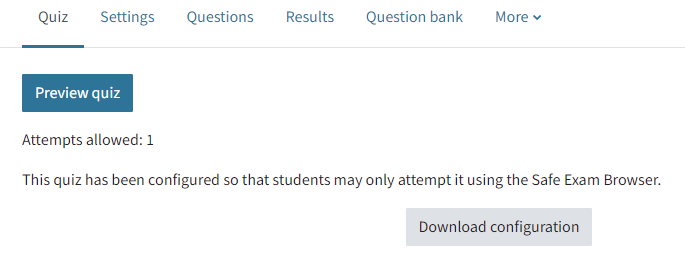
For detailed information on configuring Safe Exam Browser, you can click on the question mark icons in the Safe Exam Browser drop-down menu.
Restrict access to external links during the exam
If you only want to allow your students to access certain websites and resources during the exam, you can set up URL filters. If no URL filter is defined, students can, after quitting the exam, access all links in the TC (Exam) courses in which they are enrolled.
Note: Students cannot download files from the TC (Exam) course in Safe Exam Browser.
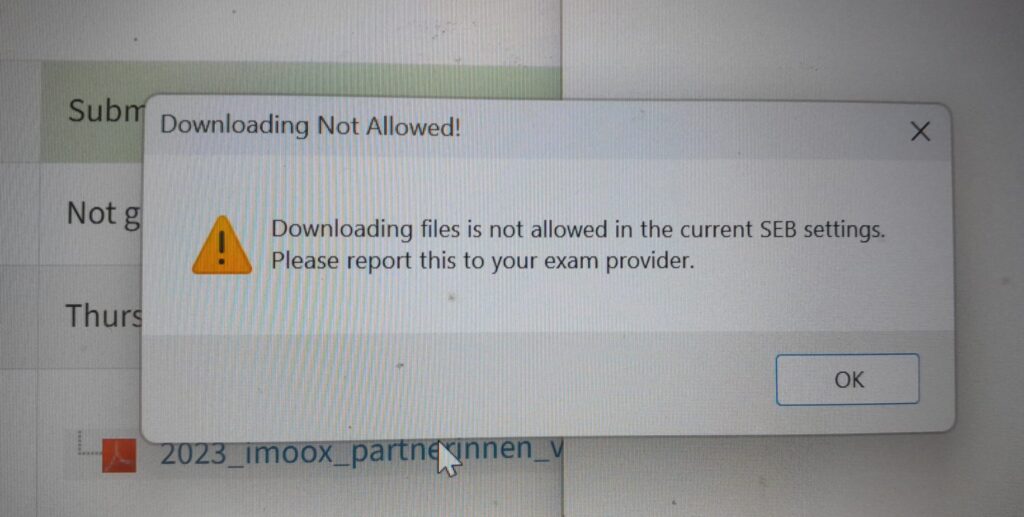
In the settings, you will find Enable URL filtering; choose Yes. Then, further fields open, e.g. Expressions allowed. Important: Whenever you use URL filters, you must also enter the address of the learning management system in which the quiz takes place and its login screen in the enabled expressions.
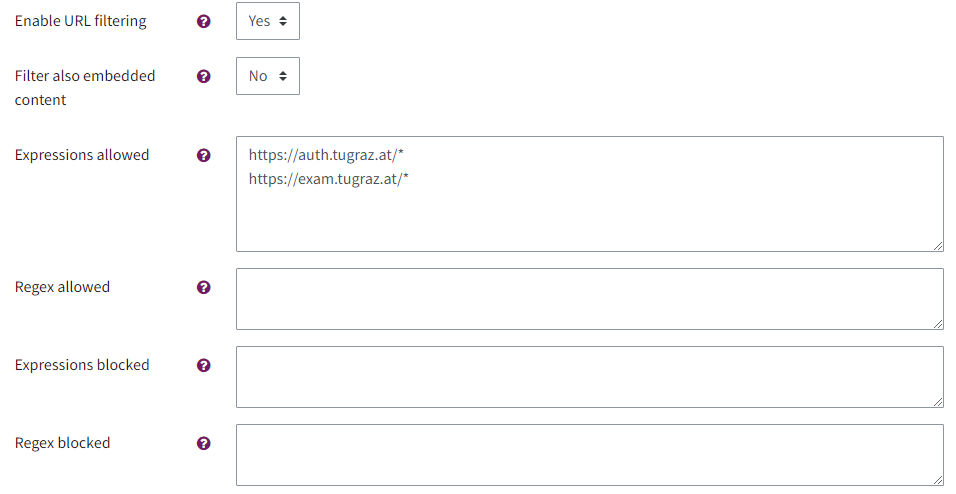
For example, if you want to allow the website TELucation.tugraz.at as an additional resource during the exam, you must make the following settings:
- Enable URL filtering > Yes
- For Expressions allowed: Login: https://auth.tugraz.at/* Learning management system: TeachCenter: https: //tc.tugraz.at/* or TeachCenter Exam: https: //exam.tugraz.at/* Additional permitted page that students may access during the exam: https://telucation.tugraz.at/*
Attention: By authorising exam.tugraz.at/* (necessary to be able to access the exam at all), students also have access to all activities in the TC (Exam) course and to other courses in which they are enrolled. Therefore, do not provide any links in the TC (Exam) course that students are NOT allowed to see during the exam.
Students can only leave SEB by closing the Safe Exam Browser via the exit button at the bottom right.
Note: To see the exam as displayed to your students, you can enrol a test user (send request to the TeachCenter Support) or enrol a colleague as a student in your TC (Exam) course and check the functions and view in the role of this user.
Information for students
Things to know about the exam process
- If your exam takes place in a classroom with IT infrastructure, you do not need to install anything before the exam. If you are taking the exam on your own device, install SEB in advance of the exam. Installation is possible for Windows, macOS and iOS. Click here to download the Safe Exam Browser (external site) .
- Information on the exam mode can be found in the description in TUGRAZonline or is provided by your teachers.
- Click on Launch Safe Exam Browser to start the quiz attempt. Usually, you do not need to download the configuration file.
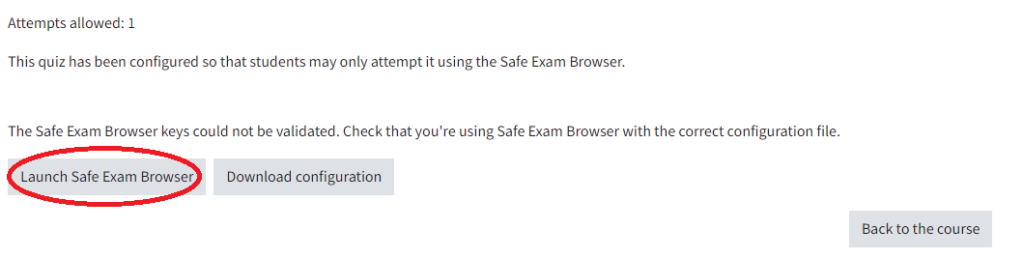
- The following sentence is displayed above the buttons Launch Safe Exam Browser and Download configuration: „The Safe Exam Browser keys could not be validated. Check that you’re using Safe Exam Browser with the correct configuration file.“ Click Launch Safe Exam Browser anyway.
- Safe Exam Browser opens. Due to a security check, you will be redirected to the SSO (Single Sign-On) of TU Graz. Log in again so that the quiz attempt can begin.
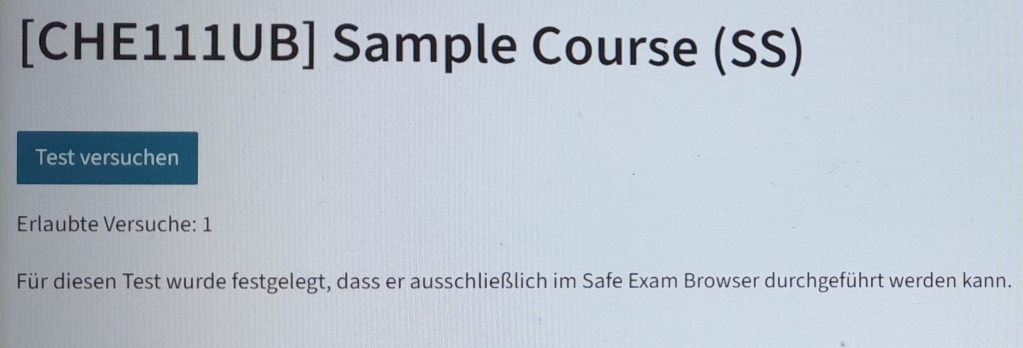
- Danach erscheint der Button Test versuchen. Sie können nun den Testversuch starten und die Prüfungsfragen beantworten.
The Attempt quiz-button will then be displayed. You can now start the quiz attempt and answer the exam questions.
- If your teachers have specified this in advance, at the bottom in full-screen mode you will see the SEB task bar. For example, the time might be displayed there. If enabled, you can also reload the page by clicking on the arrow. You will also see the power-off button at the bottom right, so that you can exit SEB after the exam. Important: Close the Safe Exam Browser only after submitting the exam/quiz attempt!
Depending on the settings your teacher(s) have made beforehand, you will see the SEB task bar at the bottom of the full-screen mode. For example, the time might be displayed there. If enabled, you can also reload the page by clicking on the arrow. You will also see the exit button at the bottom right so that you can exit SEB after the exam.
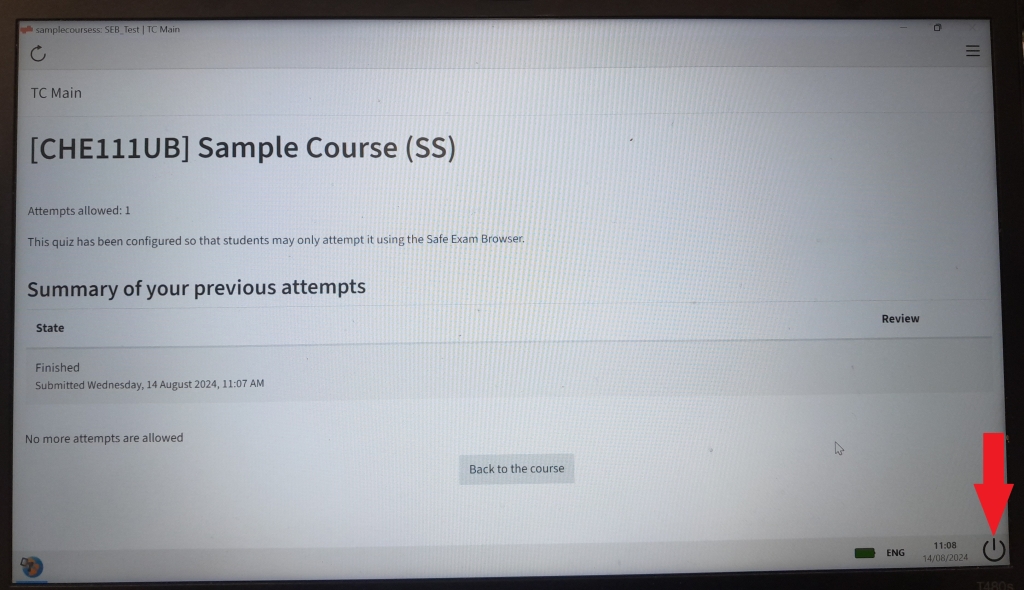
Important: Only close Safe Exam Browser after submitting the exam/quiz attempt!
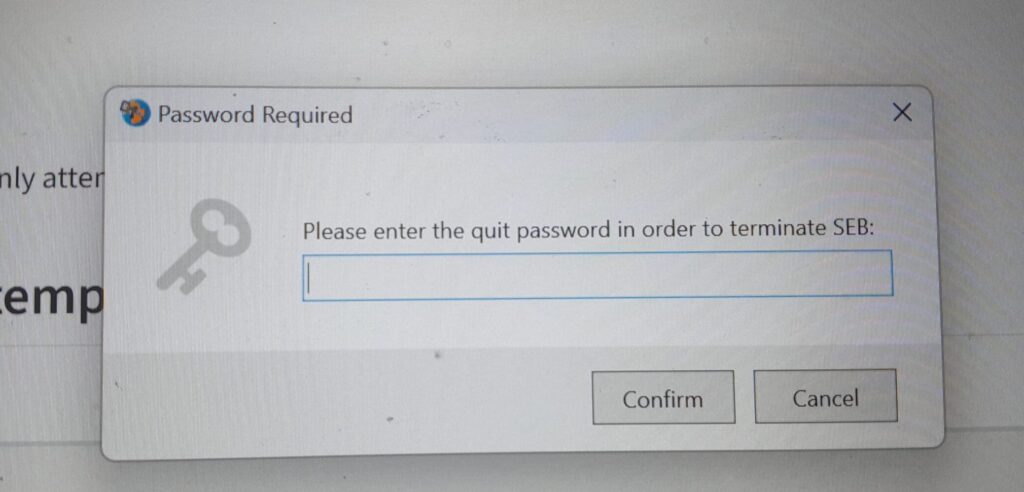
- When you exit Safe Exam Browser by clicking on the exit button, you will either be asked whether you are sure that you want to exit SEB or the teacher has previously created a quit password. Enter the password to exit SEB.
Help & contact
If something does not work as described, get in touch – we will look into it.
