
Exam management at TU Graz TeachCenter Exam
If you would like to hold an online exam,
- for which there is an official examination date in TUGRAZonline (external site) and
- to which only the students registered for this date should have access,
then please use the TeachCenter Exam.
Conducting exams in the TeachCenter Exam
Creating a course in the TC Exam
There is one course per exam date in the TeachCenter Exam.
(Further) examiners can create their own exam courses. This requires that the date is created in TUGRAZonline and set to visible.
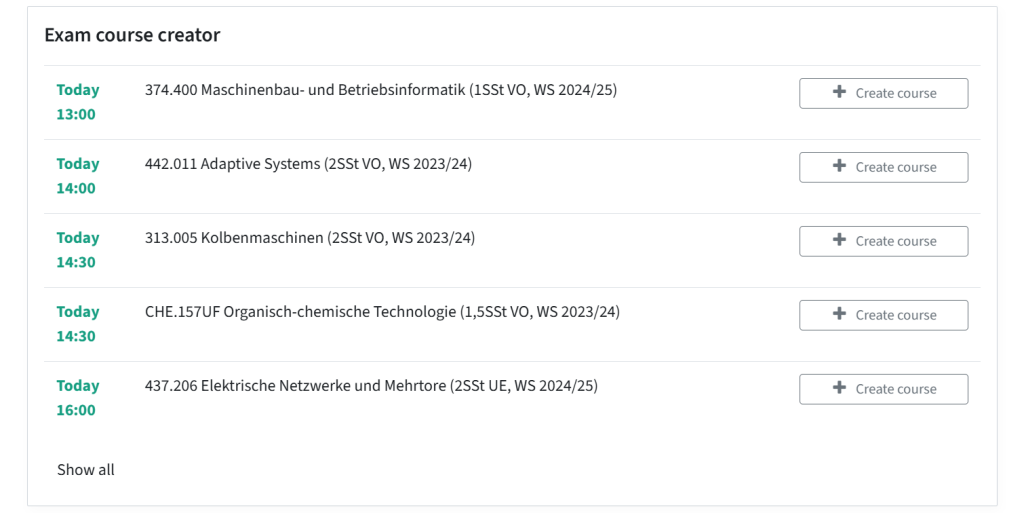
- After approximately 15 minutes you will find the exam date listed in the ‚Exam Creator‘- block on the TC-Exam dashboard. Click on ‚Create course‘.
- Choose whether you want to create a new, empty course or duplicate an existing course including all activities and the question bank (but without former participants). If you choose to duplicate, search for the course you want to duplicate.
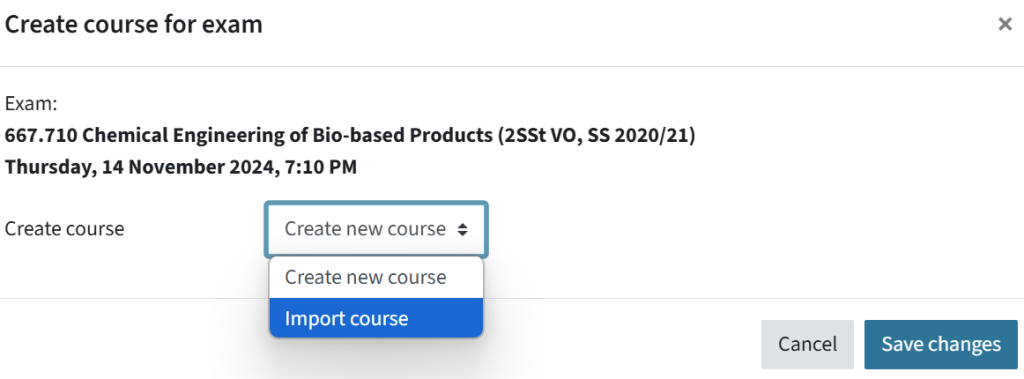
- Click Save changes.
- A course with a standard section called „Exam“ will be created. Synchronisation with TUGRAZonline will be set up automatically and students registered for the exam will get access.
If you want to import additional content from another course later on, you can use the import function.
If you are not the (further) examiner of a certain exam and therefore do not see the section, you can have the course created by an examiner, or you can contact the support team and we will be happy to create the course for you.
Access to the TC Exam
Who has access to the exam course?
The courses are linked to the respective exam date in TUGRAZonline. Access rights are automatically regulated via the exam registration in TUGRAZonline.
As soon as a course is created, all examiners (teachers) who are registered for the exam date and all students who are registered for the exam at that time have access to the course.
Synchronisation then takes place daily in the early hours of the morning, so that when students register for an exam in TUGRAZonline, they gain access to the course by the next day at the latest. The same applies when students deregister from an exam; they automatically lose access the next day.
You can also manually trigger synchronisation at any time. This is recommended, for example, if students have registered or deregistered at short notice. To synchronise participants immediately, click on More > Synchronisation > Synchronise all.
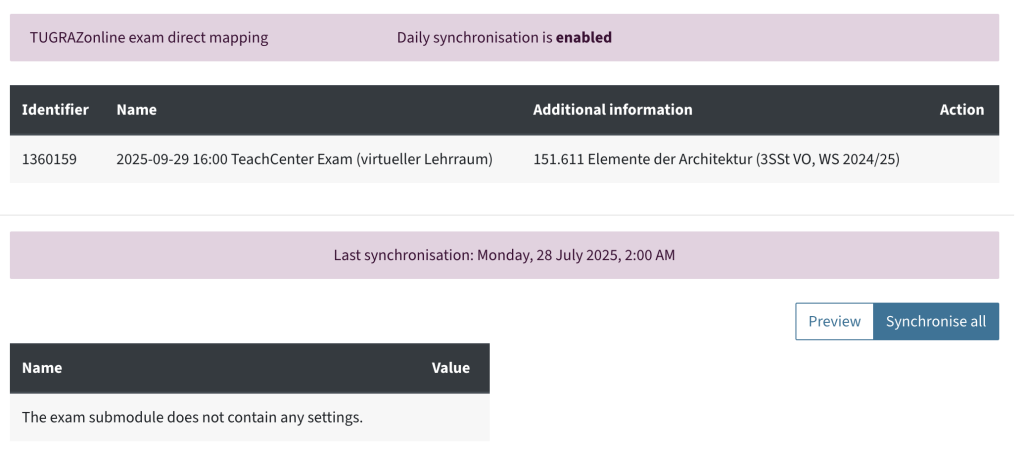
If additional people need access to the exam courses (e.g. tutors), you can manually enrol them. See also: „How to add and remove users„.
Will students get notified that an exam course has been created?
Students are not automatically notified that an exam has been created in the TeachCenter Exam (external site) ! You must therefore inform your students that the exam will take place there instead of the „regular“ TeachCenter.
Creating an exam
User guides for creating exams can also be found on the TELucation website under the menu item User Guides Exams. (external site) Here you will find, for example, instructions for assignment activities or quiz activities (single or multiple choice).
N.B.: If certain students require more time for an exam, e.g. due to a disability, you can also set these exceptions while creating an exam. See our instructions for assignment activities or quiz activities.
Hiding task or quiz
If a time limit is set in the quiz or assignment activity, students will not have access to it beforehand. However, you can still hide the activity as a whole before the exam:
- To hide an activity (e.g. a quiz) within a section: Click the three dots next to the activity > Availability > Hide on course page.
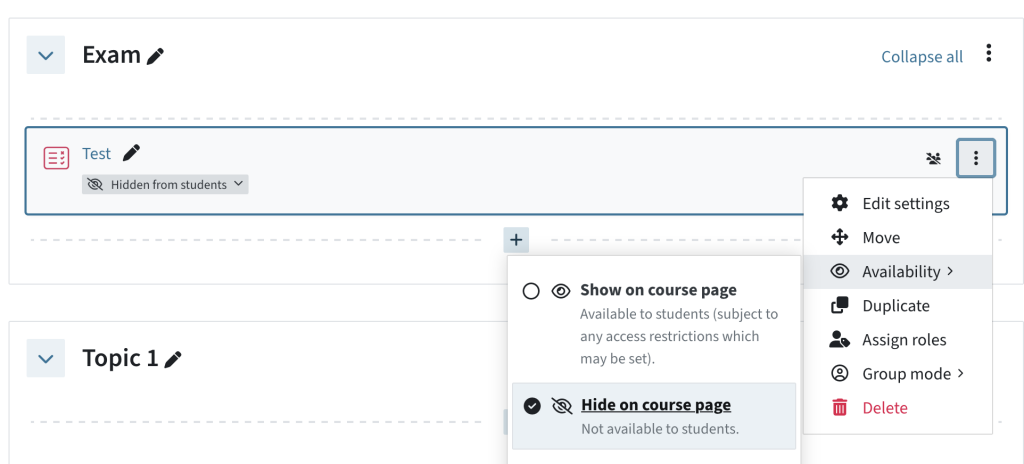
- You can also „Show“ the activity the same way again.
For a quiz or an assignment, it is not always necessary to hide it. In the settings in the „Timing“ section, you can set the visibility to a later time: The options „Open the Quiz“ and „Close the quiz“ refer to the time when the exam is visible to the students. Students see the activity in the course, but they can only open it in the said period.

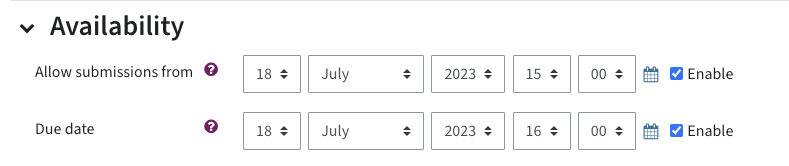
For assignment activities, you can also set a start date for submissions in the „Availability“ section of the settings. Students cannot upload anything before that.
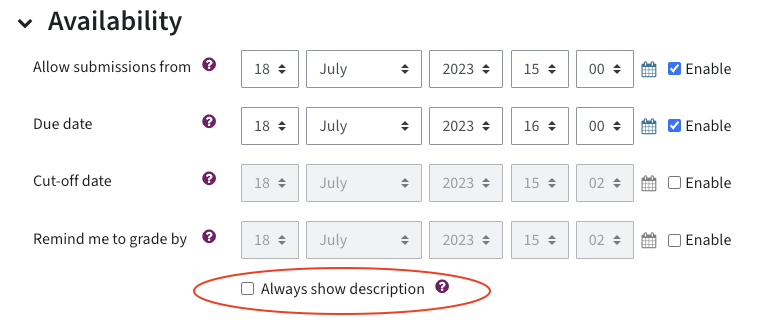
When you provide a task in the assignment activity, note the following: By default, the option „Always show description“ is enabled. This means that the description of the assignment including the additional files (e.g. a task) is always displayed when the activity is visible – i.e. even before the upload is possible. Remove this check mark if you want to make tasks and files visible only from the start of the assignment activity.
If you are not sure whether the settings are correct and the students really cannot open the exam yet, you can switch to the student view to check:
- Click on your name on top of the page > Switch role to … > Student.
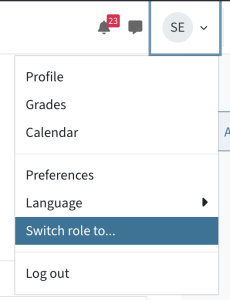
- Now you can see the course from the student’s perspective and test to open the activity.
- When you are done, click on your name again > Return to my normal role.
Alternatively, you may enrol a colleague as a student in the course.
Help & contact
If something does not work as described, get in touch – we will look into it.
