
Taking exams in TU Graz TeachCenter Exam: instructions for students
Taking a test in TeachCenter Exam
How do I find my exam in the TeachCenter Exam?
- Go to the TeachCenter Exam. (external site)
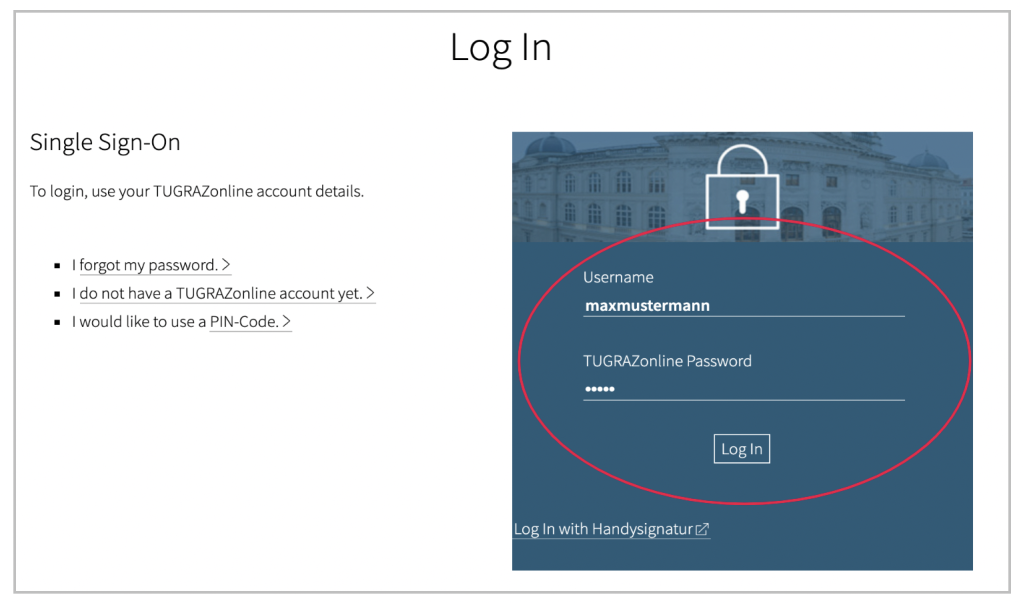
- Click on Log in. You will be redirected to the login page.
- Enter your TUGRAZonline (external site) credentials (user name and password) as in TUGRAZonline and click on Log in again. Continue with the two-factor authentification if it is required.
- You will need to accept the user policy when you first log in.
- Once you have logged in, you will see courses for each exam date you are registered for on the dashboard.
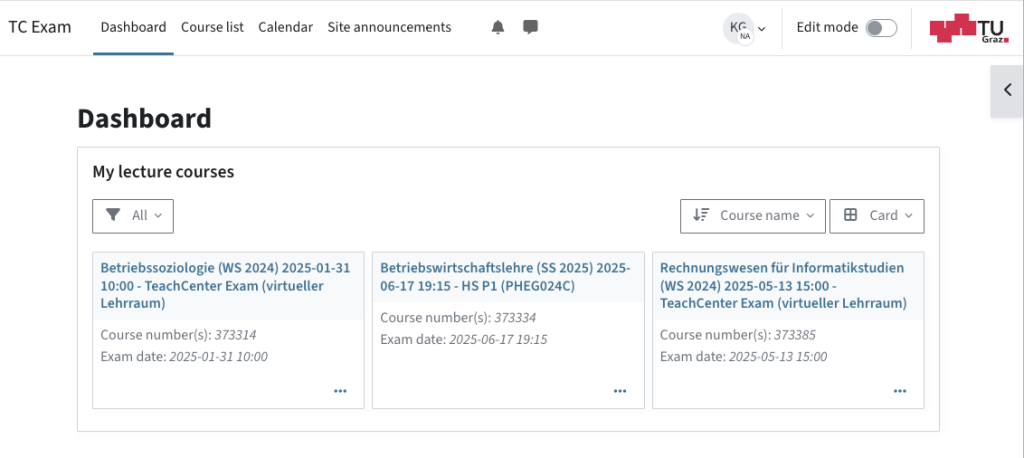
- Click on the course for the corresponding exam date.
- In the course you will now see your quiz or assignment activity.
It is possible that the exam will be unlocked just before the starting time.
How do I start and submit the exam?
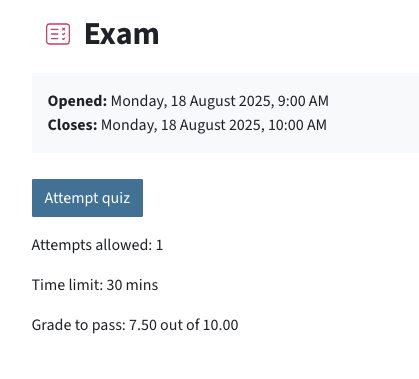
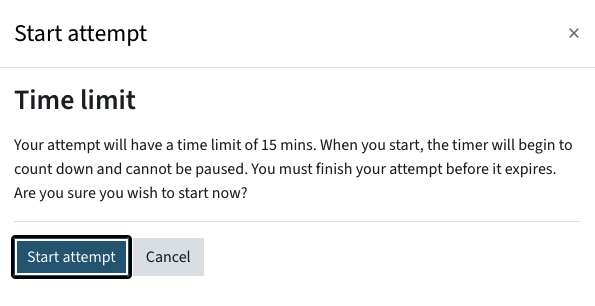
- When you have found your exam in the TeachCenter Exam, click on your exam and then on Attempt quiz. If the test has a time limit or multiple attempts allowed, you will be reminded in a pop-up window and need to confirm.
- Answer the questions or solve the tasks.
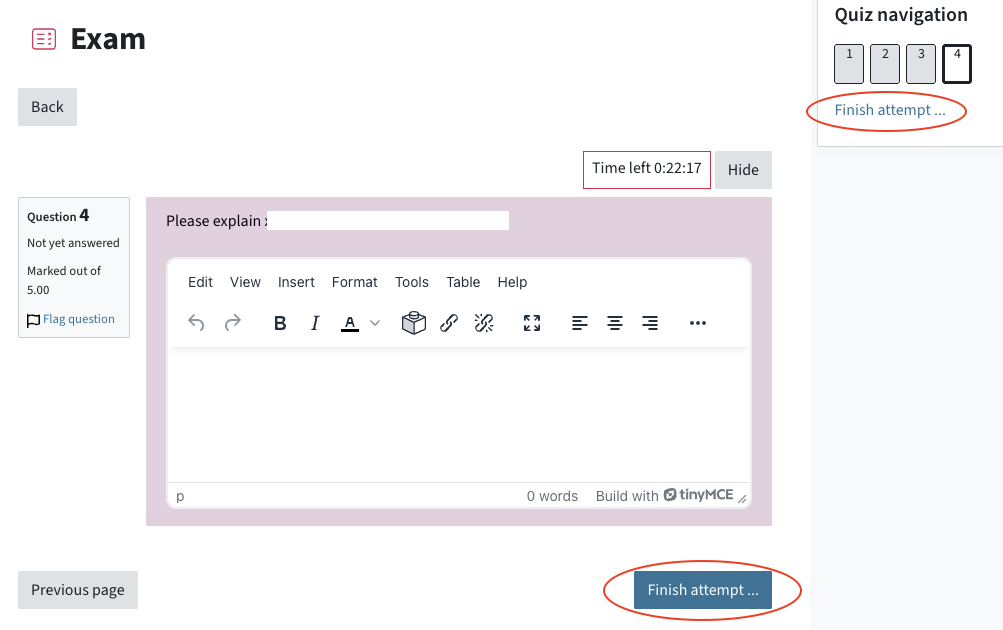
- To complete the quiz, click on Finish attempt. This button is found in the sidebar or after the last question. If you accidentally close the sidebar, you can open it again via a small toggle with an arrow on the right.
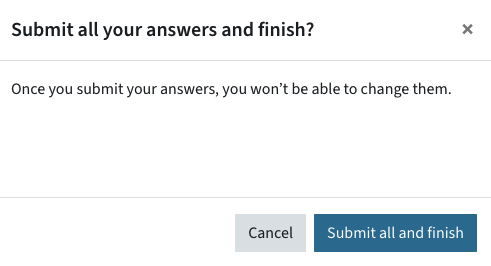
- Click on Submit all and finish twice. This will confirm your entries again and prevent you from accidentally submitting your answers too early.
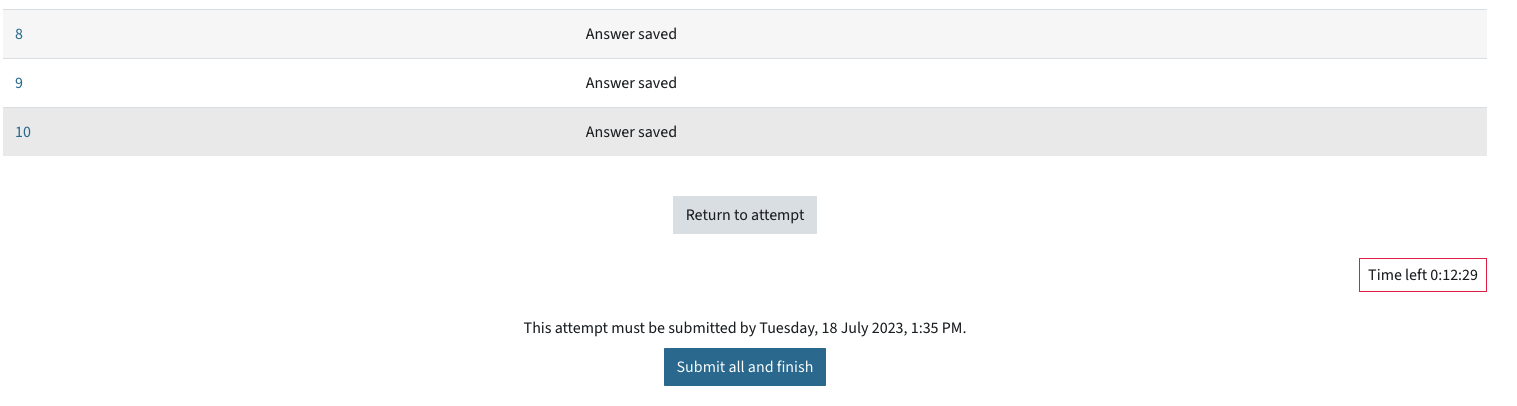
If your exam has a time limit and the time has expired, your exam may be automatically submitted (depending on the setting).
Exam: How can I see my scores?
You can view your marks (or grades as numbers, if this has been activated in the settings of the assessment overview) via the Grades tab in the main menu at the top of the TeachCenter course.
The grades are GDPR-compliant – In contrast to teachers, they only ever see their own results!

The assessments comply with the GDPR because unlike teachers, you can only see your own results!
You can also view your scores or other details such as their test attempt or feedback by reopening the exam activity later.
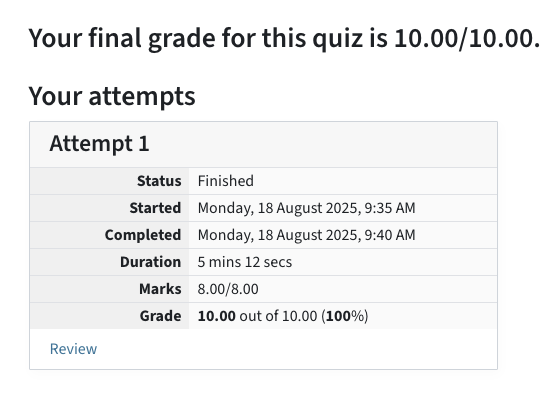
What is displayed in this view is defined by teachers in the test activity settings.
How do I submit an assignment?
- Click on the assignment activity within the examination period.
- Choose Add submission.
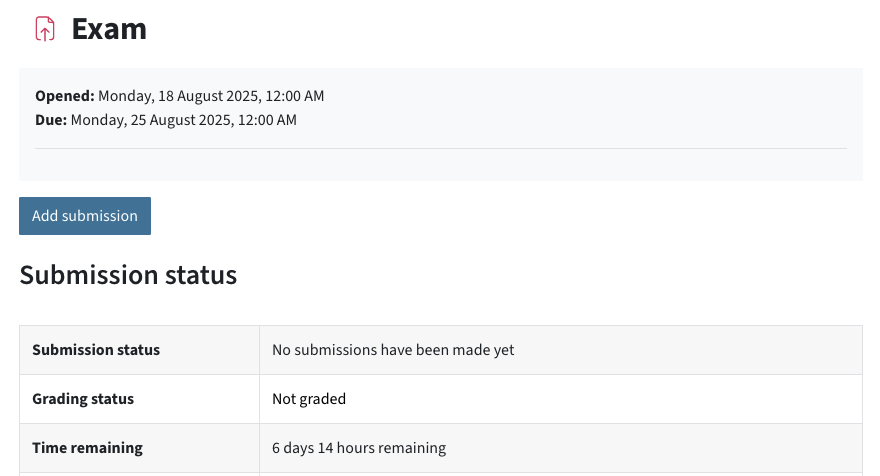
- Enter an online text or klick on the plus icon to select and upload a file from your hard drive.
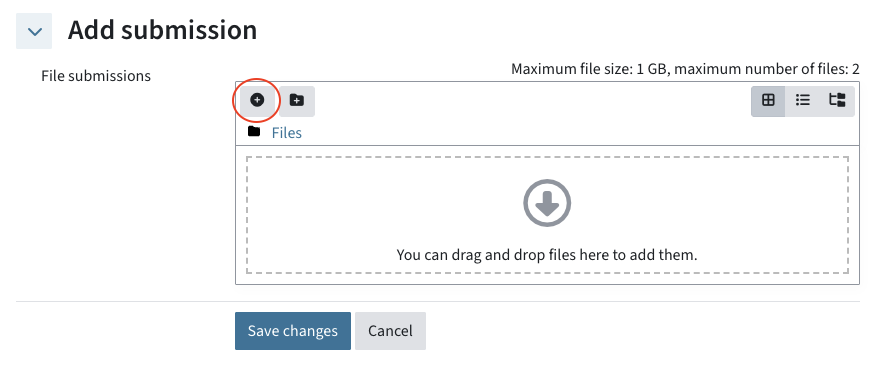
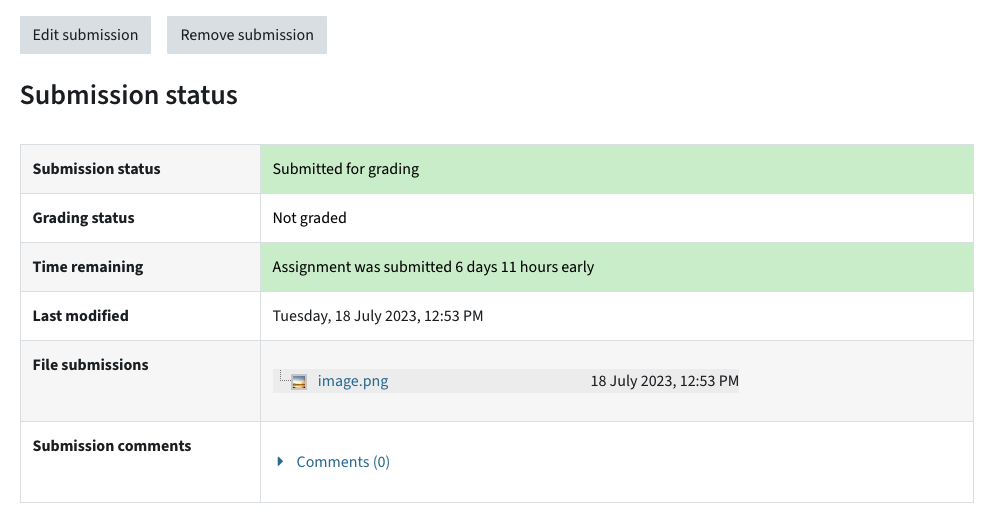
- Click on Save changes. Uploaded documents are not automatically saved! Always check that the changes have been saved and that the status is set to „submitted for grading“.
- If you still want to make changes, click on Edit submission.
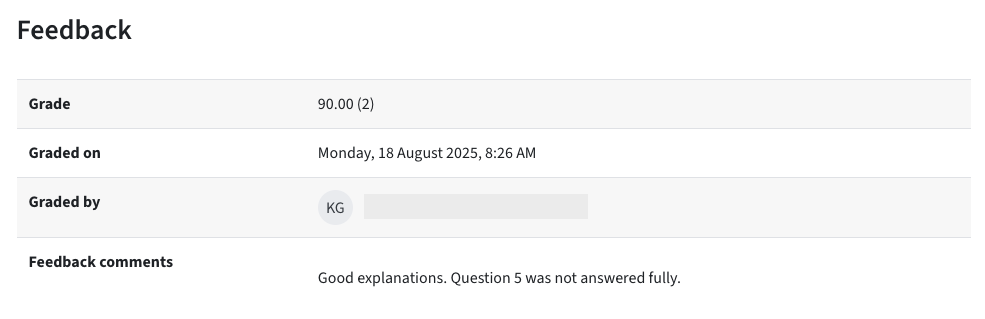
Assignment: How can I see my scores?
Once the assessment has been saved and you open the assignment activity, you will see your scores, the file the teacher annotated, the feedback files and the feedback comments.
Where do I find my KnowledgeCheckR exam?
- You will find a link to the KnowledgeCheckR exam in the TeachCenter Exam (external site) course.
- Click on this link and enter the access code if necessary.
- Then follow the instructions in the KnowledgeCheckR.
Where do I find my Gradescope exam?
Gradescope is a tool that enables various examination scenarios:
- The exam is written in a lecture hall as usual, only the grading is done online. In this case, you can view your points in the corresponding course on TeachCenter Exam (external site) .
- The exam is written in a lecture hall, but you have to scan and upload the exam sheets using your own device. In this case, also go to TeachCenter Exam, click on the link to the exam in Gradescope and follow the instructions.
- The exam takes place completely online, and you have to download or open an exam sheet from Gradescope online. In this case, too, go to the TeachCenter Exam, click on the link to the exam in Gradescope and follow the further instructions there.
Your teachers or examiners can inform you about the details of the process.
Help & contact
If something does not work as described, get in touch – we will look into it.
