
Post-exam reviews at TU Graz
At TU Graz, you can also offer your students digital post-exam reviews of their results using video conferencing tools.
Digital post-exam reviews
Informing students
- Make an appointment with the student. The „Scheduler„ activity in the TeachCenter might be useful for this. Tell your students the link to BigBlueButton or Webex.
Reviewing an exam in the TC or TC Exam
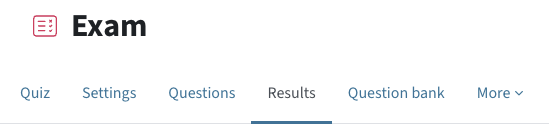
Open the exam course in the TeachCenter, click on the exam and then on the tab Results.
- Go to your TeachCenter (Exam) course and open the exam.
- Go to the Results tab.
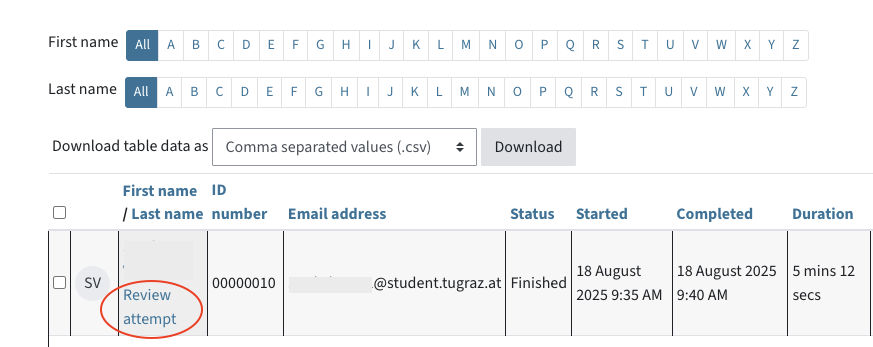
Scroll down a little to the table, look for the person who wants to review their exam (or use the letter filters) and, below the name, click on Attempt review.
- Scroll down a little to the table, look for the student or use the letters as filters, and click Review attempt below the student’s name.
Share your screen with the student. Show the student the exam.
- Share your screen with the student on BigBlueButton or Webex.
- Show the exam and results to the student.
Reviewing an exam in the KnowledgeCheckR
Open the app in KnowledgeCheckR, then click on the blue gear icon and on the tab Checks.
- Open the app in KnowledgeCheckR, click on the blue gear icon and then on the tab Checks. Now select the exam to access its results.
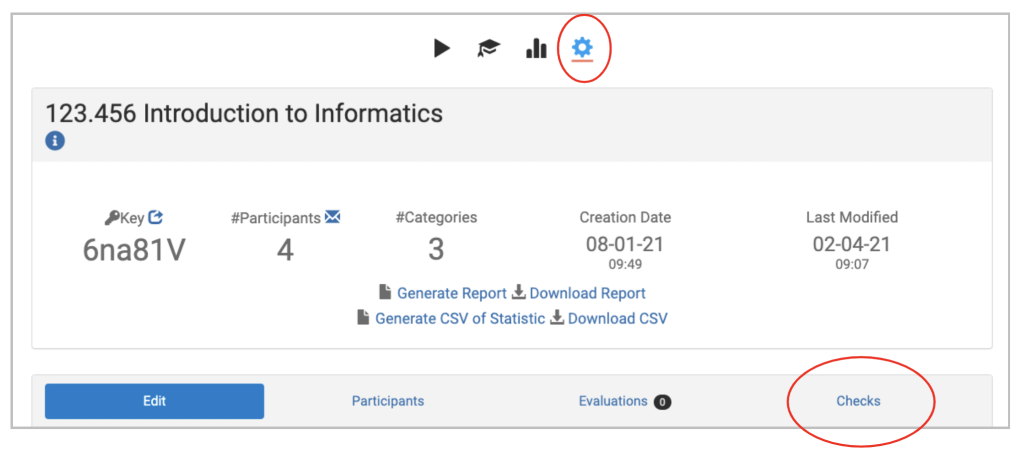
Click on the corresponding Exam (Check). Scroll down to almost the end. You can now either online or download them as a PDF and show the PDF.
- Scroll down to almost the end of the page.
Now you have the possibility to either show the results online or to download them and show them in a PDF.
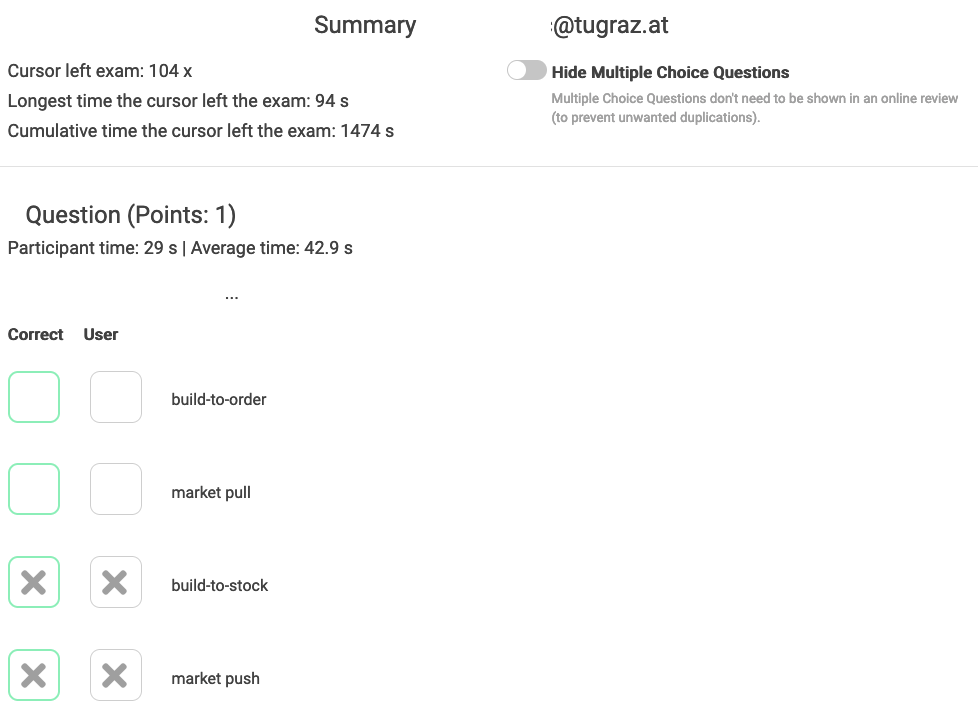
- To show the results online, click on the student and then on Summary Participant. If you choose this method, make sure that no other results are visible in the background!
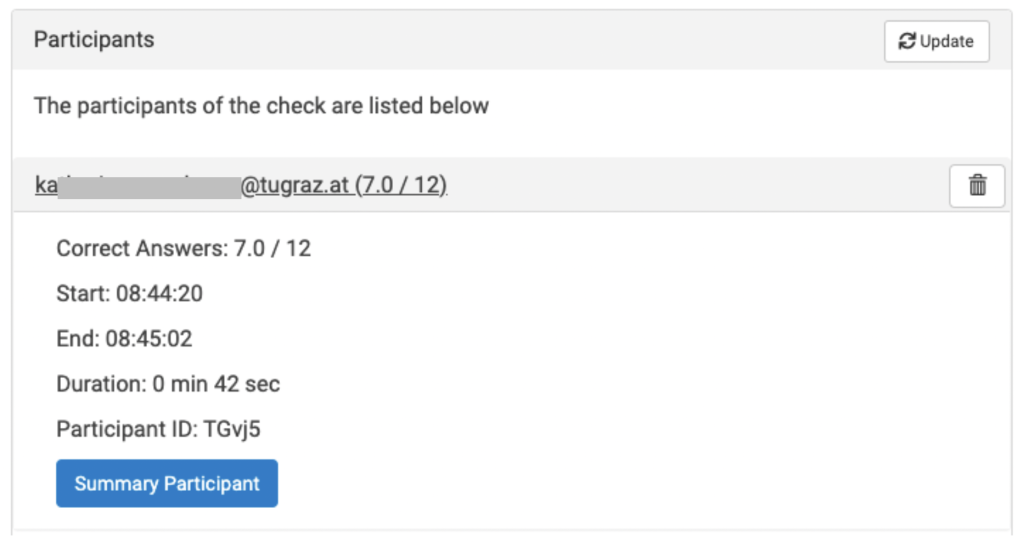
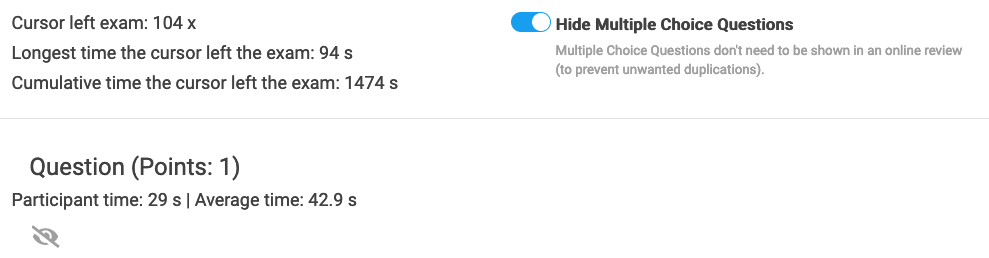
During the online review you can hide multiple choice questions with a slider. These do not have to be shown during an online review, in order to prevent them from being passed on.
- If you choose this method, you can also hide multiple choice questions with a slider because it is not necessary to let students see them by study law.
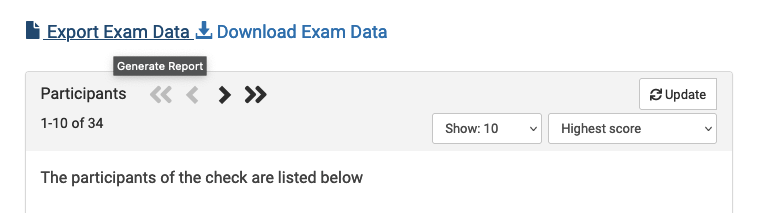
- To download the results as a PDF file, click on Export Exam Data just above the participants‘ list.
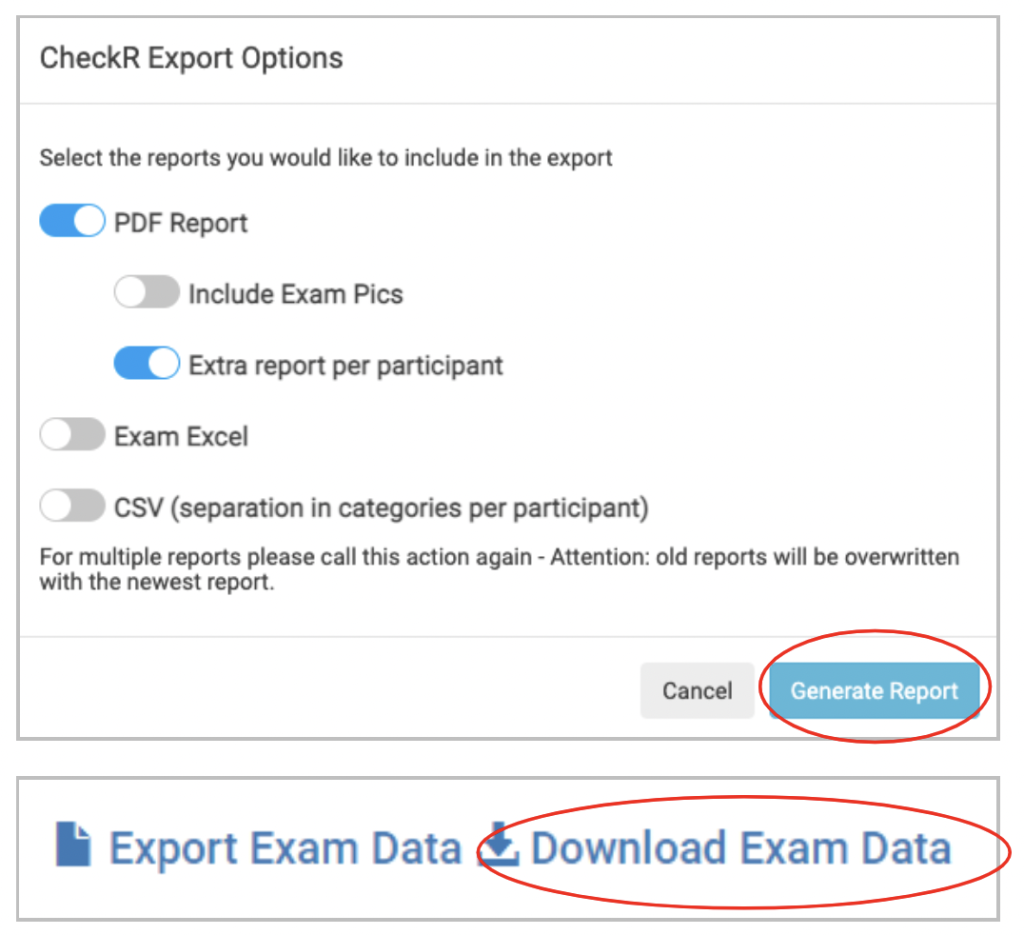
- Ideally, select the format PDF Report > Extra report per participant. By clicking on Generate Report
- Now you can click Download Exam Data and download the generated PDF file.
Share your screen in the video conferencing tool (BBB, Webex) and show the student the exam.
- Share your screen with the student using one of the video conferencing tools supported at TU Graz (Webex, BBB).
- Show the exam and results to the student.
Help & contact
If something does not work as described, get in touch – we will look into it.
