
Importing course materials and activities from one TC course to another
If you have editing rights in a TC course you can import all documents, activities, sections and the forum from another course.
Importing a course or elements of a course
Short guide to the import function
- Open the TC course you wish to import items into.
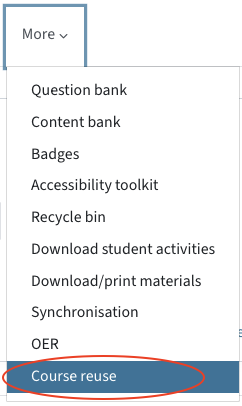
- In the main menu on top, click More > Course reuse.
- Click on Import.
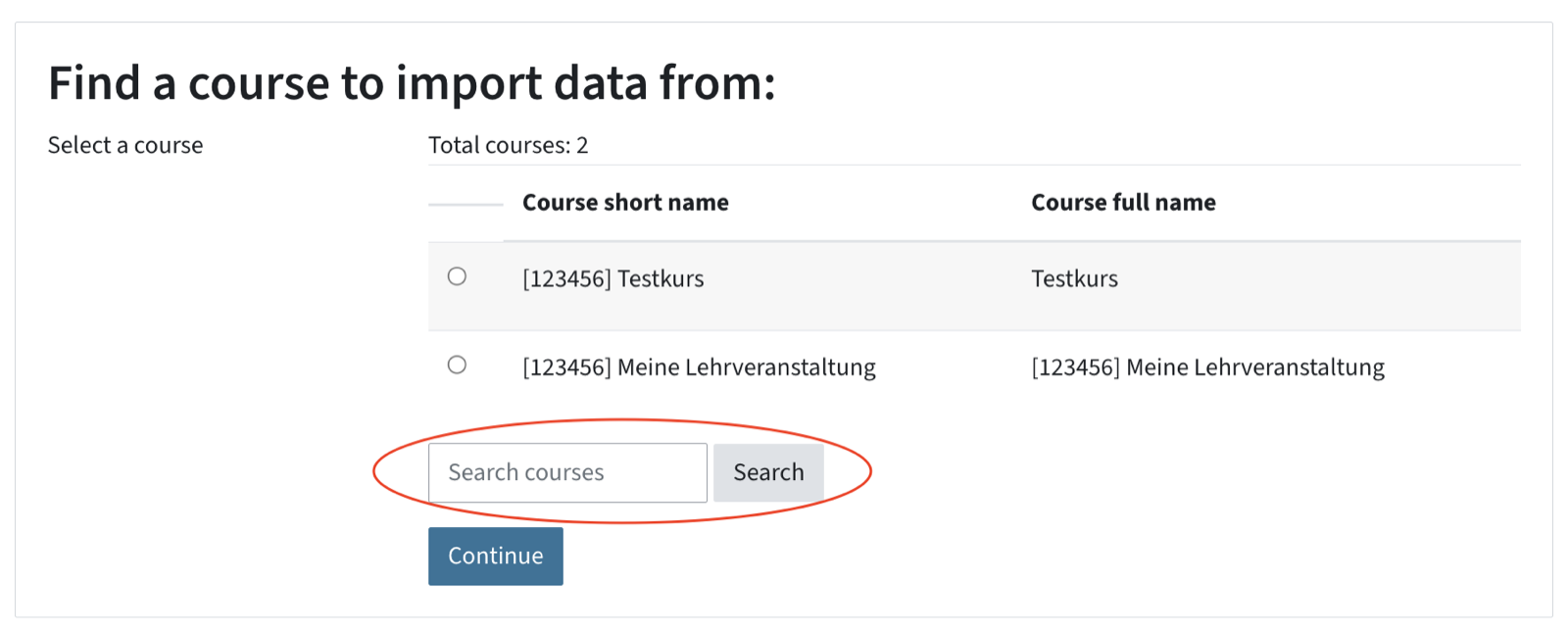
- You will see a list of all the courses where you have editing rights. In the Search field, select the course you want to import data from. Click on Continue.
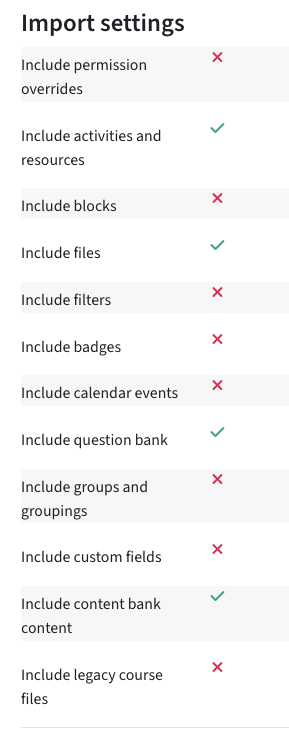
- In the import settings, select the general items you want to import.
- You can later on select whether you want to include and exclude individual items.
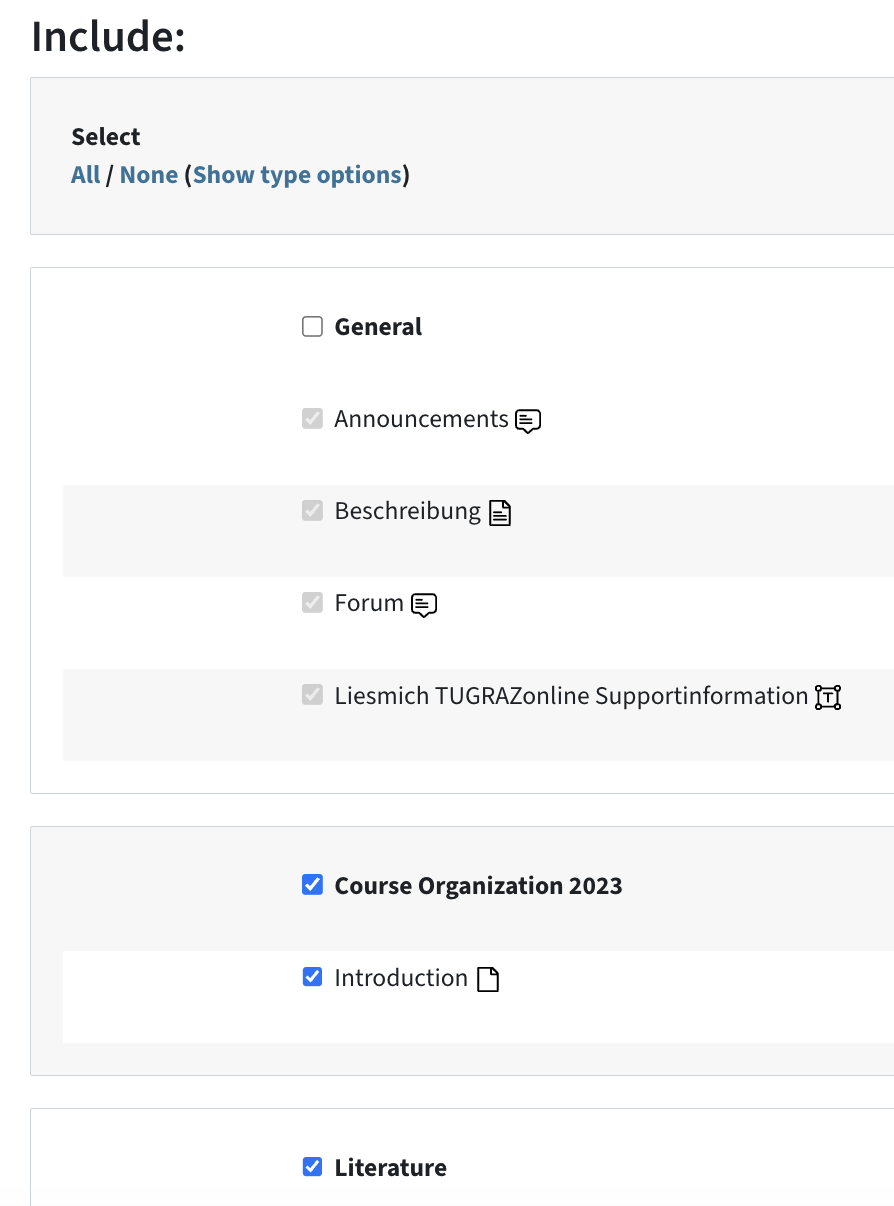
- Click on Next. On the following page, you can now confirm and review the items you are about to import.
- Click on Perform import. If everything has worked, a confirmation message appears.
- Click on Continue. You will now see your TC course page with the imported content.
Tips for choosing activities
An overview of the elements that can be imported and a short description:
- Activities and resources: Quizzes, Assignments etc., to be specified later Tip: When you import a Quiz, the questions in the question bank will also be imported.
- Blocks: e.g. TUbeDrop – not relevant Important: To create TUbeDrop, please continue to use the TUbe-Services form (external site) , not the import, because the links and access rights have to be adjusted by the support team.
- Files: documents uploaded by you, to be specified later
- Filters: not relevant
- Badges: only relevant if you use badges in the courses
- Calendar events
- Question bank: imported in its entirety
- Groups and groupings: does not include participants
- Custom fields: not relevant
- Content bank content: e.g. H5P items, imported in its entirety
- Legacy course files: not relevant
Tip: Import the General section only if you need the forum or the description.
Known issues and possible solutions
Known issues:
- Imported activities/files are merged with sections in the existing course instead of being added as new sections at the bottom. This is the case if the sections have identical titles or if the sections in the originating and new course are in the same position.
- If the originating course has more sections than the target course and an activity is added from a lower section, empty sections are created in the target course.
Possible solutions:
- Rename the sections in advance to make sure that the files/items are imported exactly where you wish: either in the same sections (= same section title as is the originating course) or in another one.
- Before importing, create some empty sections at the top or in a suitable place where the import items will then go.
- Move the imported files to the correct section after the import.
Export and Import of individual quiz questions and categories
In the TeachCenter, you can export existing questions from the question bank of a TeachCenter course and import them into the question bank of another TC course. You can also import questions from external sources into TC courses.
Exporting individual questions and categories from the question bank
To export one or more questions to a file, go to the main menu of the relevant TC course and select More > Question bank.
To export a single question, go to the respective question in the question bank and select Edit > Export as Moodle XML.
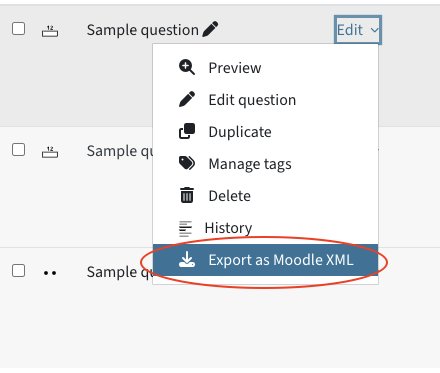
To export all questions from a question category or from the whole course, proceed as follows:
- At the top left, you see a drop-down menu with the default selection Questions. Click the arrows in the drop-down menu and select Export.
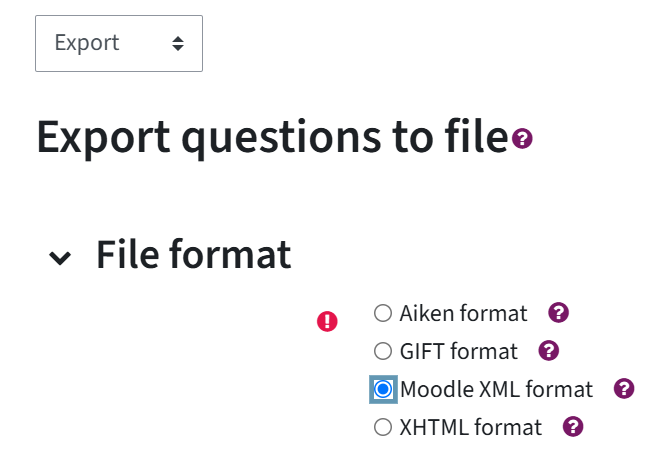
- Under File format, you can see all the available file formats with an explanation on how and which questions can be exported (click on the question mark icon). We recommend the Moodle XML format.
- Below this you see the General section, where you can select the category from which you want to export the questions. Click Export Questions to File.
- Klicken Sie dann auf Fragen in Datei exportieren.
Importing individual questions and categories into the question bank
To import, click on More > Question bank in the main menu of the TC course in which you want to import one or more questions and select Import from the drop-down menu in the top left corner.
The following screen appears: Import questions from file. All the file formats available for importing questions into the question bank are listed below. The import file can come from the TeachCenter or from external systems. Questions can be imported in the following file formats:
- Aiken format
- Blackboard
- Embedded answers (Cloze)
- GIFT format
- Missing word format
- Moodle XML format
Under General, you can select the category in the question bank to which the questions should be assigned. If graded questions are imported, the percentage points must correspond to valid scores. For more information, see the options Match Grades and Stop on Error.
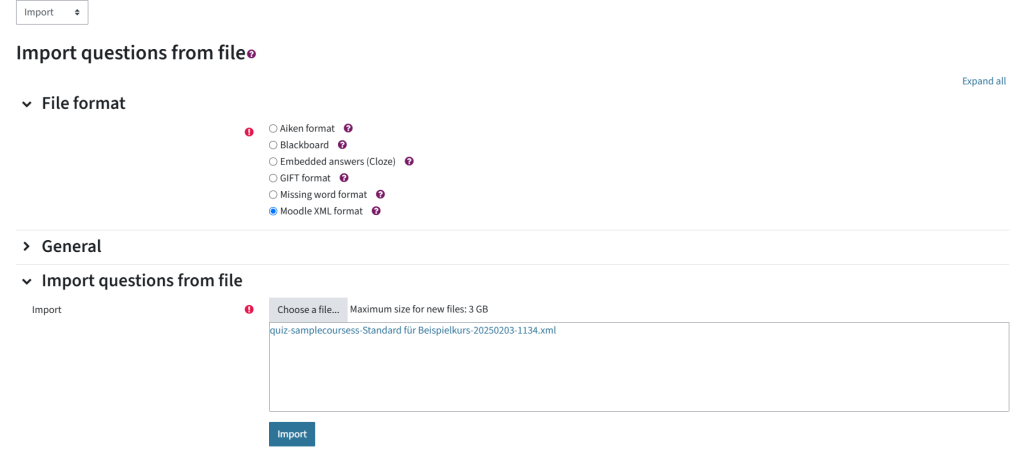
You can upload the import file using drag and drop. Then click on Import. The questions are parsed from the import file and the number of imported questions is displayed.
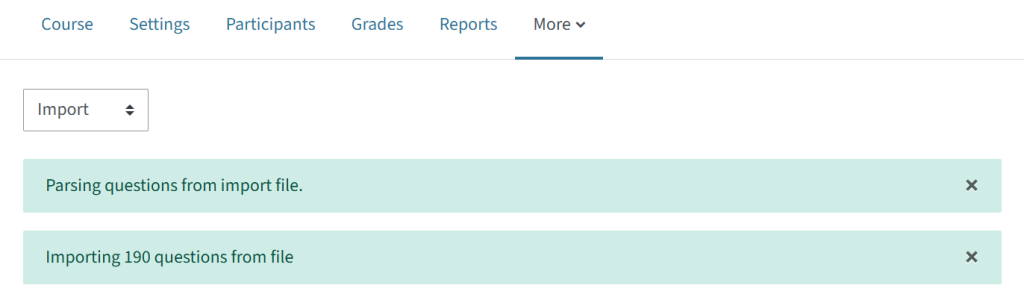
Scroll down and click on Continue. The import process is then complete.
Help & contact
If something does not work as described, get in touch – we will look into it.
