
How to add and remove users
In certain cases, participants must be manually enrolled in the TeachCenter course. You can also remove these people from the course or extend their enrolment.
Automatically adding users to the course
Who automatically gets access to a course?
In the TeachCenter: (external site) Teachers, tutors and students who are registered for the course in TUGRAZonline are automatically imported and do not have to be added manually.
In the TeachCenter Exam: (external site) Examiners and students who are registered for the exam in TUGRAZonline are automatically synchronised and do not have to be added manually.
When does the automatic synchronisation take place?
The automatic synchronisation in the TeachCenter and TeachCenter Exam takes place once every 24 hours, always at night. If you register for the course or exam today, you will not have access to the TeachCenter course until tomorrow!
In special cases (e.g. if students register for the exam at short notice and would not be imported to the TeachCenter until the next day), synchronisation can also be triggered manually at any time. See the next point for step-by-step instructions.
How to start the synchronisation process on demand
Sometimes it is necessary to start the automatic synchronisation at a time other than at night.
Example: A student has registered for at short notice and is registered in TUGRAZonline, but not yet in the TeachCenter.
In this case, the synchronisation can be started manually by teachers (not by tutors!). To do this, go to the main menu – More – Synchronisation.
Click Synchronise all to start the process. You will see a notification that the synchronisation has been queued. You can leave this page.
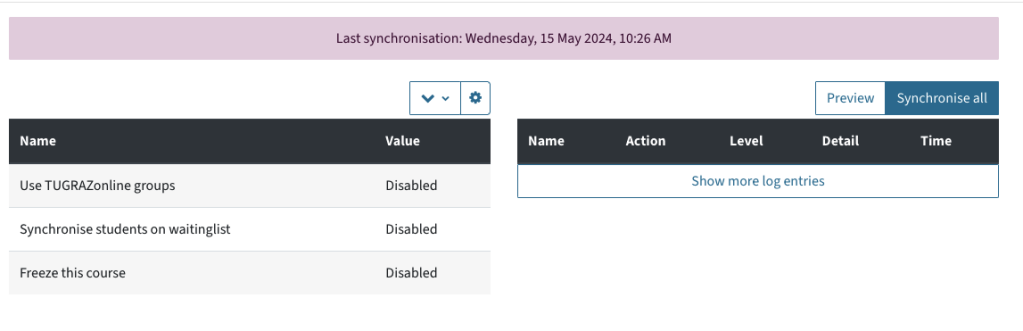

In the Preview, you can check who would be enrolled in the course if you started the synchronisation.
Manually adding users to the course
Who needs to be enrolled manually?
People who are not registered in TUGRAZonline for the course or exam (and cannot be registered) but need access to the course must be registered manually. This concerns, for example:
- Students who need the materials and can no longer be registered for the course
- Tutors who are not registered as such in TUGRAZonline
- Secretaries and heads of institutes
How to manually enroll someone
All teachers in a TeachCenter course can enrol other people. Tutors do not have this right.
To add a person manually (e.g. individual students from previous semesters, institute secretaries):
- Click on Participants in the main menu at the top.

- Click on Enrol users at the top.

- Select the desired role (e.g. teacher) in the following menu via Assign role.
- Search for the person by typing their name or e-mail. You can also search for more than one person and then add them all together.
- Click Enrol users. Repeat this process as often as you like.
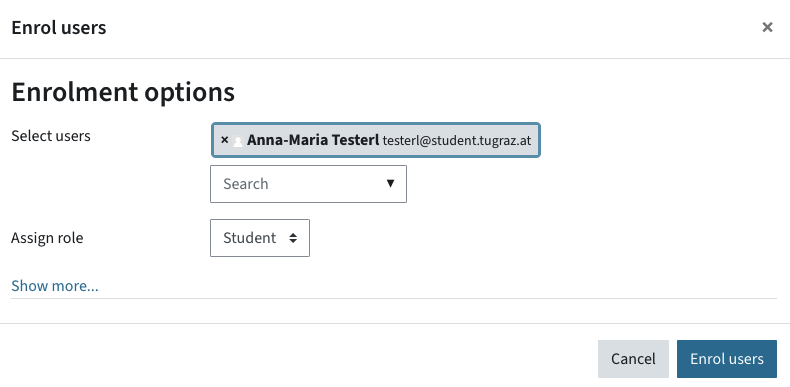
Manually enrolled users remain enrolled in the course for one year for data protection and copyright reasons and are then automatically removed unless their enrolment is renewed.
Unenrolling users from a course
Unenrolling automatically synced users
Persons who are registered for the course in TUGRAZonline are automatically removed from the TeachCenter course when the semester changes. The date of the semester change is always communicated via the TeachCenter FAQ (external site) and on the TeachCenter dashboard.
TeachCenter Exam courses will be deleted 6 months after the exam and all users will thus lose access.
If a person who was automatically synchronised from TUGRAZonline deregisters from the course or exam in TUGRAZonline, this person is also automatically removed from the respective TeachCenter course.
Unenrolling manually synced users
Manually enrolled users are automatically removed after one year, but can also be removed manually earlier.
- Click on Participants in the main menu at the top.
- Search for the user.
- Click on the red trashcan symbol on the far right of the user you want to unenrol.

- Confirm the unenrolment by clicking on Unenrol.
Frequently asked questions about enrolment
How to enrol someone for more than a year
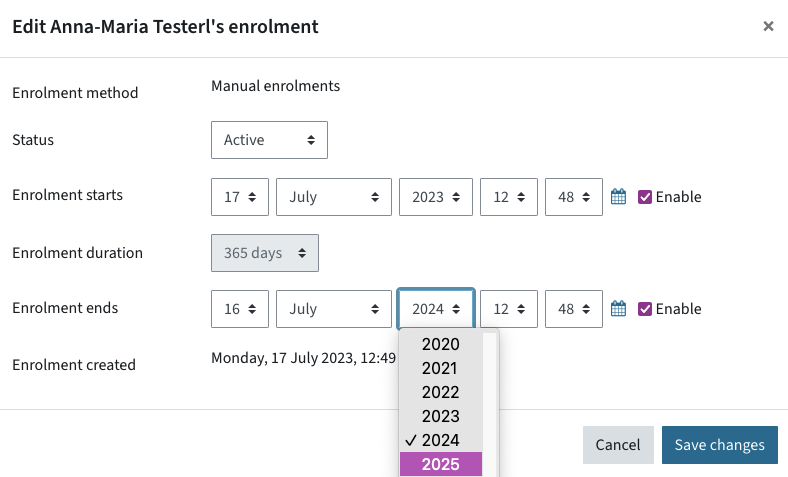
For data protection and copyright reasons, manually enrolled users always have access for one year from the date of enrolment. If necessary, you can extend the enrolment.
- Click on Participants in the main menu at the top.
- Search for the user using the letter or text filters.
- Click on the gear symbol on the far right of the user in question.

- Select a new enrolment end date (e.g. the last day of the semester).
- Click on Save changes to confirm.
Users who are synchronised via TUGRAZonline can, for example, register again for the course in the following semester and thus continue to have access to the TeachCenter course.
Can our secretary get access to our institute’s courses?
Generally yes, with the consent of the teachers or the head of the institute.
To give secretaries access to individual courses, manually enrol them in the course or add them in TUGRAZonline.
To give secretaries automatic access to all current and future courses of the institute, contact TeachCenter support (include approval by the head of the institute). The support team can create a special enrolment so that this person has editing rights in all courses of the institute and is also automatically added as soon as a new course is created for the institute.
Help & contact
If something does not work as described, get in touch – we will look into it.
