
Creating programming questions using the CodeRunner question type
Creating a quiz with CodeRunner questions
General information and quiz settings
CodeRunner supports the following languages: Python2, Python3, C, C++, Java, PHP, Pascal, JavaScript (NodeJS), Octave and Matlab (as of December 2024).
CodeRunner is a question type in the TeachCenter (Exam), which means it can only be used within a quiz activity.
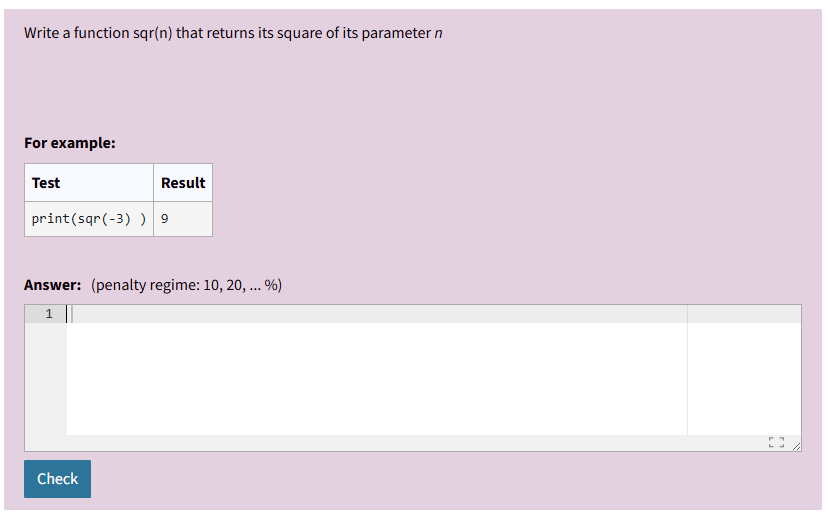
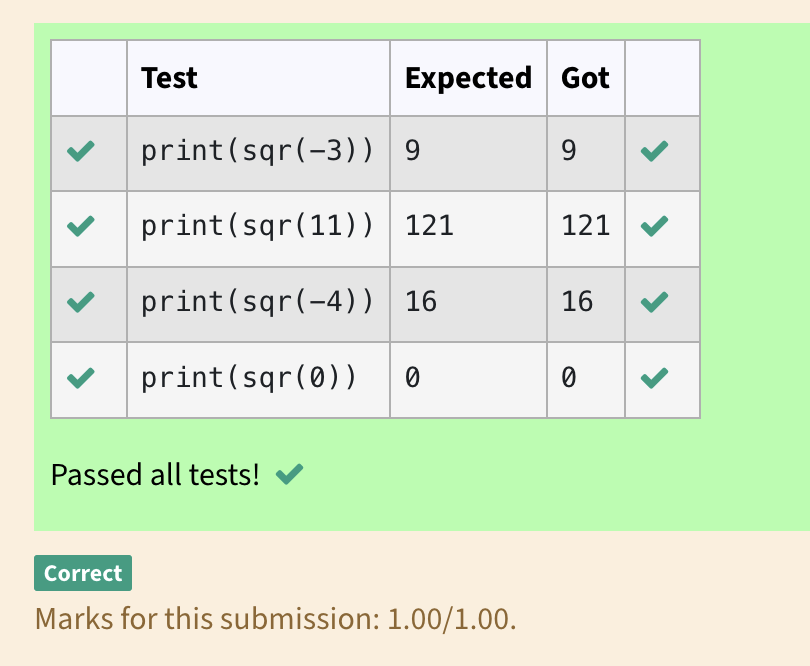
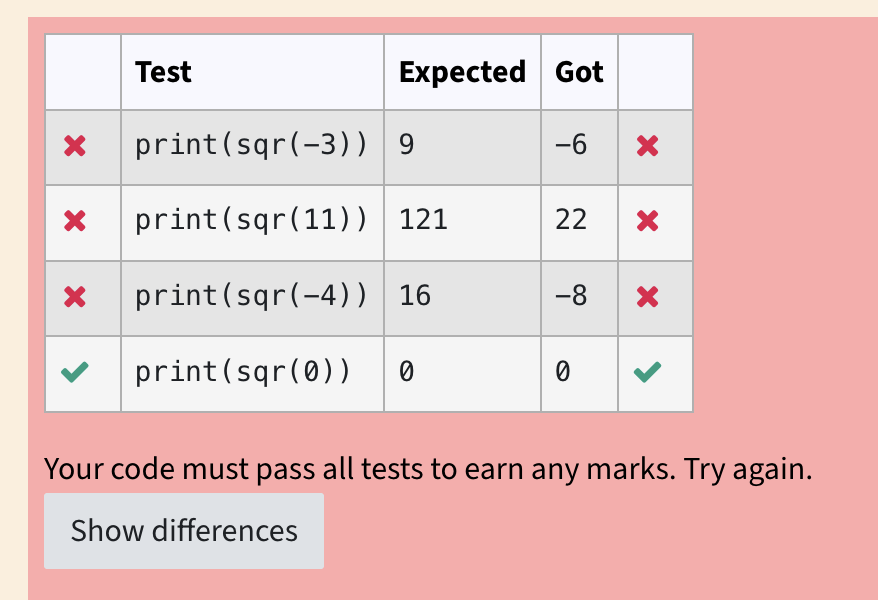
Students will always see a ‚Check‚ button on CodeRunner questions, which they can click to see if their code passes the predefined test cases. Students can submit their solution multiple times, usually for a point deduction.
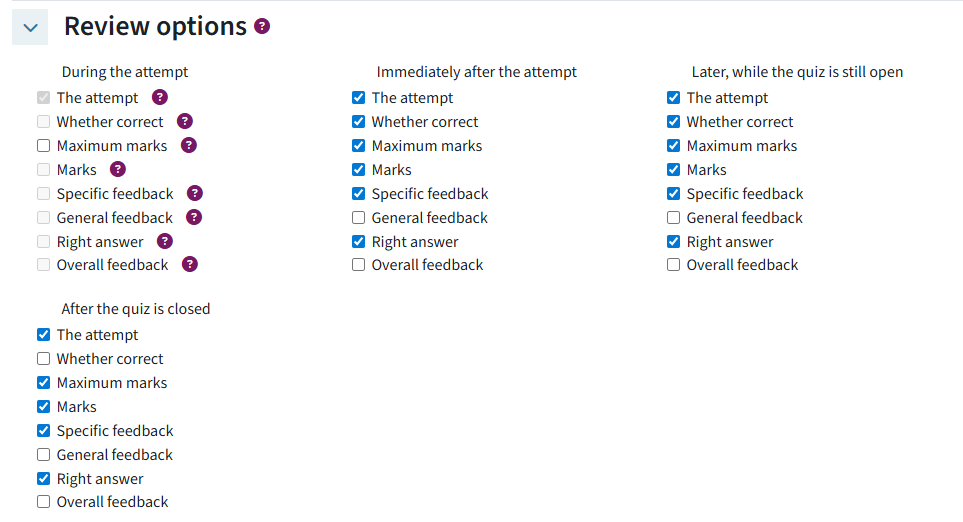
To ensure that students are shown all the necessary information, the developers recommend setting certain options in the ‚Review options‘ of the quiz settings:
- Specific feedback: shows the table of test cases and whether they were passed. This view is enforced by CodeRunner by default, even if it is deactivated in the test settings. You can reset the value to the test settings directly in the CodeRunner question.
- Right answer: shows the model answer. Deactivate this checkbox if you do not want students to see your model answer.
- Whether correct: This checkbox should be deactivated if your quiz contains other questions than CodeRunner questions, and you would not like students to directly see the correct answers to these questions. The non-hidden test cases of CodeRunner questions are displayed in any case.
Creating a CodeRunner question
- Create a new quiz, go to an existing quiz or to the question bank to create a new question.
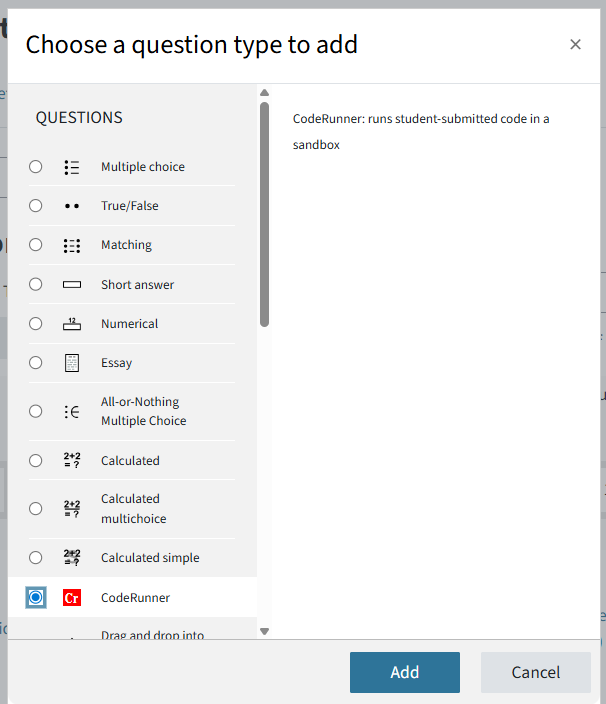
- Choose the CodeRunner question type and click Add.
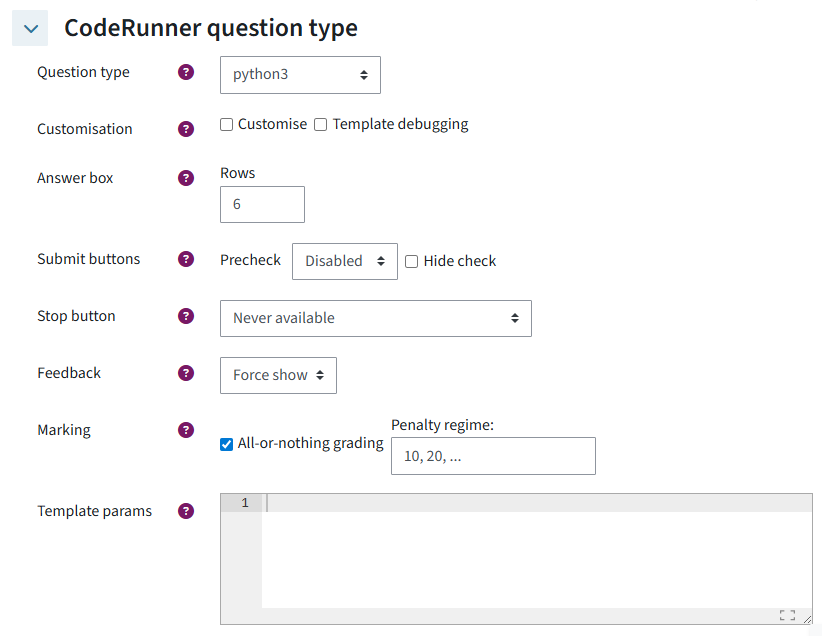
- Question type: Choose the programming language. For a detailed description of the question types, see Github (external site) .
- Answer box: Choose the size of the answer input field.
- Precheck: deactivated by default. Precheck lets students check the test cases you have labelled as example before submitting their final answer. No points are deducted if the precheck does not pass test cases.
- Stop button: Decide whether students can stop running the code.
- Feedback: the default is „force show“, which means that by default, students always see a table with the test cases and whether they have passed when they click „Check“. If you want to hide this table completely, you can do that here. However, students will not be able to see the table of test cases and whether they have passed any at all. There is a different setting for „secret“, hidden test cases in the interface for creating a test case.
- Marking: Choose here how the question will be graded, e.g. all or nothing – all test cases must be passed to receive points.
- Template params: empty by default. See the Github documentation (external site) for detailed instructions on how to use advanced features like templates.
- Add the question title and a question text / instructions.
- Answer: Enter the expected model answer here. The input is tested for validity automatically. This is also the sample answer students might see if activated in the test settings.
- Answer box preload: If the answer box should already contain code snippets or text, enter it here.
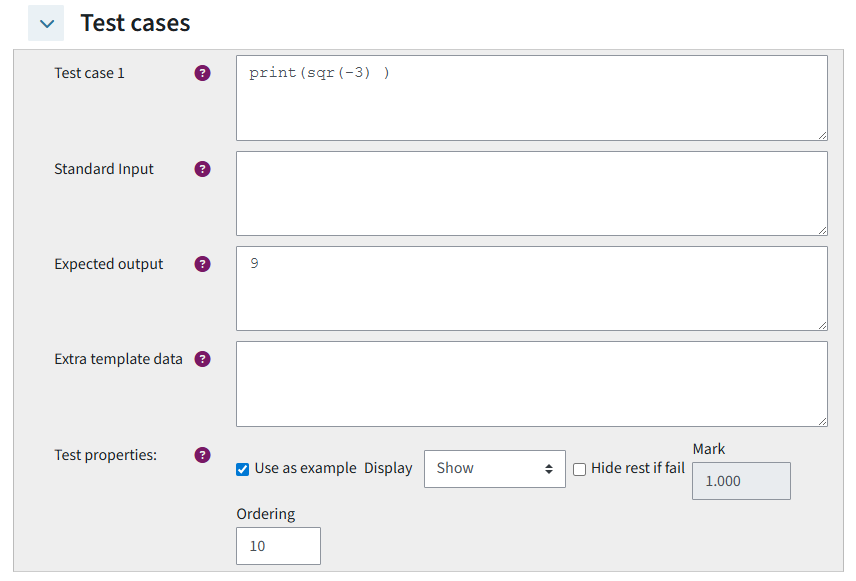
- Test cases: Define test cases and their expected output here. Use as example: These test cases are shown to students as part of the instructions, including their expected answer. Display: This setting allows you to hide test cases for students, in which case they would only see whether they have passed it or not, but not the test case itself.
- In support files, you can provide additional documents to students.
- Click save changes and continue editing to stay on the page and be able to start a preview.
Student view
Student view of a CodeRunner question including example test cases
Help & contact
If something does not work as described, get in touch – we will look into it.
