
Using randomised questions in TeachCenter quizzes
This means that students are likely to be presented with different questions in their quiz attempts. The same applies if more than one attempt is allowed in a test: In this case, the questions are randomly selected for each test attempt.
Random questions in a test are scored one point by default.
Creating a question bank and using random questions from in a quiz
Creating categories
- Go to More > Question bank in the course main menu at the top.

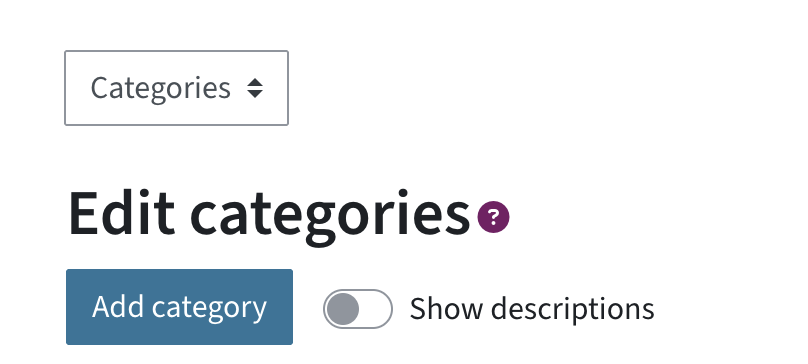
- To add a new category, select Categories from the drop-down menu. You will see a list of already existing categories, if there are any. Click Create new category.
- Write a name for the category and optionally, a description. Make sure the category is sorted into the correct hierarchy (e.g. top to create a new top-level category).
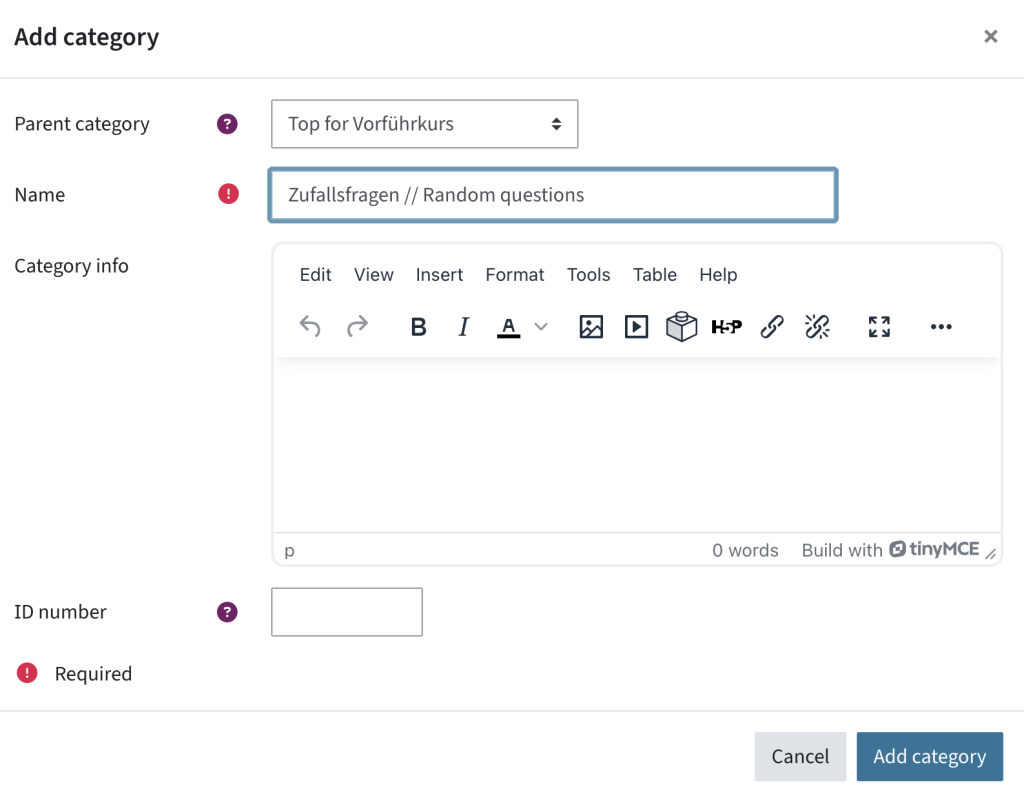
- Click Add category. You will see your new category in the overview.
Adding questions to a category
- Choose Questions from the drop-down menu in the question bank.
- Search for the category for which you want to create a new question and click Apply filter.
- Click Create a new question below the filter.
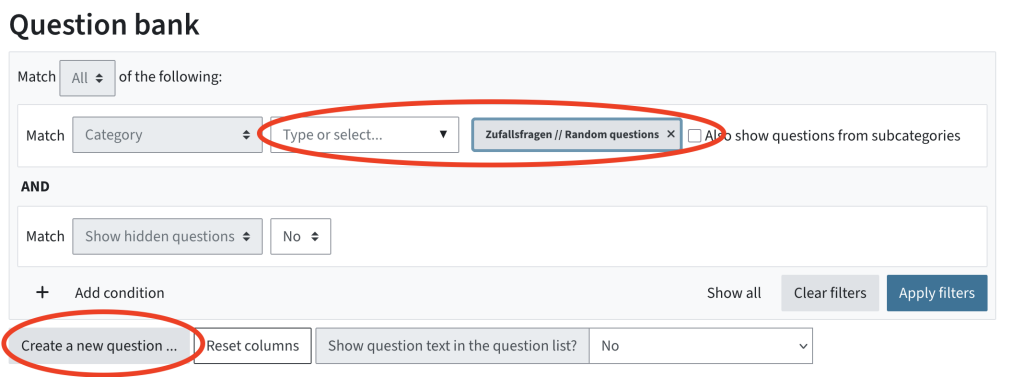
- Now create questions of whichever question type you prefer. More information on creating questions can be found in the user guide on the quiz activity.
The question bank, including the categories and assigned questions, is always available in your TeachCenter course and can be reused for other tests.
Adding random questions to a quiz
- First, you have to create a quiz activity in TeachCenter or TeachCenter Exam. How to do this is also explained in the user guide on the quiz activity.
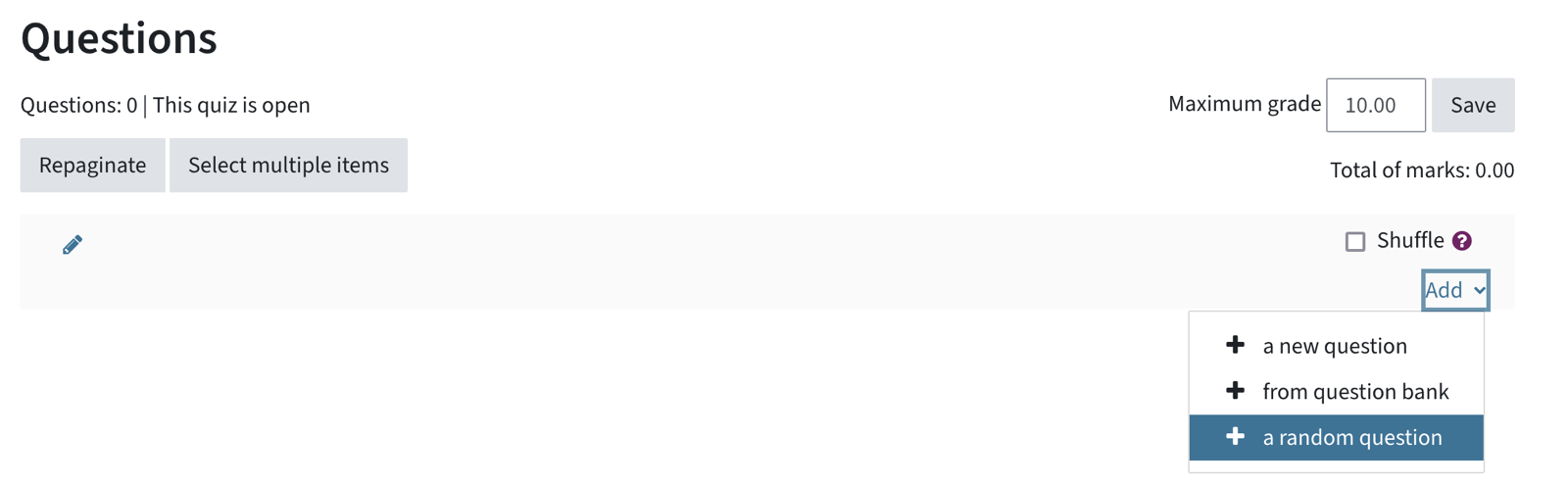
- In the Questions tab, click on Add > a random question.
- Search for the category that contains your random questions and Apply the filter. Select the number of random questions of this category that you want to include in the test.
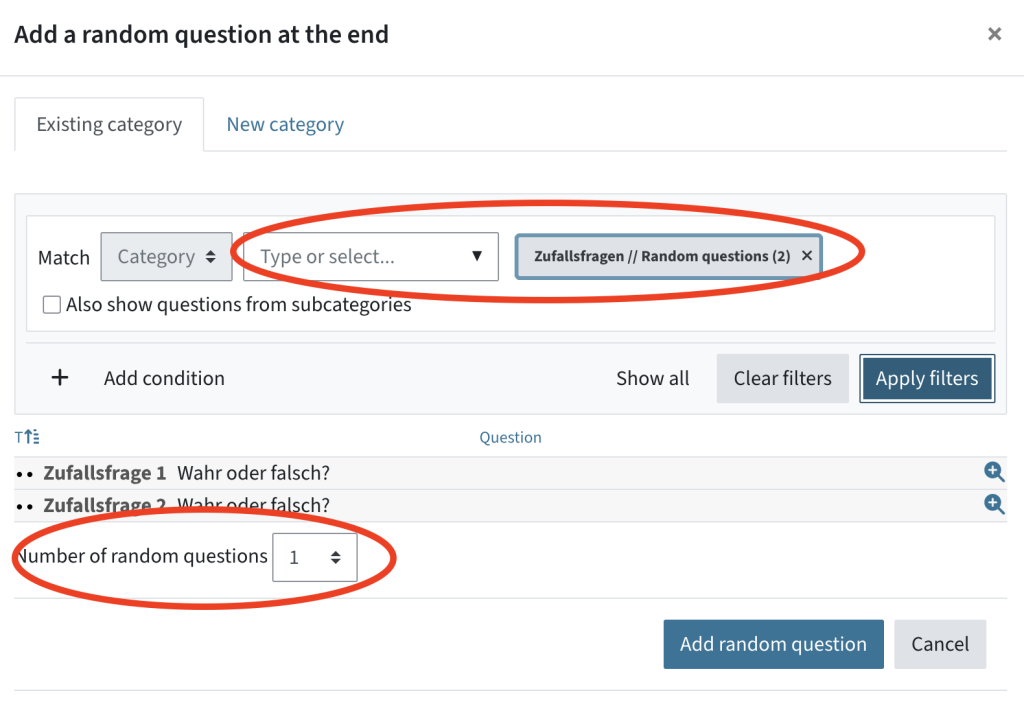
- Click Add random question. You cannot add more random questions than total questions in the category. The number of questions in a category is shown as a number next to the category name.
- After random questions have been inserted into your test, you can recognise them by the dice next to the questions.

Please note: Random questions have a standard 1 point. Each student will see new random questions in every quiz attempt.
Help & contact
If something does not work as described, get in touch – we will look into it.
