
Learning Goal Widget
General description of the Learning Goal Widget
Components of the widget
The widget consist of an overview of learning goals of the course. You can switch between learning goals (only text) and progress view (also shows percentages) using the respective buttons.
The inner circle in the ring diagram view includes the subject areas, the outer circle the learning goals for the individual subject areas.
To the right of the widget, you can see the learning goals as text.
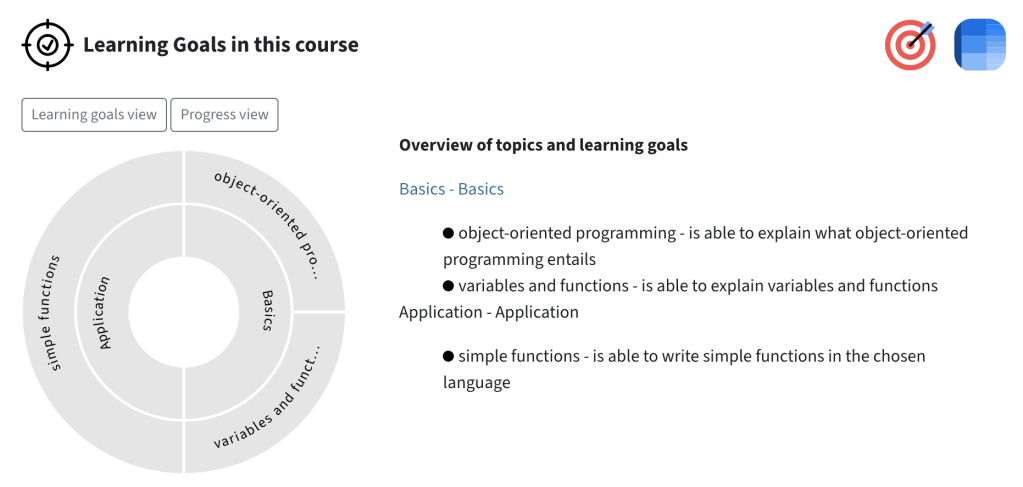
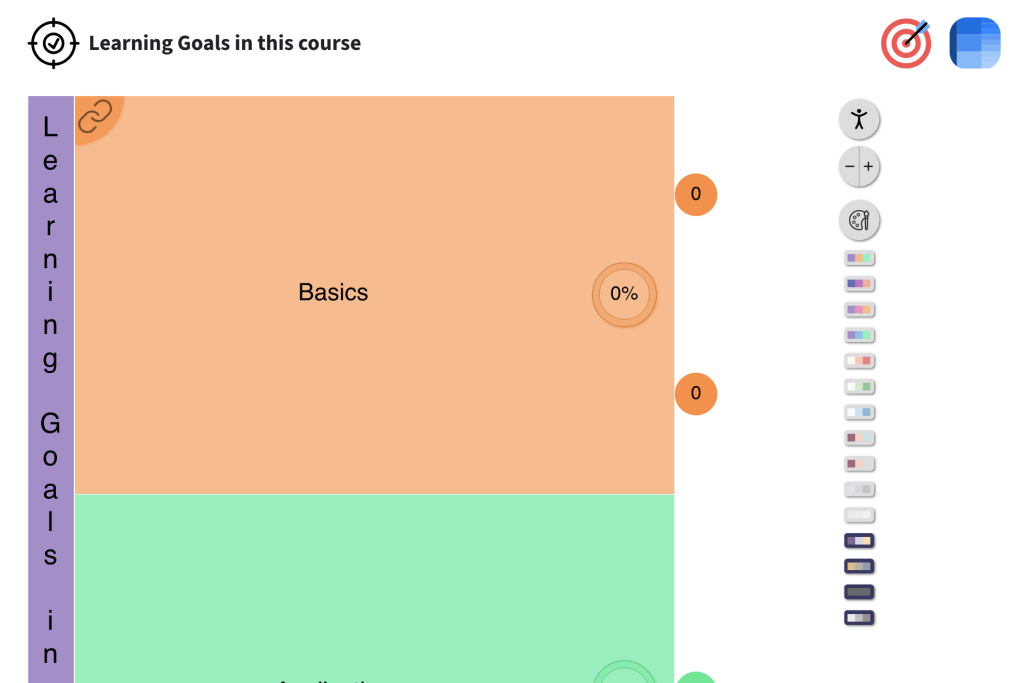
At the top right, you can see a button to switch between the ring diagram view and a box view (a table-like view with more options for accessibility).
Learning goal widget for students: Tracking progress
The Learning Goal Widget is used for self-assessment of one’s own learning progress.
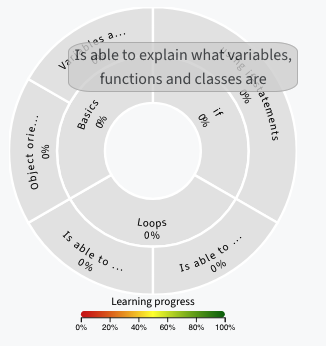
The complete learning goals are displayed on mouse-over of the ring diagram or as a text on the right.
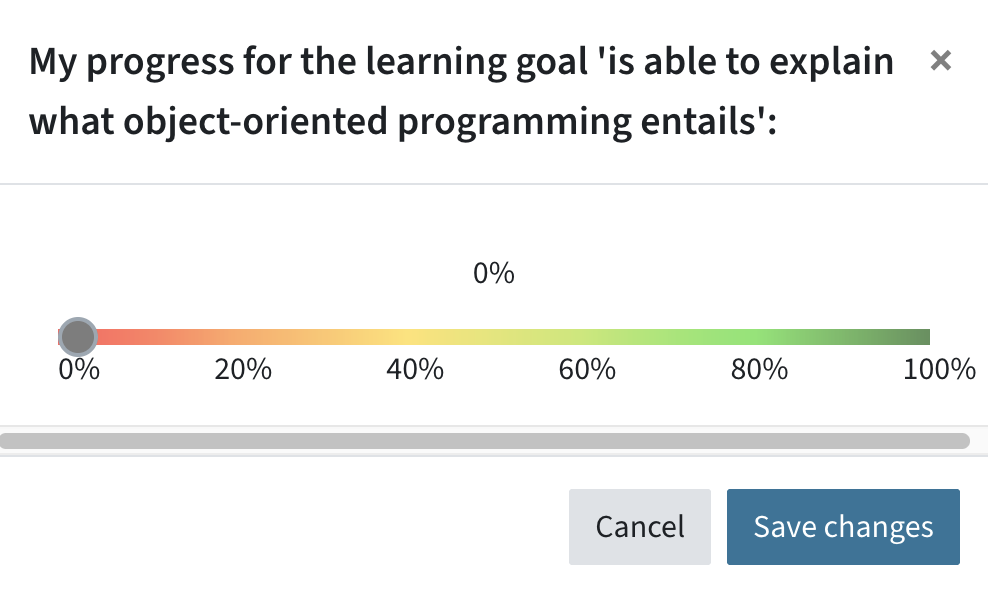
After clicking on a learning goal and the button Progress View, the progress can be entered with a slider as a percentage. The subject areas and learning goals are then coloured according to the selection.
Adding and configuring the Learning Goal Widget
Adding the widget to a course
The widget is available as an activity in TeachCenter and can therefore also be added to a course.
Turn on the course editing mode and in the spot where you would like to add the widget, click the plus icon > activity or resource > Learning Goal Widget.
Give the widget a name.
Activity or resource > Learning Goal Widget.
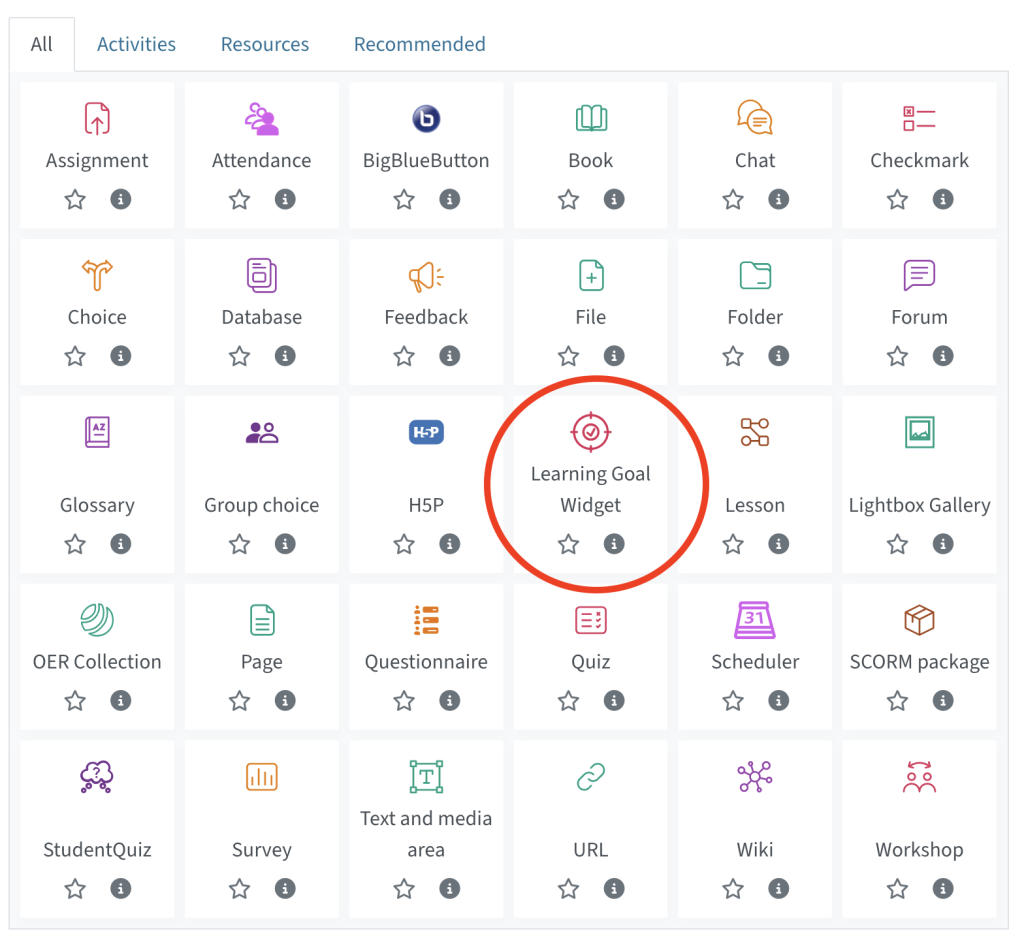
Give the widget a name.
Adding topics and learning goals
You can edit the learning goals in the section Topics and Learning Goals.
First you add a Topic. Each subject area needs a title and an optional short description, which is then displayed in the visualisation. In addition, you can also add a link (e.g. to the course section) which is then stored in the widget.
If you have created a topic, you can create one or more learning goal(s) for it. To do this, first select the subject area. Then click on New learning goal. Enter the title of the learning goal, an optional short name of the learning goal to be displayed in the widget. You can also add a link to specific course content.
Please note: All learning goals must be assigned to a topic, and all topics must have learning goals.
Enter the title of the learning goal and the optional short name, which is to be displayed in the widget. Again, a link (e.g. to course material) can be added.
Please note: All learning goals must be assigned to a topic. All topics must contain learning goals.
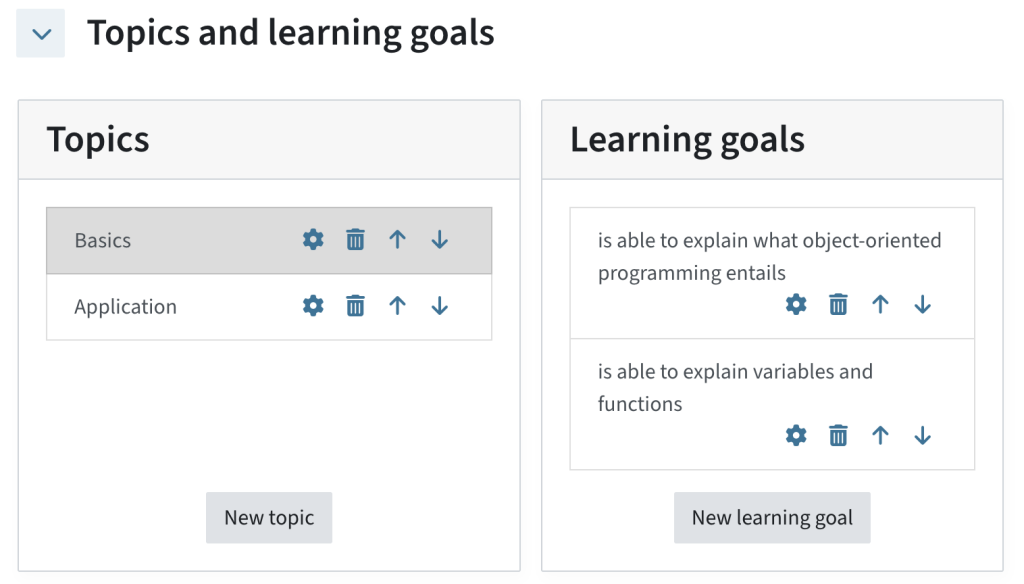
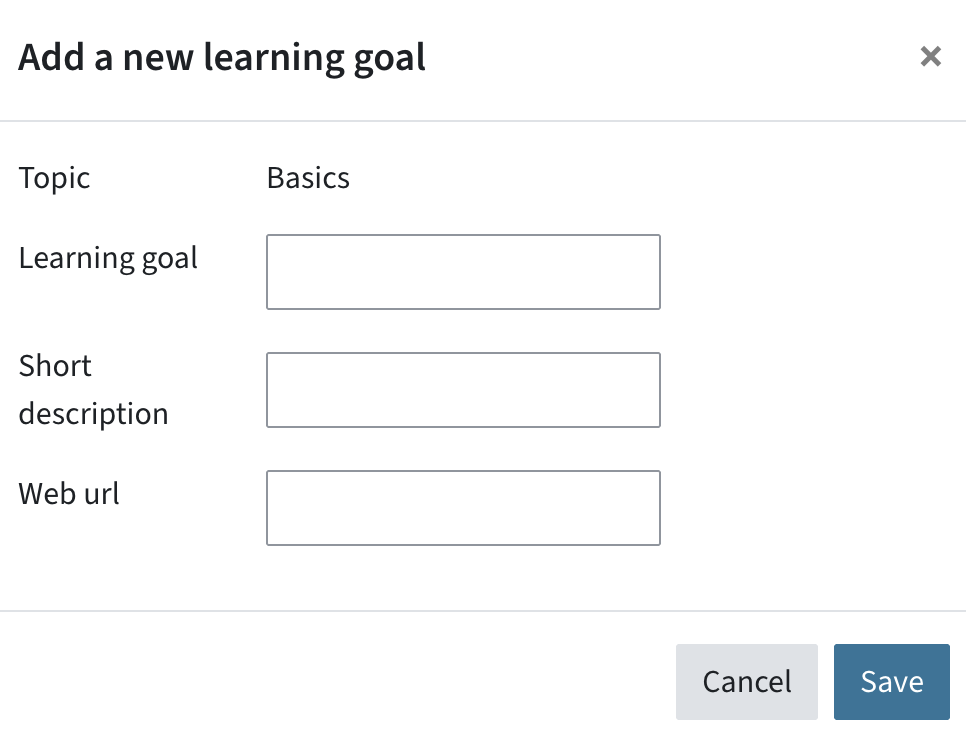
You can edit, delete, move up or down learning goals and topics.
Learning goals and topics can also be uploaded as a .json file if you want to prepare the structure offline on your device.
Click Save and return to course.
Advice for linking contents
Sections in the TeachCenter have a unique ID. To link a section in the TeachCenter to a learning goal in the widget, simply add the ID of the section to the course URL. Example: https://tc.tugraz.at/main/course/section.php?id=(section ID)
PDFs uploaded to the TeachCenter can also be linked to learning goals: Open the PDF from the TeachCenter, copy the URL and paste it into the corresponding field in the Learning Goals editor.
Only complete URLs (including https://) will work.
Help & contact
If something does not work as described, get in touch – we will look into it.
