
Managing notifications in TU Graz TeachCenter
Standard settings and how to manage notifications
Announcements in the course and TeachCenter site-wide
Annoucements are a special kind of forum that works like a notification board.
Please note: Students are automatically subscribed to the announcements, i.e. they will receive notifications about them. All users are subscribed to the site-wide TeachCenter announcements.
Announcements in a TeachCenter course
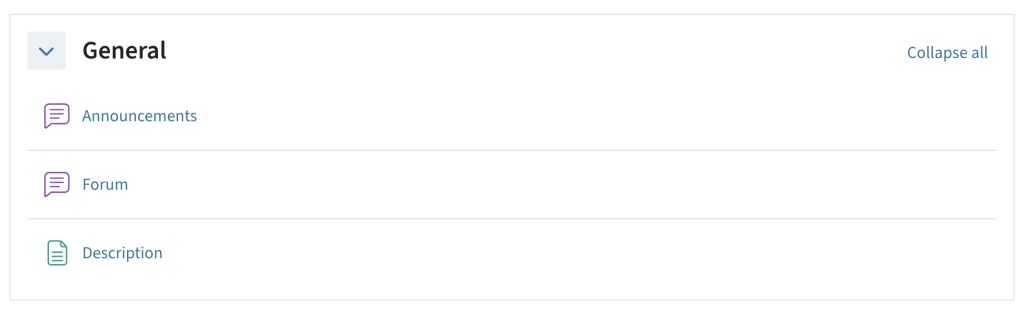
Teachers always find the announcements forum in the General section of a TeachCenter course. As a teacher, you can leave messages for your students here. Announcements are not meant for students to answer.
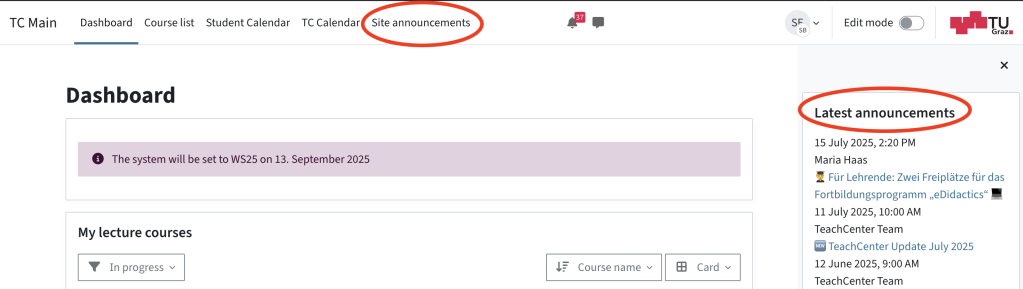
Site-wide TeachCenter announcements
Apart from course announcements, there are site-wide TeachCenter announcements, which you are automatically subscribed to. These announcements usually inform you about news and updates in the TeachCenter.
Notification about announcements
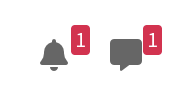
If there is a new announcement, you will receive a notification (red bell next to your initials).
However, you can also change the settings so that you will receive emails in addition to the notification for any new announcements:
- Click the bell icon at the top right, then the gear icon.
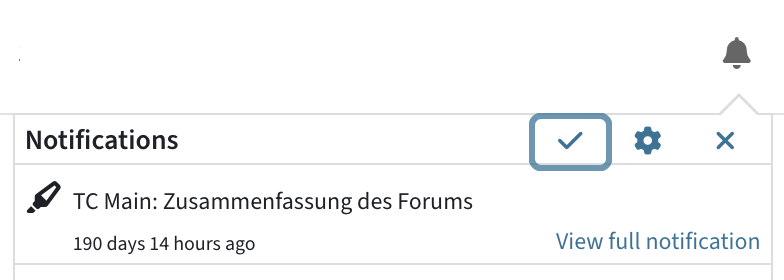
- In the Forum section, move the slider for Subscribed Forum posts to on (blue).

Please note: This setting applies to all forums! If you turn on email notifications here, you will also receive email notifications for all other subscribed forums in your TeachCenter courses!
Course forum
The forum facilitates the exchange between students and lecturers as well as among students. Each TeachCenter course comes with a forum in the General section by default. The forum can also be accessed via the course index on the left.
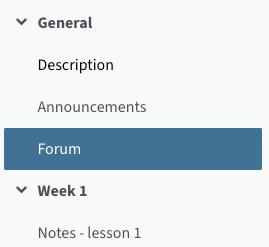
By default, you will only receive notifications about forums or threads that you have „subscribed“ to. If you write a thread or post in a forum, you are subscribed to this thread and will be notified about new contributions.
If you want to subscribe to a whole forum, you can do so by clicking the Subscribe to forum button.
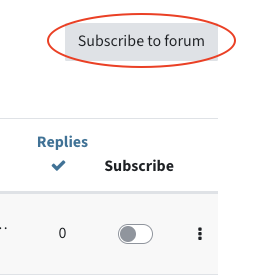
If you only want to subscribe to a single thread and its answers, you can do so with the slider next to the thread.

Managing forum notifications
By default, you will receive a system notification.
If you want to receive email notifications in addition to the system notification:
- Click the bell icon at the top, then the gear icon below that.
- In the Forum section, move the slider for Subscribed forum posts to on.
Please note: This setting applies to the whole TeachCenter, not just to one course! That means that you will receive email notificatons for all forums you are subscribed to.
Activating a forum digest
Instead of receiving a notification for each post individually, you can subscribe to a daily forum digest.
- Click on your initials at the top right –> Settings –> Forum preferences
- Choose the type of email digest you prefer, e.g. complete or topics.
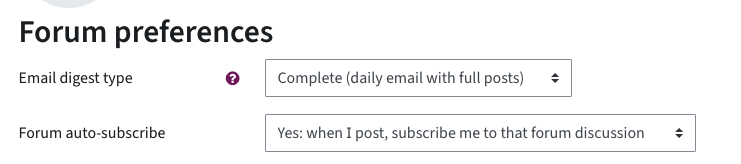
If you would also like to receive this digest via email:
- Click the bell icon at the top, then the gear icon below that.
- Go to the Forum section and move the slider for Subscribed forum digests to on.
Messages
Messages are direct messages in the TU Graz TeachCenter.
For each message, by default you will receive an email. Additionally, there is a notification at the speech bubble next to your initials.
Clicking the speech bubble opens your messages in the sidebar, where you can read and reply to them.
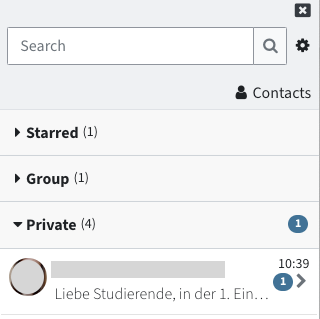
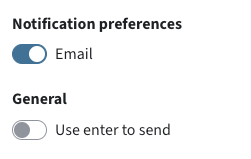
Clicking the gear icon in the sidebar opens the notification settings for messages.
You can select whether you also want to receive each message as an email (by default: on) using the slider.
Login notification
For every new login in the TeachCenter with your account, you will receive an information that someone has logged into your account. This is a security measure.
You will receive this notification when you log in with a new network (new IP address), a new device or after being inactive for 8 hours.
By default, you will receive a system notification.
If you would like to turn off the notifications:
- Click the bell icon at the top right, then the gear icon below that.
- In System, set both sliders for New login notifications to off.
Help & contact
If something does not work as described, get in touch – we will look into it.
