
TeachCenter calendar and students‘ calendar
Teachers, on the other hand, can use the TeachCenter calendar to enter their own appointments or events for courses and groups.
Both calendars can be synchronised with a wide range of calendar applications. You can keep an overview of all the important dates for your courses, with daily updates.
Overview of the calendars
What is the difference between the students‘ calendar and the TeachCenter calendar, and where do I find them?
The TeachCenter calendar displays appointments from the TeachCenter (e.g. group and course events such as submissions). The student calendar also displays TUGRAZonline events for all courses and exams for which students are registered, as well as dates for potential exams. However, students can only view their student calendar and cannot enter their own appointments.
Both calendars can be found via the main menu at the top > TC calendar or Student Calendar.

How does the TeachCenter calendar work and what events are recorded there?
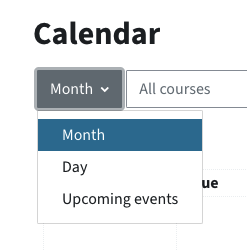
The view of the calendar can be switched between month, day and ‚upcoming events‘ (= 2 weeks).
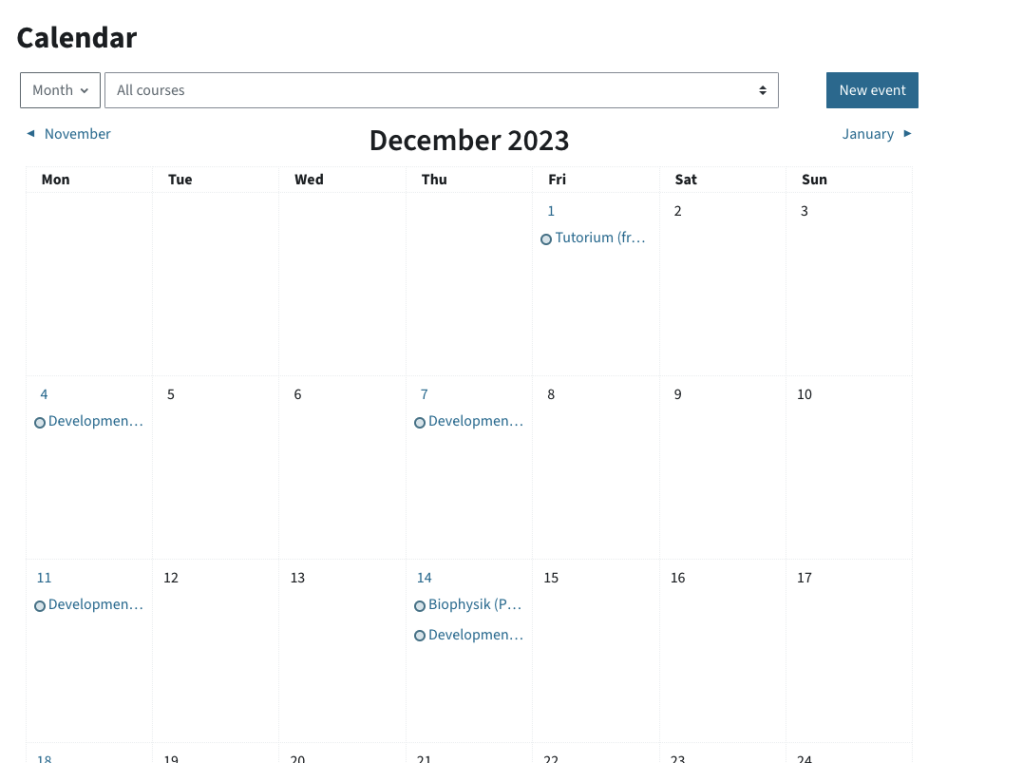
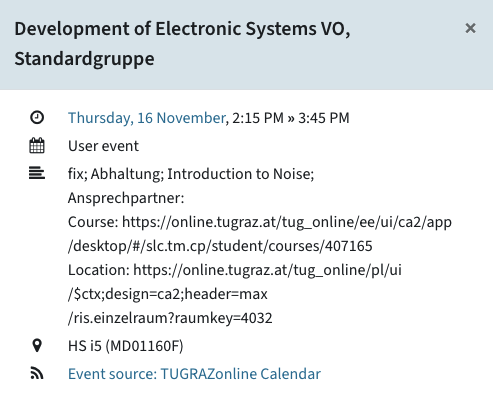
You can also use the drop-down menu to filter by course to display only appointments from a specific TeachCenter course. Clicking on an appointment shows more details about the event. If the event is, for example, the deadline for an assignment, you can go directly to the TeachCenter course or the assignment from there.
What you can see by default in the TeachCenter calendar:
Students see…
- Deadlines for TeachCenter activities in their courses, e.g. assignments.
- All dates that teachers have entered for a course or group in the TeachCenter
- Personal appointments that they have entered (directly in the TeachCenter calendar)
Teachers see…
- All events that have been entered in the TeachCenter for their own course or group
- Deadlines for TeachCenter activities in their courses, e.g. assignments
- Personal appointments that they have entered (directly in the TeachCenter calendar)
How does the students‘ calendar work and what events are recorded in it?
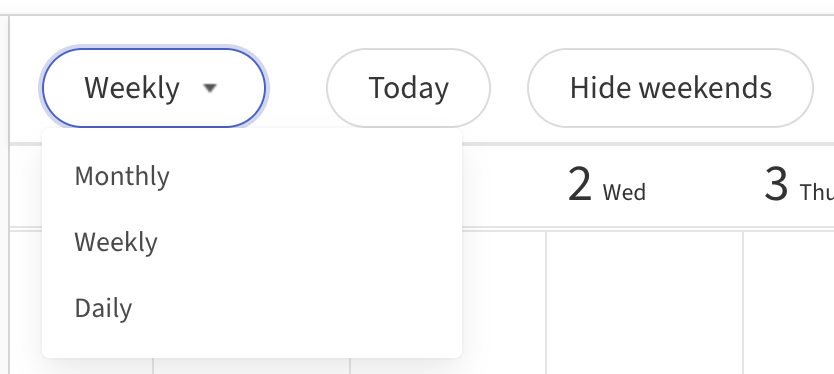
The calendar view can be switched between month, week and day.
The items on the left can be used to filter by appointment type (e.g. only potential exam dates).
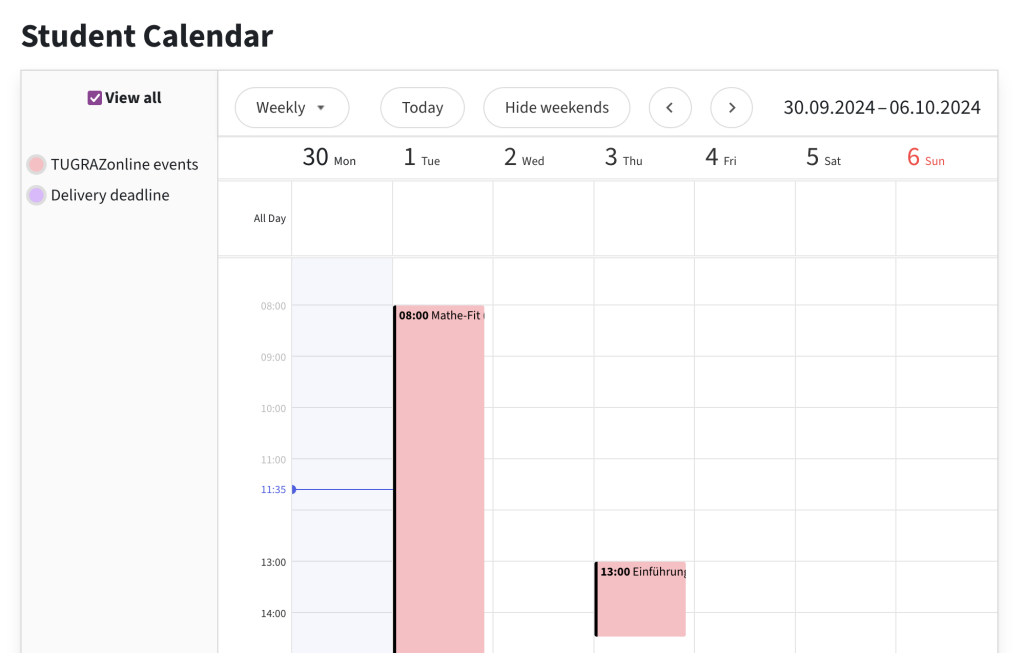
By clicking on an event, you can see more details about it, e.g. the room in which the course is held.
Note: Switching the language to English in the TeachCenter will only be applied to the contents of the calendar after one hour.
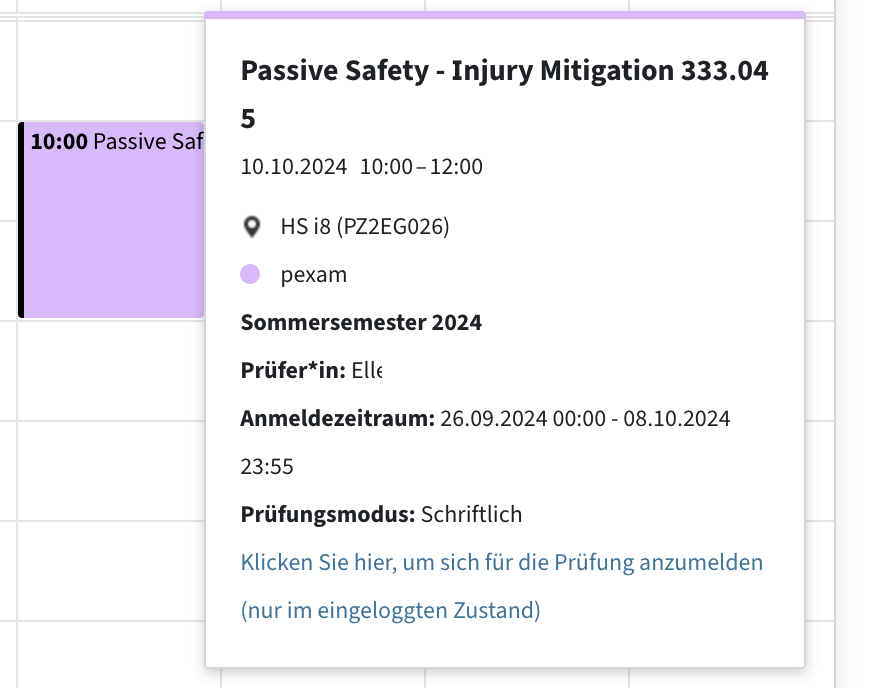
By default, these are the contents of the students‘ calendar:
Students see…
- TUGRAZonline dates for courses for which they are registered
- Exam dates for which they are registered on TUGRAZonline
- Potential exam dates for courses for which they are registered on TUGRAZonline
- Opening times and deadlines for TeachCenter activities for their courses, e.g. assignments
- All dates that teachers have entered for a course or group in the TeachCenter
- Personal appointments that they have entered (in the TeachCenter calendar)
Note: Dates are displayed for 120 days in the past and 180 days in the future.
Managing and exporting events
How to add your own events in the TeachCenter or students‘ calendar
In the TeachCenter calendar:
- Open the TeachCenter calendar.
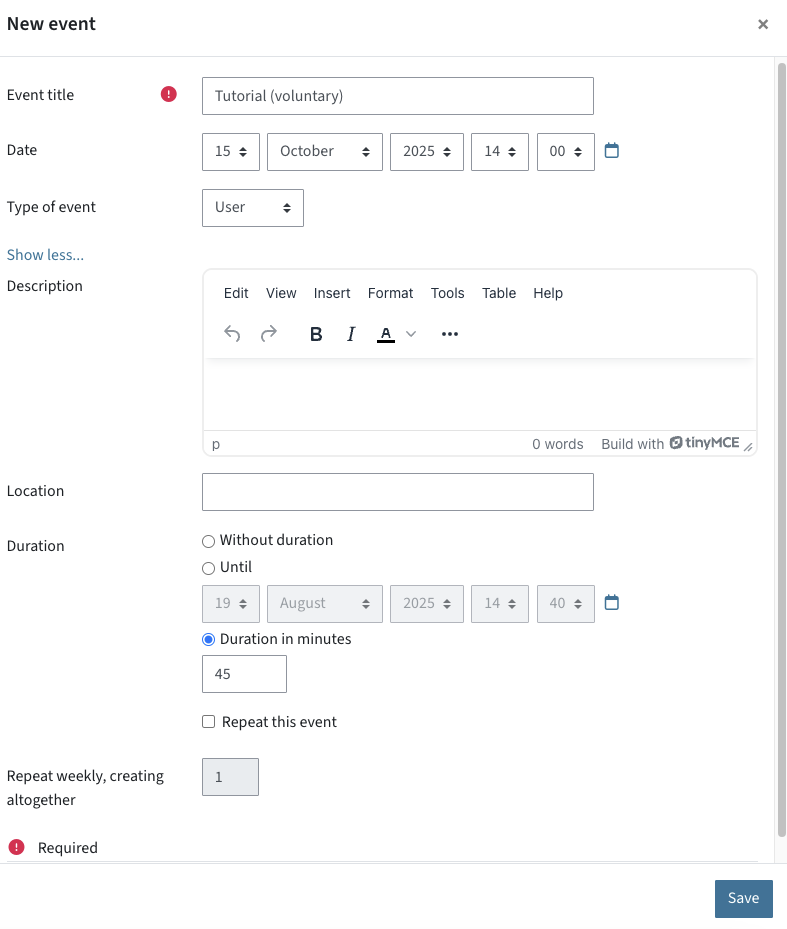
- Click on New event.
- Enter a title and a start time.
- By clicking on Show more, further fields will be displayed, such as location and duration.
- If you want to create a personal event, select the option User under Type of event.
- Teachers can also change the type of event to course or group event, and thus create an event for an entire course or a group of a course.
- Click on Save.
In the student calendar:
The student calendar is read-only; you cannot add your own events.
How to delete or hide appointments
In the TeachCenter calendar:
- You can delete personal events that you have entered by clicking on the event > Delete.
- Course events can only be deleted if the corresponding activity is deleted by teachers.
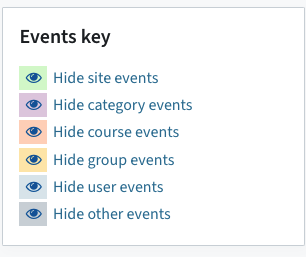
- You can hide individual types of events by expanding the sidebar on the right in the calendar view and clicking on the eye icon next to a type.
In the student calendar:
- Events cannot be deleted or edited because the calendar is read-only. Events only disappear if the corresponding event in TUGRAZonline or the TeachCenter activity is deleted by teachers, or if you unsubscribe from the course.
- You can filter individual types of events using the items on the left.
How to export the calendars or synchronise them with other apps
To import one of the two calendars into another calendar app (Outlook calendar, Google calendar, etc.), you have to create a calendar export (file or link).
In the TeachCenter calendar:
- Click on Import or Export Calendars below the calendar view.
- Click on the Export calendar button.
- Select the type of event you want to export: All events, course-related events (e.g. deadlines for submissions) or personal events.
- Select the period of time that you want to export. You can select a period of up to one year into the future.
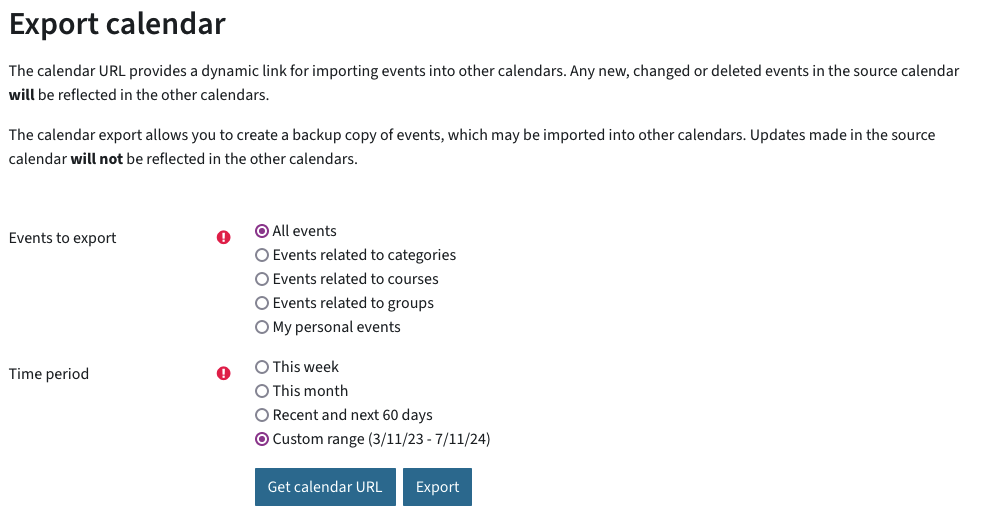
If you want the exported calendar to be continuously synchronised and updated with the TeachCenter calendar, or if you want changes in the calendar to be synchronised as well, click on Get calendar URL. This will provide you with a link that you can enter in your calendar app. Changes in the TeachCenter calendar will then be transferred to the other calendar app in the future as well. The link only needs to be entered once in your calendar app. The synchronisation will then take place automatically.
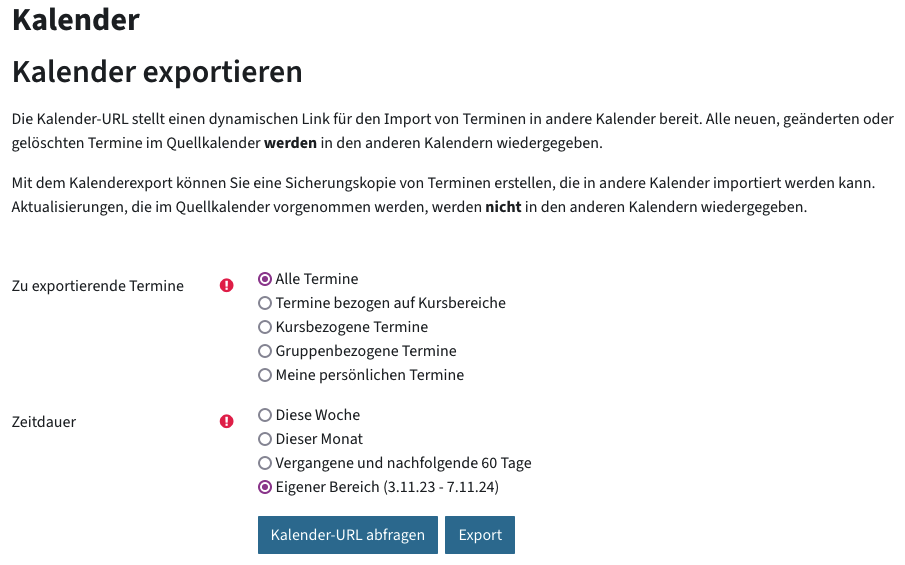
If you only want to do a one-time export but do not want to synchronise future changes to events, click on Export. You will receive an .ics file that you can upload to another calendar app. With this option, you will have to export again after the selected export period in order to import future appointments into your own calendar.
Exporting the student calendar
In the student calendar, you will find three options directly below the calendar:
- Exam dates URL: Export of potential exam dates. You will receive a link that you can enter in your calendar app.
- Export Moodle events: Export of the TeachCenter calendar, see above.
- TUGRAZonline calendar URL: Export of appointments from TUGRAZonline (courses, exams). You will receive a link that you can enter in your calendar app.
Please note: As in the calendar itself, the export covers a period of 120 days into the past and 180 days into the future.
Help & contact
If something does not work as described, get in touch – we will look into it.
