
Exams in the TeachCenter Exam: STACK
STACK questions and answers contain mathematical expressions. Stack evaluates the mathematical expressions entered using computer algebra systems. Answers are not just compared with a model answer, but it is also possible to recognise and give feedback for consequential errors.
It is possible to create randomised questions or multiple choice questions with STACK as well.
Creating a STACK exam
Creating an exam and choosing STACK question type
Create a „Quiz“ activity in the TU Graz TeachCenter.
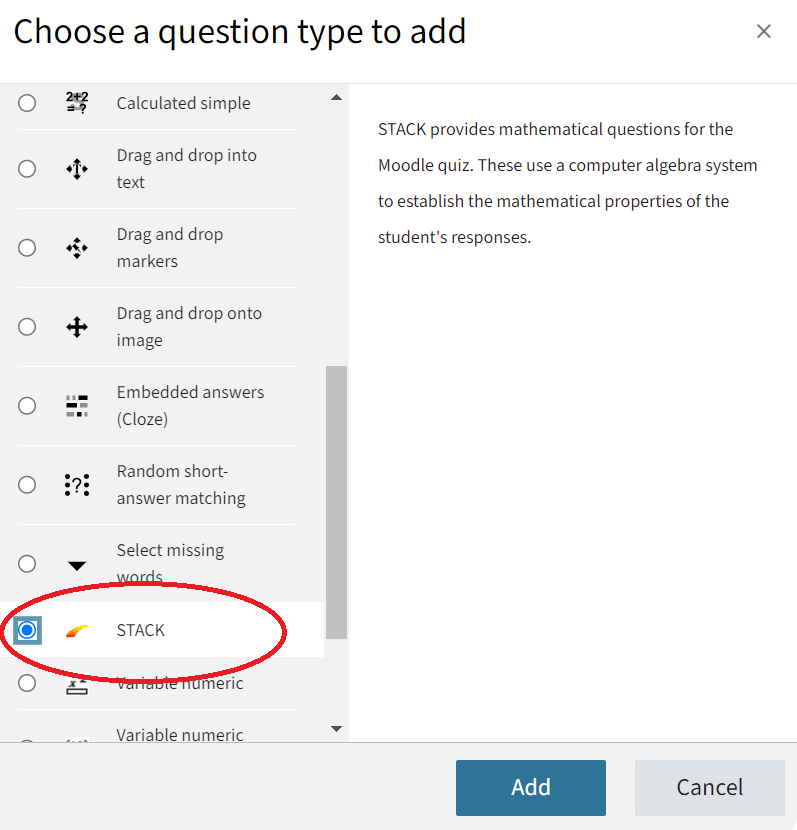
Add a question to a „Quiz“activity or to your question bank as usual. Select the question type STACK in the pop-up menu and click Add.
Entering question and model answer
The „Stack“ question interface features numerous settings. However, only the question name, the question text (which students see), a model answer at Input:ans1 and a test for correctness are mandatory.
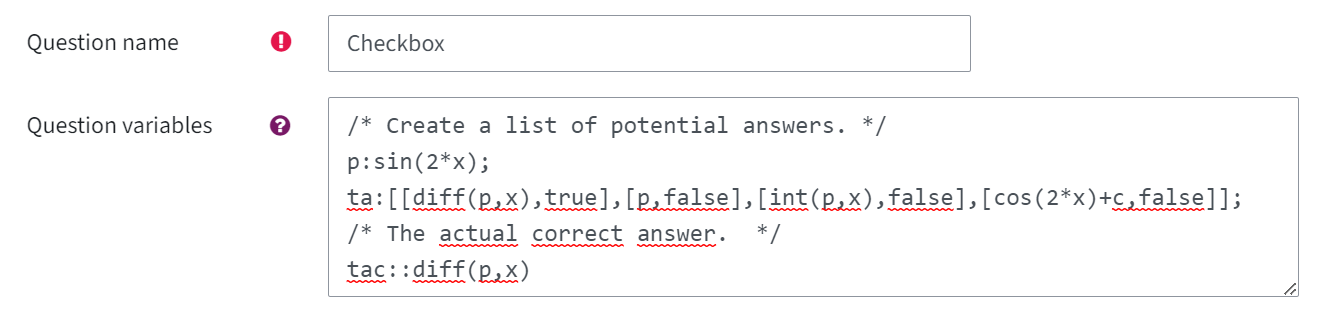
- Question name: give the question a title.
- Question variables: Here you can define variables that will be used in the task, such as in a test answer (in the screenshot: variables „p“, „ta“ and „tac“).
- Question text: Enter the assignment here which students will see later. Do not delete the tags [[input:ans1]] [[validation:ans1]]. However, you can replace „ans1„ with a name of your choice. You can also use previously defined variables (in the screenshot: {@p@} was previously defined as p:sin(2*x)). Please note: Use the text-only editor for this. You can change the editor in your profile.
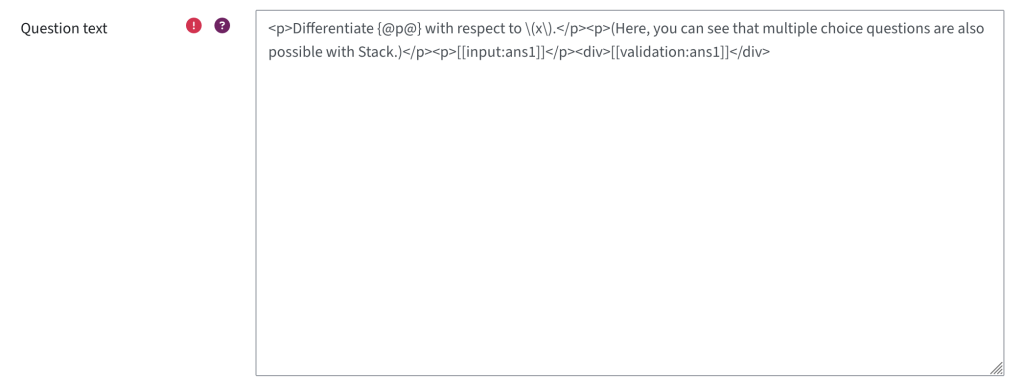
- [[input:ans1]] is later displayed as a box in which students can enter their answers. [[validation:ans1]] stands for the feedback on the input, e.g. missing brackets. [[feedback:ans1]] stands for the feedback from the response tree that appears later, e.g. feedback on the calculation path or the result. These tags can be inserted anywhere in the question text. Use (..) and [..] as the format for inline formulas and mathematical expressions instead of $..$ and $$..$$ as in LaTeX.
- A question can also demand several inputs. To do this, insert further inputs and feedback fields with a different name at the appropriate place, e.g. [[input:ans2]].
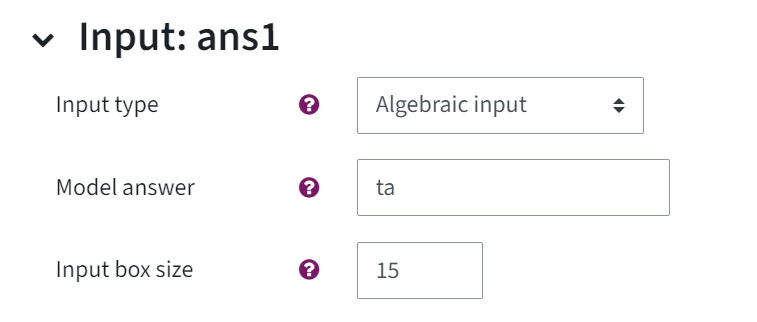
- Input:ans1 (the name of the section changes depending on the variable name) – Click on this section to expand it. Enter at least a model solution in the corresponding field, either written out in full or as a previously defined variable (here: „ta“).
- Maxima syntax must also be used for the model solution instead of LaTeX syntax. You will find more information on correct input in the STACK documentation in the Answer Input section. (external site)
- Different input types can be selected for the model solution. The default is algebraic input.
- If the question requires several inputs, a model answer must be defined for each input.
- Response tree: The response tree is used to decide whether the students‘ answer is correct. By default, there is a response tree with a response node for each input.
- The students‘ answer (SAns) is compared with the teacher’s answer or model answer (TAns). If they match (=AlgEquiv at answer test), the TRUE node is executed. If they do not match, the FALSE node is executed.
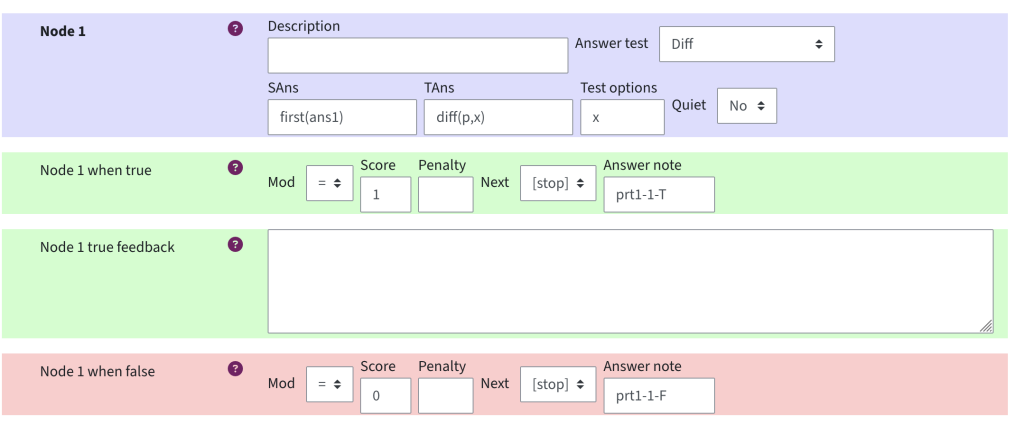
- In each node, points (score) or penalties can be given based on the answer. In addition, textual feedback for students can be stored in each node. For more complex answers, it is possible to select where to continue in the tree or that the response tree ends here (=[stop]). An answer hint can also be given.
- Save the questions by clicking Save changes and continue editing at the bottom of the page.
Please note: Before students complete the quiz, you should test your questions. You also need to generate answer variants for questions if they contain random variables. In the next step, we describe how this works.
Previewing and testing questions
- Click Preview next to the „Save changes and continue editing“ button to see a preview.

- At the top right, there is an information that question tests or variants are missing. Click on it.

- To add a test case for a question without randomised variables, click Add a test case and fill in the input and expected answer. Please note: Only the result is checked, not the calculation.
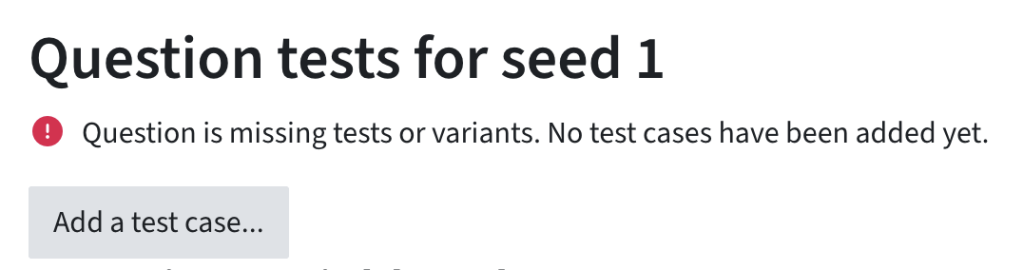
We recommend writing several test cases, e.g. correct answer, wrong answer and any common mistakes students might make.
Adding tests and variants for questions with randomised variables
If your question contains random variables, you have the option to pre-generate and save „variants„. Students will then receive one of these options.
By testing variants, you can rest assured that the values students will receive actually work, are of the same difficulty or that they do not contain any values that have exceptions associated with them. The use of pre-generated variants reduces the server load during a test.
If no variants are saved, students will receive completely randomised variables.
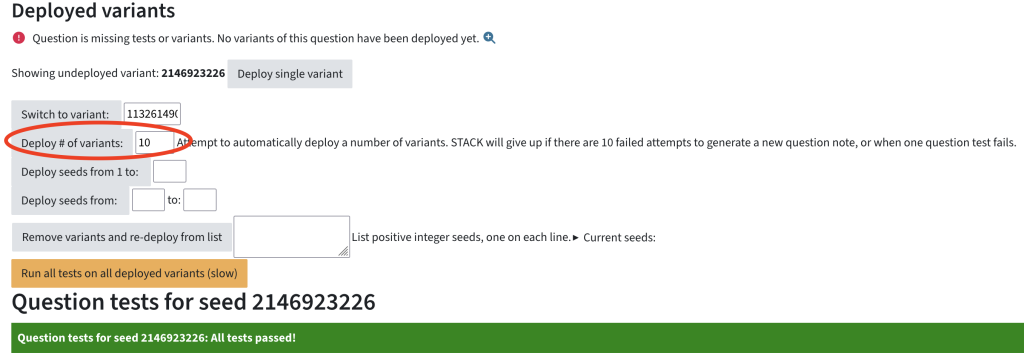
- Open the question preview. At the top right, you will see an information that tests or variants are missing. Click on it.
- Tragen Sie bei # Varianten bereitstellen die gewünschte Zahl and Zufallsvariablen ein und klicken Sie auf den Button. Hinweis: STACK bricht das Hinzufügen von Varianten ab, wenn ein Test fehlschlägt.
- Insert the number of variants you want to deploy next to Deploy # of variants and click on the button. Please note: STACK will stop adding variants if a test fails.
During and after a STACK exam
Student Input
- Students find STACK questions, like other question types, in a quiz in the TeachCenter (Exam).
- Students enter their answers using mathematical expressions. STACK interprets the input and displays how the input was interpreted. Students must confirm their input again.
- Students receive the feedback stored in the feedback tree and the corresponding points.
Grading STACK questions
- Questions on Stack are assessed by the response tree. The points are awarded just like for any other question type in the TeachCenter, and can be found in the overall grade of the quiz.
- To see more detailed results, switch to the Results tab in the quiz, just like with other question types.
For more information on grading a quiz in the TeachCenter, see the manual „Grading“
Help & contact
If something does not work as described, get in touch – we will look into it.
